All posts
Karolina Konopka
Customer Success Manager

 4 min read
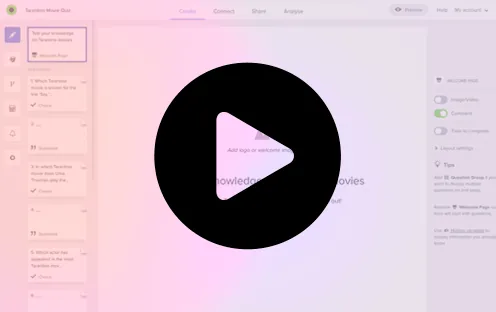

In digital education and online interactions, quizzes play a pivotal role in assessing and reinforcing learning. Google Forms, a versatile tool offered by Google, provides a user-friendly platform for creating quizzes that are not only easy to set up but also engaging for participants.
In this step-by-step guide, we’ll walk you through how to create a quiz in Google Forms and set it up for automatic grading.
Creating quizzes in Google Forms
Follow these simple steps to build your first quiz:
Step 1: Access Google Forms To get started, open your Google Drive and click on the ”+ New” button. From the drop-down menu, select “Google Forms.” This will open a new form where you can begin customizing your quiz.
Step 2: Choose a Quiz Template (Optional) Google Forms offers several pre-designed quiz templates. You can choose a template that suits your needs or start with a blank form and design it from scratch. To access templates, click on the template gallery icon in the upper right corner.
Step 3: Enable Quiz Mode This is the most important step! Click on the Settings tab at the top of the form. Toggle the switch that says “Make this a quiz”. This enables answer keys and point values.
Step 4: Create Quiz Questions Click on the “Untitled form” field to give your quiz a title. Then, add your first question by clicking on the ”+” icon. Google Forms supports various question types, including multiple-choice, short-answer, and more. Choose the type that fits the content of your quiz.
Step 5: Customize Question Options & Answer Key For each question, click “Answer key” at the bottom. Select the correct answer(s) and assign point values. You can also add feedback for incorrect answers to help students learn.
Step 6: Organize Sections (Optional) If your quiz has multiple sections or topics, consider organizing them by adding sections. Click on the “Add section” button to divide your quiz into logical parts. This feature is particularly useful for longer quizzes or assessments covering various subjects.
Step 7: Adjust Quiz Settings Click on the gear icon in the upper right corner to access the form settings. Here, you can configure options such as collecting email addresses, limiting responses to 1 per person, and choosing whether to show missed questions.
Step 8: Preview and Test Your Quiz Before sharing your quiz with others, take advantage of the preview feature (eye icon) to ensure everything looks and functions as expected. Test each question to verify that correct answers are being captured accurately.
Step 9: Share Your Quiz Once you’re satisfied with your quiz, click on the “Send” button in the upper right corner. You can share your quiz via email, generate a link to share, or even embed it on a website.
Consider other option - create a quiz on Responsly
While Google Forms undoubtedly provides a robust set of tools for quiz creation and management, there are instances where its capabilities may fall short of meeting your specific needs. When you encounter a scenario where you’re seeking functionalities beyond what Google Forms can offer—like timers, certificates, AI generation, or advanced branding—it’s worth exploring Responsly.
Responsly fills the gaps and introduces innovative elements, particularly suitable for those looking to elevate their quiz experiences.
How to create a quiz on Responsly
Creating a quiz on Responsly is a straightforward process. Follow these steps:
- Sign in or Sign Up: Log in to your Responsly account.
- Use AI Generator: Instead of typing questions manually, simply tell the AI: “Create a 10-question history quiz about Ancient Rome”, and it will generate the entire quiz for you.
- Customize with Media and Links: Enhance engagement by adding images, videos, and links to questions. Personalize the quiz to make it visually appealing.
- Configure Quiz Settings: Fine-tune your quiz by adjusting settings such as response collection limits and quiz duration (timers) to meet your requirements.
- Share your quiz: Click on the share option and distribute your quiz. Responsly streamlines the sharing process for easy participant access via QR codes or links.
- Monitor Responses: Keep track of participant responses in real-time using Responsly’s analytics dashboard.
With Responsly, you can quickly and effectively create engaging quizzes tailored to your audience, delivering a seamless experience.
Creating quizzes with Google Forms is a straightforward process that empowers educators, trainers, and businesses to assess knowledge. However, if you’re looking for more advanced quiz creation options like AI generation and timers, consider the Responsly platform for a seamless and efficient assessment process.