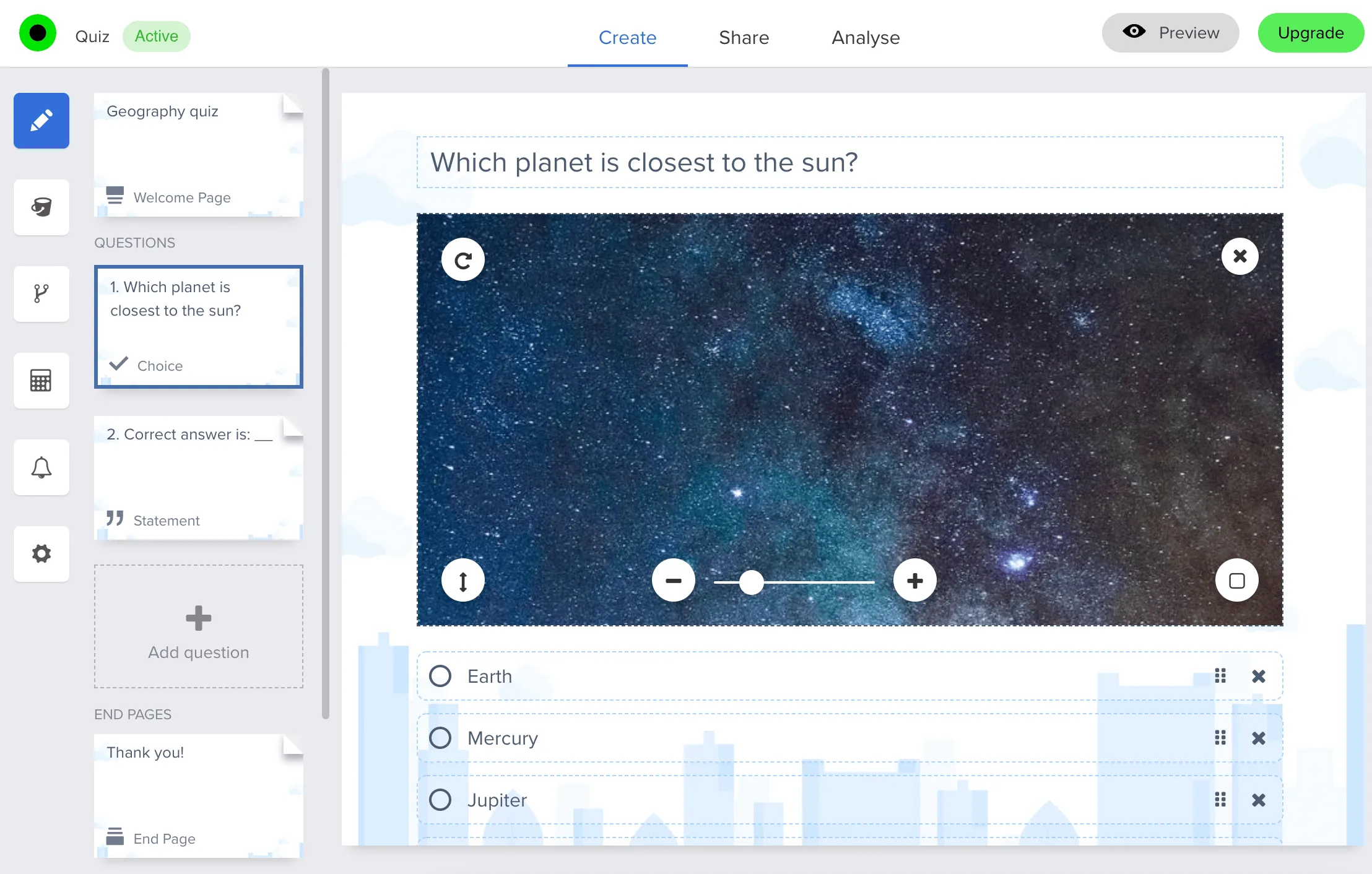
You can add images and animated GIFs to your questions, as well as to the survey introduction and ending screens. This helps you brand the survey with your logo, design language, and photography. For the overall form background (full-page look in the editor), use How to change the background in a survey.
There are two ways to add images to your survey: using our integrated Unsplash-powered library or uploading your own.
- Click on any question you want to add an image to, then click Add next to Image or video under Question settings to open the media gallery:
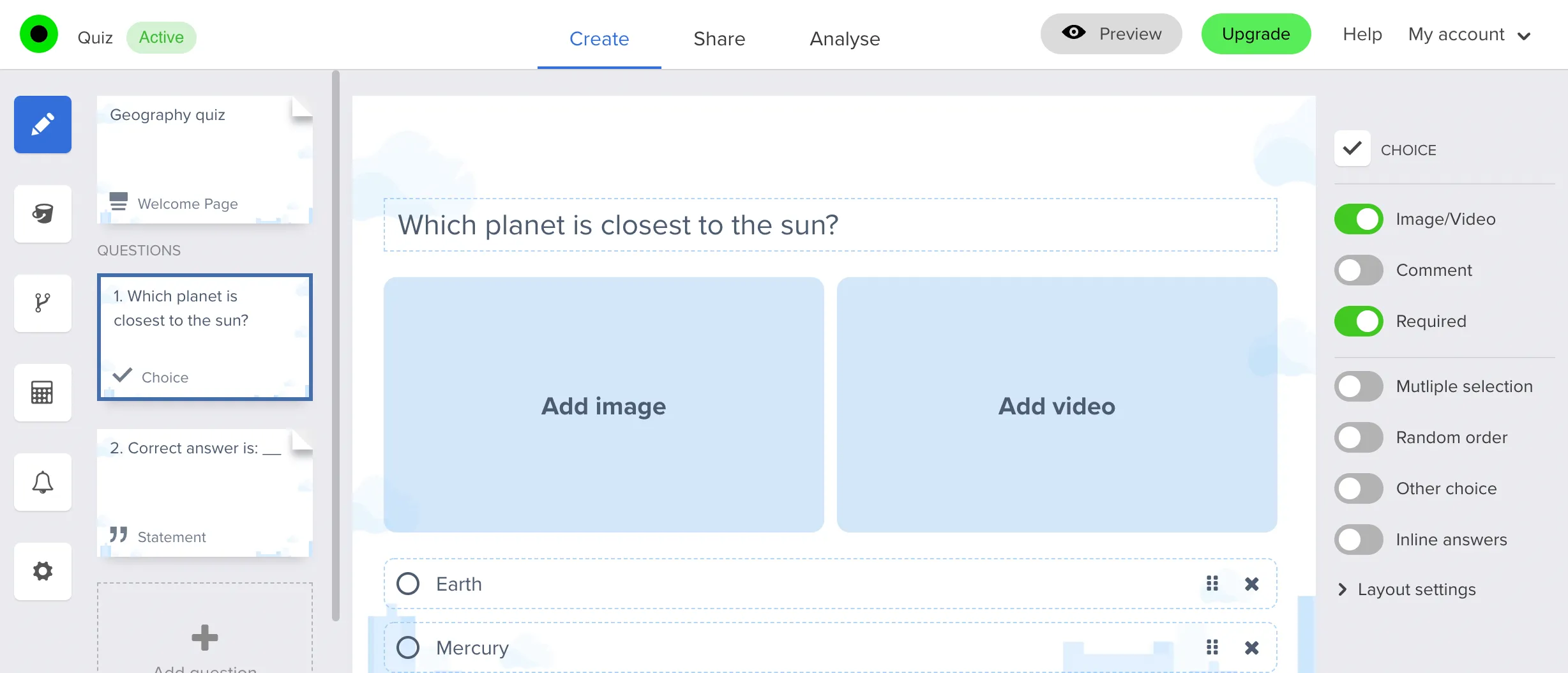
Now you can decide if you want to add a photo or video.
Now you can upload an image or GIF by clicking Upload or you can search for a picture via the Unsplash image library. Simply type in a search term, and scroll through the images until you find one you like.
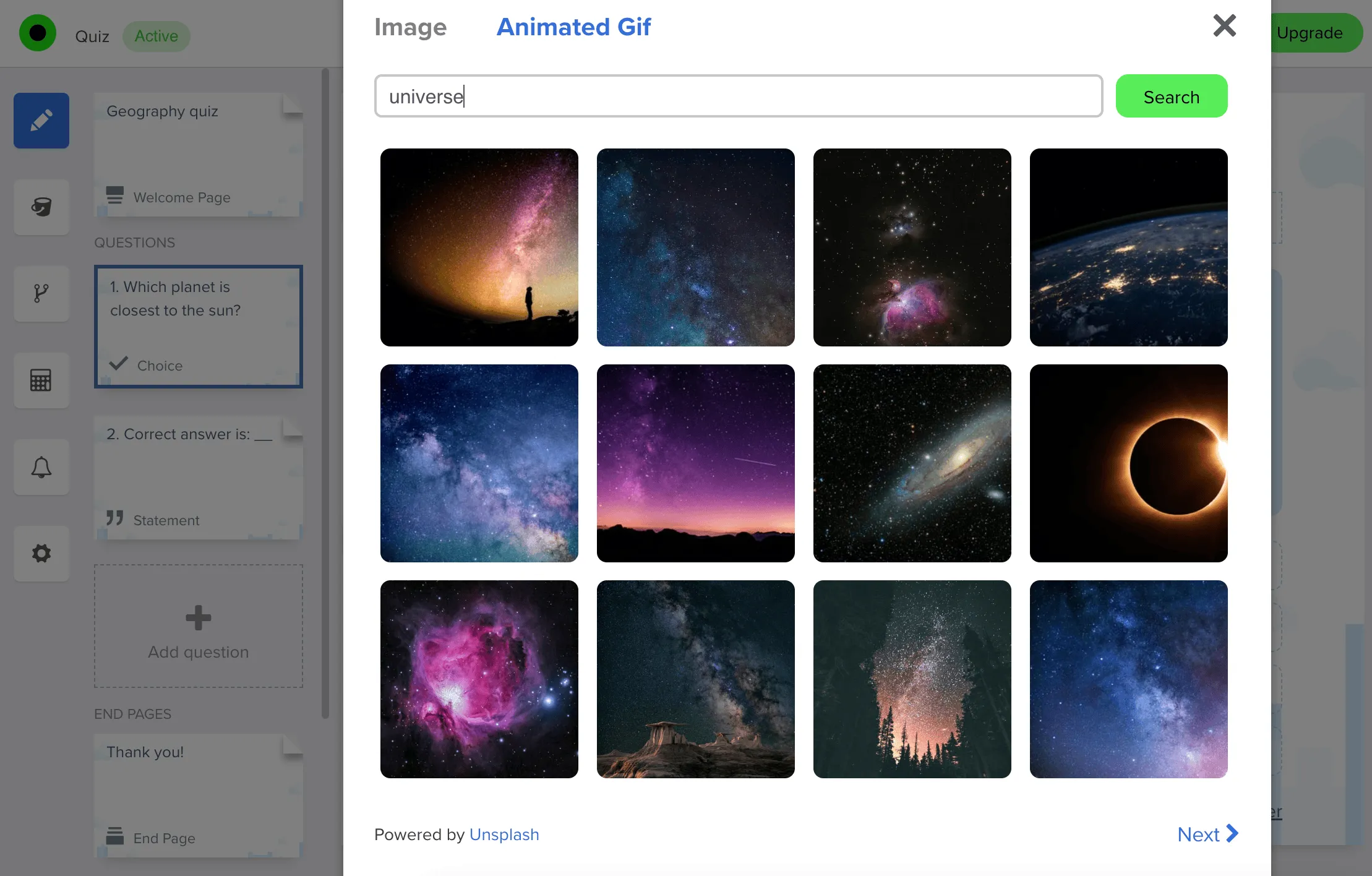
Click the image you want to load it automatically in your survey.
Hover over the image to reset position, change image height, zoom in or out, and turn the border on or off. If you want to delete the image or replace it with another one, click x.