When you distribute a survey on your own website, the Responsly website widget (classic embed) can open automatically so visitors see your form at the right moment—without hunting for a small tab or button first.
Open automatically lives under Advanced in the widget builder. This guide explains how to enable it, which timing and placement rules you can choose, how to test on a live site, and how to pair the widget with good survey copy and privacy practices.
Who this is for
You need:
- A Responsly form you can edit.
- Permission to add JavaScript to your pages (typically the widget script plus the
<responsly-widget>snippet before</body>). - The Widget / classic embed flow—not only the Standard tab that outputs a plain iframe or link without the widget’s Advanced options.
Automatic open is a distribution choice for on-site feedback, promotions, or research. It complements email, QR codes, and shareable links rather than replacing them.
Turn on Open automatically
Follow these steps in Responsly:
- Open the form you want on your site.
- Go to Share (or your workspace flow for website / embed).
- Open the classic embed / website widget configuration—the screen where you pick ribbon, circle, button, and the window type (popup, slider, and so on).
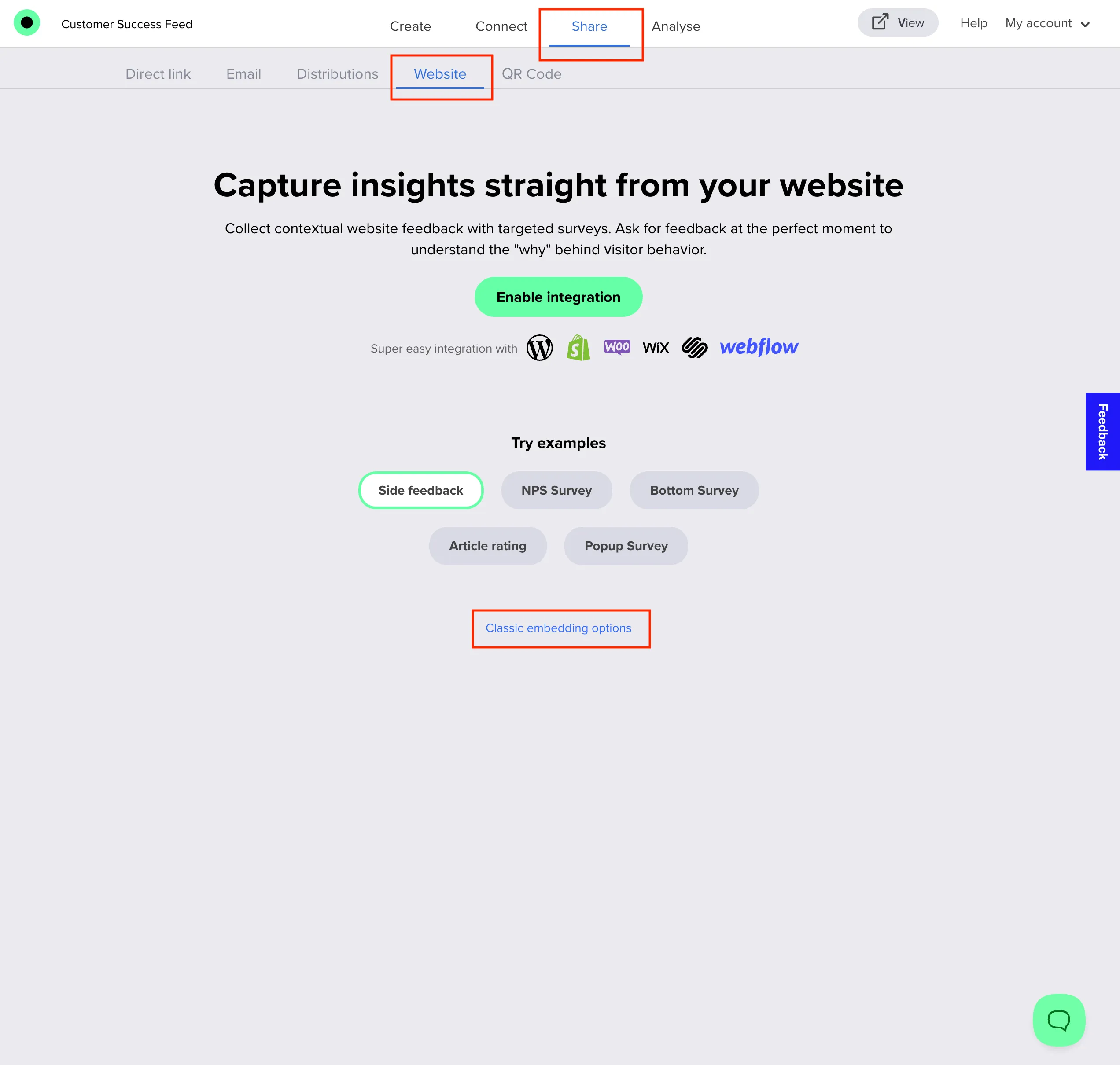
- Set trigger and window appearance as usual (these control how the launcher looks and how the survey panel opens when the widget runs).
- Expand Advanced.
- Turn on Open automatically.
- In the dropdown, choose when the widget should open (see Automatic open modes below).
- If the selected mode asks for a value, enter it (for example seconds for a delayed open, the period number for Once per period, or a URL fragment for On specific URL—match what the UI labels on your screen).
- Optionally turn on Close after fill and set seconds if you want the widget window to collapse shortly after submit.
- Click Get code, copy the script and widget snippet, and add them to every page (or template) where the behavior should run.
After deployment, publish form changes in Responsly when you update questions or branding so the embedded experience stays in sync.
Automatic open modes
Use the mode that fits the visitor journey. Treat these as alternatives for the main auto-open rule—not something to stack arbitrarily in one snippet.
| Mode | When it helps | What to expect |
|---|---|---|
| On page load | You want immediate visibility on key landings (campaign pages, help center home). | The widget can open as soon as the page loads—strong visibility; use sparingly to avoid feeling intrusive. |
| After some seconds | You want people to orient first (e.g. after reading a headline), then ask for feedback. | Opens after the delay you set in seconds—a common choice for post-purchase or content pages. |
| After scrolling | You want engaged readers—people who scroll are more likely to respond. | Opens on the visitor’s first scroll on the page (any scroll event). Test on a real page in case your layout uses nested scroll containers. |
| On specific URL | You only want the prompt on certain paths (checkout thank-you, pricing, docs). | Restricts automatic open to URLs that match what you configure—keeps other site sections quiet. |
| Once per period | You want to cap how often the same visitor sees an automatic open. | Sets a repeat window via a cookie so automatic open does not fire on every return visit—enter the interval in Advanced as shown in the app. |
| On exit intent | You want a last chance to capture feedback when someone appears to leave. | Desktop-oriented pointer behavior; does not apply the same way on touch-only devices. See Trigger your Responsly survey on exit intent. |
Close after fill is separate: it controls optional auto-close timing after submit, not when the widget first appears.
Use case: NPS (Net Promoter Score) on key pages
Net Promoter Score (NPS)—the “How likely are you to recommend us…” question with a 0–10 scale—is one of the most common reasons teams embed an automatic website widget: you capture loyalty in context, right after someone has used your product or site, without waiting for an email campaign.
Goal: Show a short NPS flow when the visitor is already engaged (for example after account, dashboard, or thank-you flows), not the instant the HTML loads.
Suggested setup:
- Build your NPS form in Responsly (scale + optional follow-up for promoters / passives / detractors).
- Choose a launcher that stays subtle (ribbon or circle) so people who already dismissed or completed the survey are not visually overwhelmed.
- Under Advanced, enable Open automatically → After some seconds (often 5–15 seconds) so the page content and task outcome appear first—or use After scrolling if NPS should target readers who move past the fold.
- Prefer On specific URL when the same site-wide snippet could otherwise open NPS everywhere; limit auto-open to post-purchase, onboarding done, or help article paths you care about.
- Add Once per period so the same visitor is not prompted on every return visit—NPS is most useful when frequency is controlled.
- Turn on Close after fill if you want the panel to collapse quickly after submit and return focus to the page.
Pair the form with a clear survey introduction so visitors know why you are asking, how scores are used, and how long it takes.
Verify on your live site
- Deploy the snippet to staging or production (not only an internal preview).
- Load the page in a clean browser profile or incognito with extensions disabled where possible.
- Confirm the automatic open fires according to the rule you chose (wait for the delay, scroll, or match the URL).
- Submit a test response and confirm Close after fill if enabled.
- Re-test as a returning visitor if you use Once per period or hide-after-dismiss rules—behavior should match your expectations.
If automatic open never fires, check ad blockers, consent banners that defer third-party scripts, and that the same snippet is present on the exact URL you are testing.
Troubleshooting
| Issue | What to check |
|---|---|
| Widget never opens automatically | Confirm Open automatically is on, the mode matches your test (delay vs URL vs scroll), and script blockers are off. |
| Opens on the wrong pages | Switch to On specific URL or split embeds per template so only intended routes load this snippet. |
| Too aggressive / annoying | Increase delay, switch from page load to after scrolling, or rely on manual open via the launcher only. |
| Exit intent unreliable on mobile | Exit intent is mouse-based on desktop; plan a delay or scroll mode for mobile-heavy traffic or ask Responsly support about tailored embed options. |
| Preview in Responsly does not match the site | Test on the real URL with your CMS theme; layout and scroll containers affect behavior. |
Related workflows
Publish your form with How to create a survey, set expectations on the first screen with Survey introduction, and when you are ready to analyze results use How do I export survey data?. For leave-page timing specifically, read Trigger your Responsly survey on exit intent.