Tablets belong to your team. Once connected, a tablet can show any form of the team that has the Kiosk channel on. The team’s owner and its admins connect tablets and change them; everyone who edits a form sees the list.
Connect a tablet
- Install the Responsly Kiosk app on the tablet.
- In Responsly, open any form and go to Share → Kiosk.
- Choose Add tablet. A QR code and a pairing code appear. They are valid for 10 minutes and connect one tablet.
- Open Responsly Kiosk on the tablet and choose Allow camera to scan the QR code, or choose Type the code instead, enter the code and choose Connect.
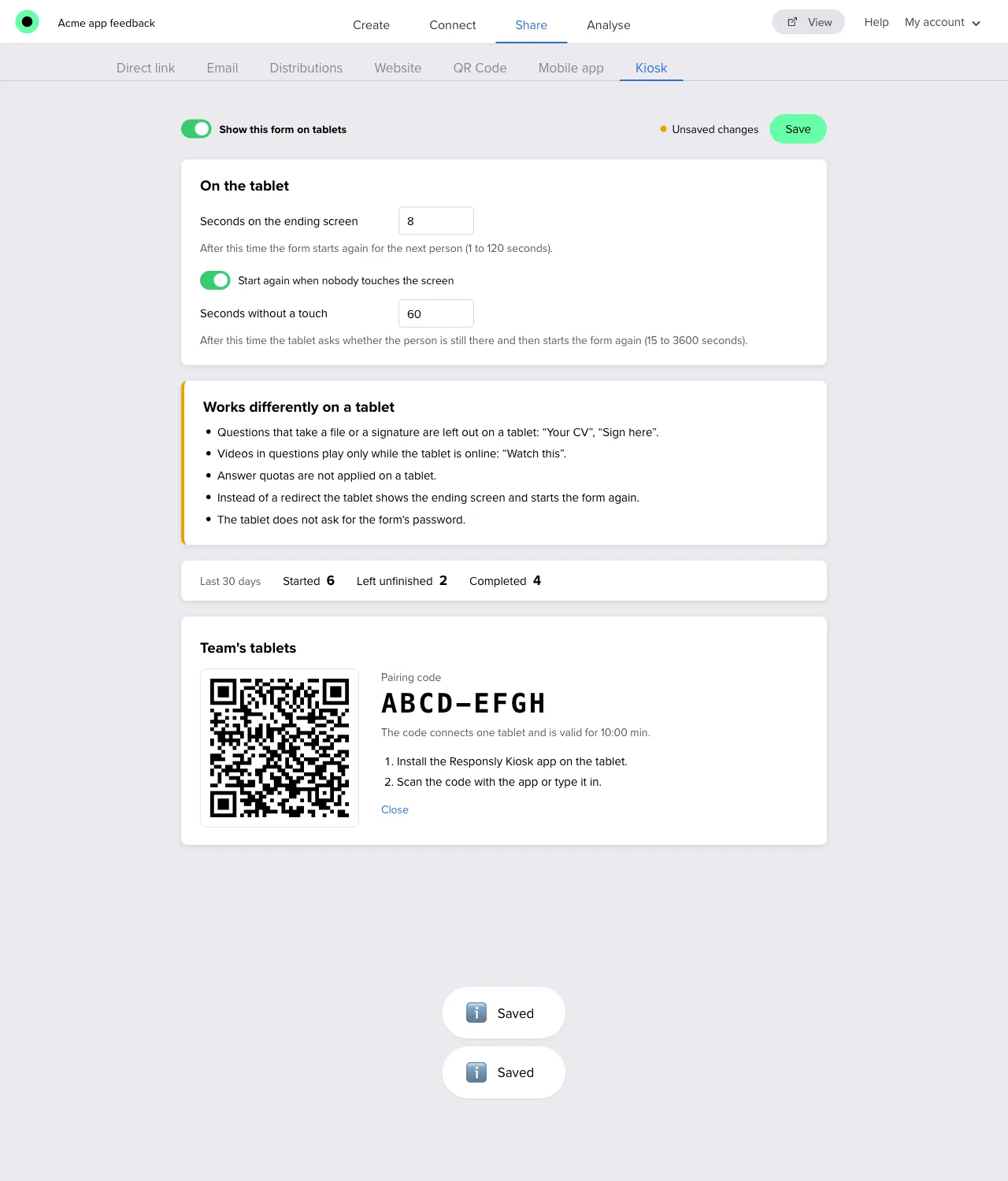
Responsly says Tablet connected and the tablet appears in the Team’s tablets list. No Responsly password is typed on the tablet.
Note: The tablet needs an internet connection while it is being connected and while it downloads its forms. After that it works without one.
Name the tablet and set its PIN
A new tablet takes its name from the device and gets a random exit PIN. Choose Edit next to the tablet to change:
- Name, shown in the list and on the app’s staff screen. Use one that tells you where the tablet stands, for example Reception.
- Exit PIN, 4 to 8 digits, typed on the tablet to leave a form.
- Hidden fields. Every response from this tablet carries these values in the form’s hidden fields of the same names.
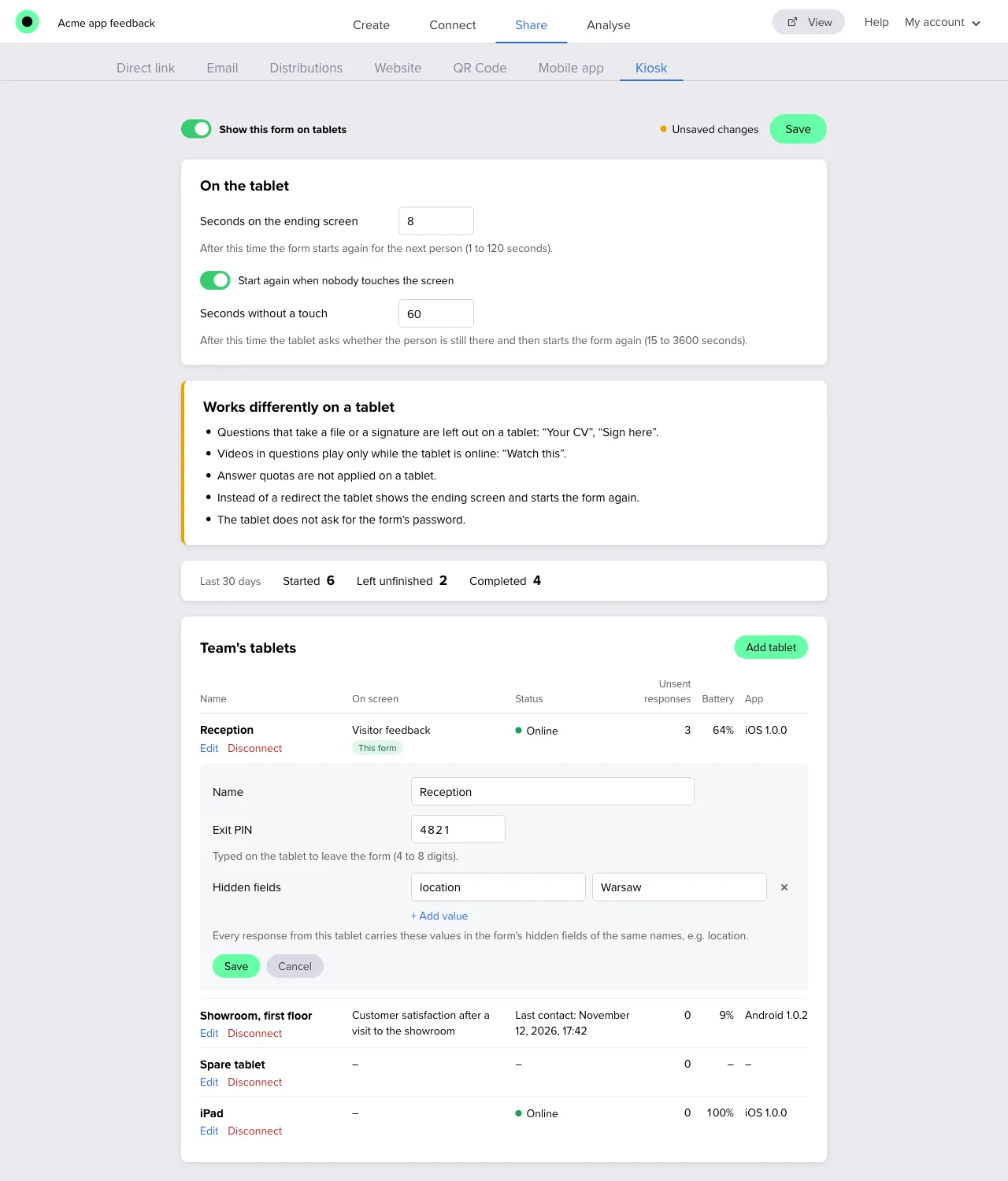
Changes reach the tablet with its next sync: within a few minutes while it is online, or at once when you choose Sync now on the tablet.
Tell your locations apart
To know which tablet a response came from, use a hidden field:
- Add a hidden field to the form, for example
location. See Hidden fields. - For each tablet, choose Edit, then Add value, and enter the field name
locationand the tablet’s value, for example Warsaw.
Every response from that tablet now has location = Warsaw, which you can use in filters and exports like any other hidden field. A tablet can have up to 20 values. A field name can contain letters a–z, digits, _ and -.
Read the list of tablets
| Column | What it shows |
|---|---|
| Name | The tablet’s name. A tablet that was just connected is highlighted. |
| On screen | The form the tablet is showing now. This form marks the form you have open. Another form means a form in a workspace you do not have access to. |
| Status | Online when the tablet was in contact in the last 15 minutes, otherwise the time of its last contact. |
| Unsent responses | Responses the tablet has collected and not sent yet, as of its last contact. |
| Battery | The battery level, as of its last contact. |
| App | The system and the version of the app. Hover to see the tablet’s model. |
A tablet that is offline cannot report: the list shows what it said the last time it had a connection.
Disconnect a tablet
Choose Disconnect next to the tablet and confirm. The tablet stops working with your team at once: it no longer downloads forms or sends responses, and it shows a notice that it was disconnected.
Note: Before you disconnect a tablet, let it send what it has collected. Responses that were not sent stay on the tablet and can be sent only after it is connected to the same team again. Removing the app from the tablet deletes them.
A tablet can also be disconnected on the tablet itself, with Disconnect this tablet on the staff screen. To connect it again, add it with a new pairing code.
If a tablet is lost
Disconnect it in Responsly. The tablet can no longer send anything to your results or download your forms, and reconnecting it takes a new pairing code, which only the team’s owner or an admin can create.