If you want to create accessible forms in Responsly, this guide helps you fix the most common issues that prevent people from completing your survey with a keyboard, screen reader, zoom, or low-vision settings.
Use it as a practical troubleshooting flow to improve survey accessibility before publishing. It is also a useful quality check if you want your form experience to align more closely with WCAG 2.1 AA and Section 508 accessibility expectations.
Why accessible forms matter
Accessible forms are not only about compliance. They directly affect completion rate, response quality, and trust.
- Higher completion rates: more respondents can finish the survey without confusion or friction.
- Better data quality: clear labels and instructions reduce wrong answers and drop-off.
- Lower accessibility risk: your survey is easier to review against WCAG-based requirements.
- Better user experience for everyone: readable design and predictable navigation help all users, not only people using assistive technology.
In practice, accessible survey design often improves usability for mobile users, older users, and anyone completing a form in less-than-ideal conditions.
Accessibility principles to use as your checklist
You do not need to memorize formal standards language to improve form accessibility. Start with these four principles on every survey page:
- Perceivable: text, controls, and feedback are easy to see, read, or hear.
- Operable: users can navigate and complete the survey with keyboard-only input.
- Understandable: questions, instructions, and error messages are clear.
- Robust: the survey works reliably with assistive technologies and common browsers.
If one of these areas fails, the survey may still look correct visually but become difficult or impossible to complete for part of your audience.
Troubleshooting: common accessibility issues in forms
Issue 1: Low contrast makes questions hard to read
Symptoms
- Respondents say labels are hard to read.
- Buttons blend into the background.
- Mobile users need to zoom to understand the form.
How to fix
- Use strong contrast between text and background.
- Make buttons, links, and form controls clearly visible in all states.
- Do not use color alone to communicate errors, status, or required fields.
- Recheck readability on both desktop and mobile preview.
Expected result
Questions, answer options, and action buttons remain readable without zooming or guessing.
Issue 2: Screen readers do not provide enough context
Symptoms
- A field is announced as “edit field” without meaning.
- A respondent can tab through the survey but does not understand what each input is for.
- Image-based questions are confusing without text alternatives.
How to fix
- Use explicit question labels for every field.
- Keep placeholder text as support, not as the only instruction.
- Add short helper text where the expected answer is not obvious.
- Use descriptive alt text or a text equivalent when media is necessary for answering.
- Replace vague link text like “click here” with specific action text.
- If you use custom HTML or embeds, keep the structure semantic and avoid breaking accessible naming.
Expected result
A screen reader user can identify what each field means, what action is required, and what happens next.
Screen reader testing should include at least one real assistive technology pass before publish, for example NVDA, JAWS, VoiceOver, or TalkBack.
Issue 3: Keyboard navigation is broken
Symptoms
- The Tab key skips inputs or buttons.
- Focus disappears while moving through the survey.
- A respondent cannot reach the submit button without a mouse.
How to fix
- Test the full survey using only keyboard: Tab, Shift+Tab, Enter, and Space.
- Confirm that all interactive elements are reachable in a logical order.
- Make sure the visible focus state is easy to see.
- Avoid custom scripts or embed code that trap focus or reorder interactive elements.
- Compare the embedded survey with the direct Responsly share link to see where the problem starts.
See also: Website embedding.
Expected result
Respondents can start, navigate, answer, review, and submit the survey without using a mouse.
Issue 4: Required fields are unclear or frustrating
Symptoms
- Respondents submit the form and get repeated validation errors.
- Users do not know which questions are required.
- Error feedback appears too late or is too vague.
How to fix
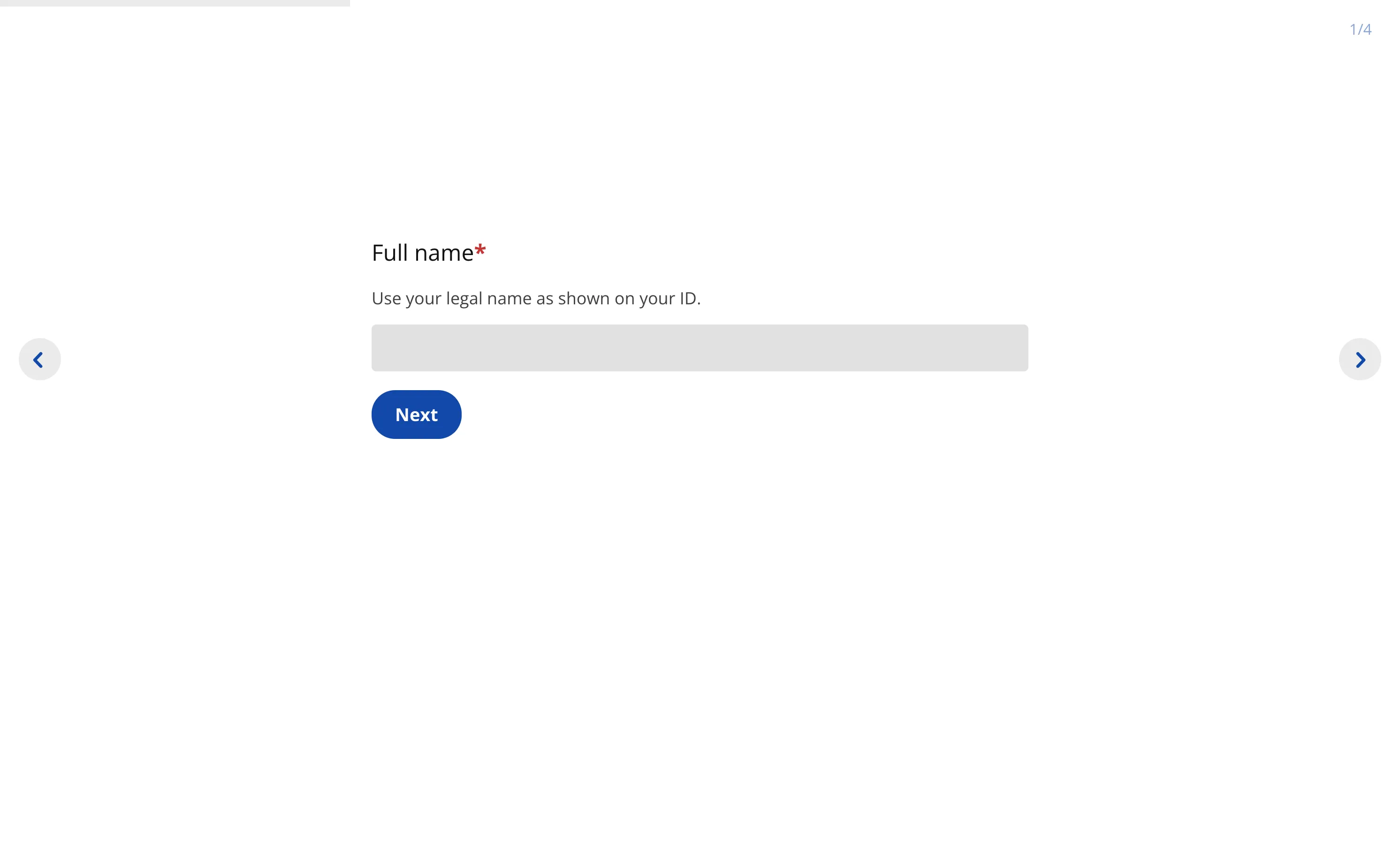
- Mark required questions clearly and consistently.
- Add short instruction text near the start of the survey if required fields are used throughout.
- Write specific validation messages that explain both the problem and the fix.
- Avoid making too many questions mandatory unless they are truly necessary.
- Make sure required state is communicated in more than one way, not by color alone.
Expected result
Users understand what must be completed before submit and can recover quickly if an error appears.
Issue 5: The content is technically correct but still hard to understand
Symptoms
- Drop-off is higher in longer or more complex sections.
- Respondents send clarifying questions.
- Users hesitate on questions that combine multiple requests at once.
How to fix
- Rewrite long prompts in plain language.
- Split multi-part questions into short, separate questions.
- Avoid internal jargon, abbreviations without context, and ambiguous wording.
- Group related questions into a clear step-by-step flow.
- Keep answer choices short and easy to scan.
For setup basics, see How to create a survey.
Expected result
Respondents move through the form faster and with fewer misunderstandings.
Issue 6: The direct survey works, but the embedded version does not
Symptoms
- The hosted survey behaves correctly, but the embedded version does not.
- Focus order changes after embedding.
- Styles or scripts from the parent website reduce readability or break navigation.
How to fix
- Test the direct survey URL first.
- Test the embedded version separately on the target page.
- Check whether custom CSS changes contrast, spacing, or focus visibility.
- Review scripts that manipulate modals, containers, scrolling, or tab order.
- If the direct link works and the embed fails, treat the host page as the source of the issue.
Expected result
You can isolate whether the accessibility issue comes from the survey itself or from the website environment around it.
Pre-publish accessibility checklist
Before launching, run this quick QA pass:
- Confirm text and background contrast is readable on desktop and mobile.
- Navigate the complete survey using keyboard only.
- Verify that every question has a clear label.
- Check helper text, required state, and validation messages.
- Confirm images or media have a useful text alternative when needed.
- Test both the direct survey link and the embedded version.
- Complete one full submission as a new respondent from start to finish.
- Run at least one screen reader pass on a real device.
If your team uses accessibility goals, save this checklist as part of your normal survey QA process instead of treating it as a final review step.
For end-to-end checks, see Testing the survey.
Common mistakes that reduce accessibility
- Choosing branding styles that reduce readability.
- Using placeholder text instead of clear labels.
- Publishing without keyboard-only testing.
- Writing long, multi-purpose questions.
- Using vague error messages.
- Assuming the embedded version behaves exactly like the direct-link version.
- Adding custom code before validating the basic survey flow.
Accessibility best practices in Responsly
Responsly is built to WCAG 2.1 AA. Surveys are keyboard operable end to end with a visible focus indicator, every field carries an explicit label for screen readers, default themes meet the 4.5:1 text and 3:1 interface contrast minimums, and validation messages are announced by assistive technology and tied to the field they describe.
That covers the foundations. What the platform cannot decide for you is question choice, custom brand colors, and image alt text — which is what the checklist above is for.
When building surveys in Responsly, focus first on clarity, structure, and predictable interaction.
A good accessible survey usually has:
- clear labels for every field,
- readable contrast,
- visible keyboard focus,
- short instructions,
- specific validation feedback,
- logical question order,
- testing in both hosted and embedded environments.
If you are aiming for stronger accessibility alignment, review your survey against WCAG 2.1 AA expectations and test with real assistive technology before publishing.
Final recommendation
Treat accessibility as part of survey QA, not as a final cosmetic pass.
The best accessible online forms are clear, easy to navigate, screen reader friendly, keyboard accessible, and tested in real conditions before they go live.