Use the Logic module when later questions should depend on earlier answers. With transition rules, you can show only relevant questions, build better quiz flows, support order-like paths, and create more personalized forms.
An example of setting up the logic
We have created a satisfaction survey with four questions. The first question is a rating on a 1-5 scale based on smiley faces and three open-ended questions that justify the choice. We only want to display one open-ended question depending on the rating selected. Of course, you can use one open question, but thanks to logic, we can still react to the assessment in the form and, in the event of a low grade, apologize to the client and ask what we can improve. Such a content structure increases the survey’s completion rate and gives better answers.

To create transition rules, go to the Logic tab - the icon is marked in the image above. After entering the Logic module, you will see a list of questions with the option of adding rules.
To obtain the above-described effect of displaying the questions, we will add three rules to the first question:
- in the case of grades 1-3, we will move on to question 2
- in the case of a rating of 3, we will move on to question 3
- in the case of a 4-5 mark, we will go to question 4
Here are the added rules:

You also need to add rules to the text questions using the add rule option, which works in any case, and goes to the end of the survey. Here’s what it should look like:
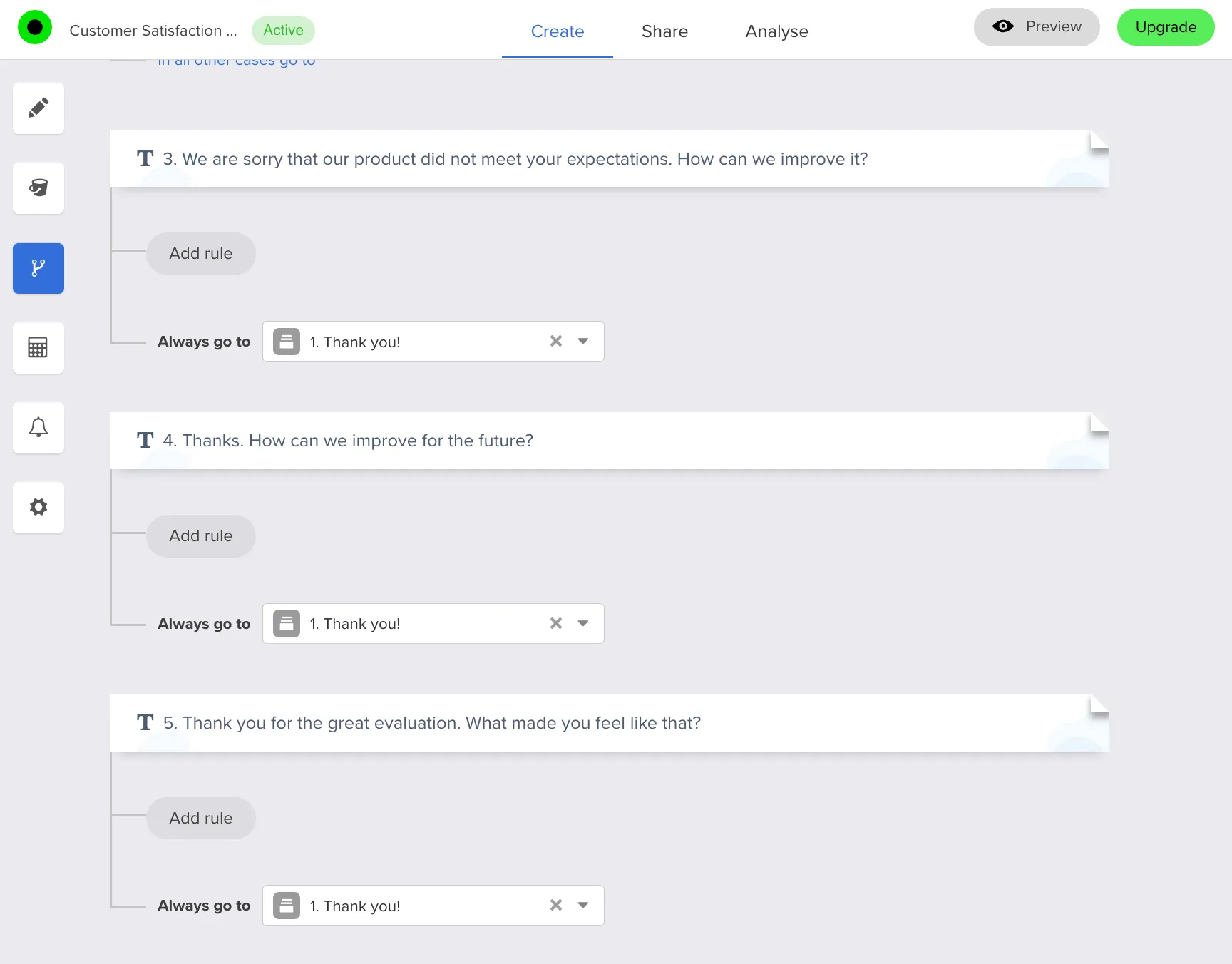
Now you can test the survey. In case of problems with setting up rules, we are always ready to help.