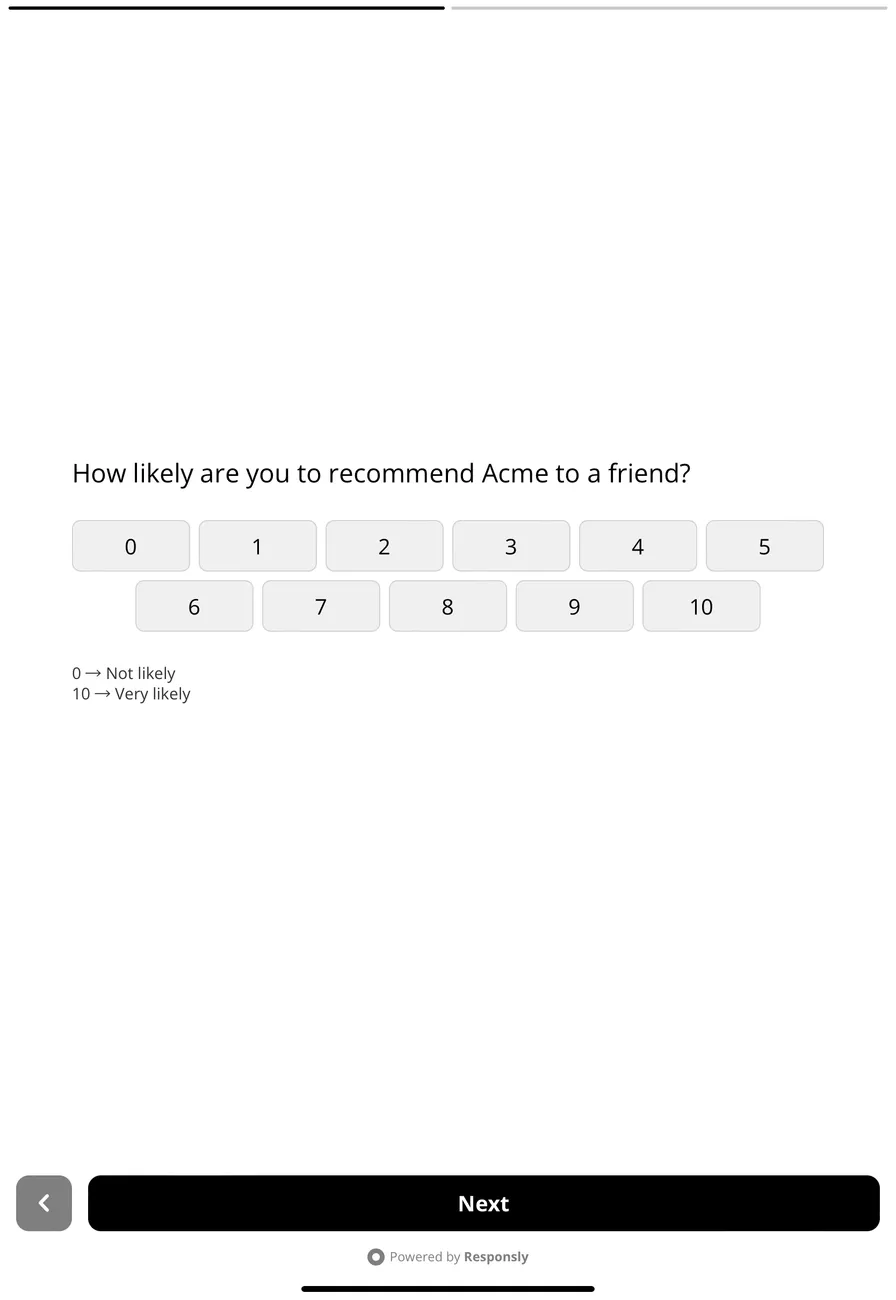
Responsly Kiosk is an app for iPads and Android tablets that shows one of your forms on the full screen, for one person after another: at a reception desk, in a shop, at an event stand. After each response the form starts again by itself, and the tablet does not need a connection while people answer.
What you need
- Access to kiosk surveys. The Kiosk channel is switched on per team, and the Responsly Kiosk app is provided on request. Write to contact@responsly.com with the name of your team and the tablets you use (iPad or Android).
- A tablet with the Responsly Kiosk app installed: an iPad or an Android tablet.
- A form. Any Responsly form works. A few question types behave differently on a tablet, see Set up a form for kiosk tablets.
- The team’s owner or an admin, to connect the tablet. Everyone who edits a form can then show it on the team’s tablets.
How it works
- A tablet is connected to your team once, with a pairing code from Responsly. Nobody types a password on it.
- The tablet downloads every form of your team that has the Kiosk channel on, with its pictures, fonts and translations.
- You start one of these forms on the tablet. It fills the screen and starts again after each response.
- Each response is saved on the tablet first and sent to your results when the tablet has a connection.
Set it up
1. Connect a tablet
In Responsly, open a form, go to Share → Kiosk and choose Add tablet. Open Responsly Kiosk on the tablet and scan the QR code, or type the pairing code.
The details, and how to name a tablet or change its exit PIN, are in Connect and manage your kiosk tablets.
2. Show the form on tablets
In the form’s Share → Kiosk tab, turn on Show this form on tablets and choose Save. Here you also set how long the ending screen stays and what happens when someone walks away in the middle. See Set up a form for kiosk tablets.
3. Start the form on the tablet
The form appears in the Forms list of the app once it is downloaded, marked Ready, works offline. Choose Start.
To leave the form, hold the top right corner of the screen for two seconds and type the exit PIN shown on the app’s staff screen.
4. Keep people in the form
The exit PIN keeps people inside the form. To keep them inside the app as well, turn on Guided Access on an iPad or confirm screen pinning on Android. See Keep people in the form.
5. Read the responses
Responses from tablets appear in the form’s results with all the others, each with the time it was given at. See Kiosk responses in your results.
Where to go next
- How kiosk surveys work offline: what is kept on the tablet and when it is sent.
- Troubleshooting and FAQ: a form that does not appear, responses that wait, a forgotten PIN.