With the Responsly Mobile SDK, a survey appears inside your app at the moment you choose: after a purchase, on a given screen, when the app starts, or when the user taps a button. The survey is the same form you build in Responsly, shown in a native window over your app.
What in-app feedback is good for and which moments are worth asking about is covered on the in-app surveys page. This guide is about setting it up.
What you need
- Access to mobile app surveys. The feature is switched on per team, and the SDK packages are provided on request. Write to contact@responsly.com with the name of your team and the platforms you build for.
- A developer, once. They add the SDK to the app and tell it what the user does. See Install the Responsly Mobile SDK in your app.
- A form. Any Responsly form works. See Create and design a survey for your mobile app.
The SDK supports iOS, Android, React Native, Flutter and Unity.
How it works
- Your app starts and the SDK downloads the settings of your mobile surveys.
- While the app is used, it tells the SDK who the user is, what they do and which screen they are on.
- The SDK compares that with the rules of each survey. The check happens on the device.
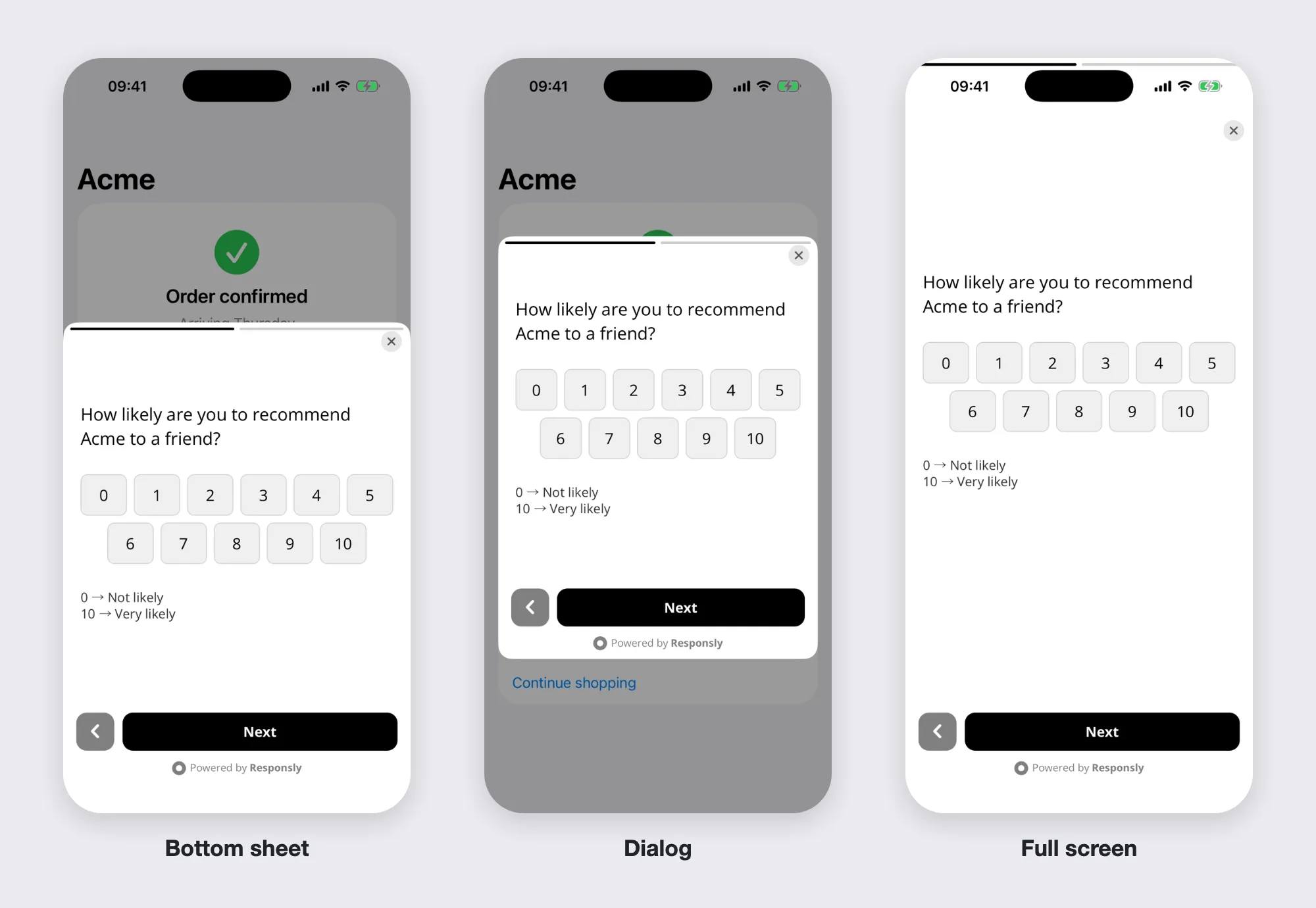
- When a survey matches, it opens in a bottom sheet, a dialog or on the full screen.
- The response is saved in Responsly with your other responses to that form.
Set up your first mobile survey
- Get access. Once the feature is on for your team, every form has a Mobile app tab under Share.
- Install the SDK. Send your developer the SDK key from the Mobile app tab and the link to the developer documentation.
- Create the form. Keep it short: one to three questions work best in an app.
- Switch the channel on. Open the form, go to Share → Mobile app and turn on Show this form in the mobile app.
- Choose when it appears. Under When to show, add a trigger, for example the event your app sends after a purchase. See Choose when and to whom a mobile survey appears.
- Save. A note next to the Save button tells you when there are unsaved changes.
- Check it on a phone. Do the action that triggers the survey in a test build of the app. Changes reach a device within about 10 minutes.
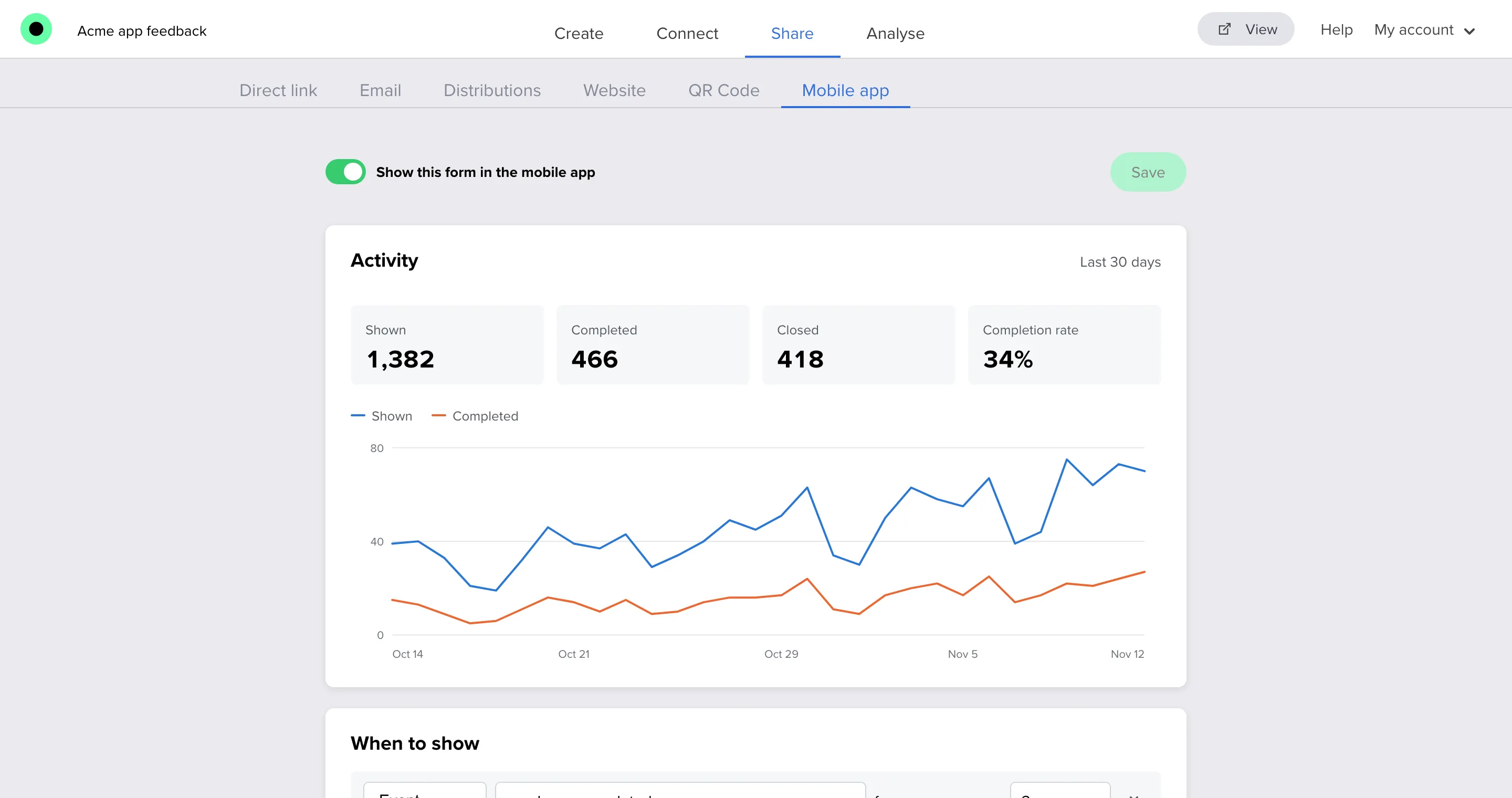
After the first users see the survey, the Activity card fills with numbers. See Check the activity and results of a mobile survey.
What you can change without an app update
| Without an app update | Needs a new app version |
|---|---|
| Questions, logic, translations and the end page | Installing or updating the SDK |
| Colors and fonts of the form | Sending a new event or screen name from the app |
| Who sees the survey, when and how often | Passing a new user attribute |
| The window: bottom sheet, dialog or full screen, and its size | Adding a button that opens a survey |
| Switching a survey on or off |
Tip: Ask your developer to send a few more events than you need today, such as order placed, onboarding finished or support chat closed. You can then start a new survey on any of them without waiting for a release.
Next steps
- Install the Responsly Mobile SDK in your app
- Create and design a survey for your mobile app
- Choose when and to whom a mobile survey appears
- Set how often a mobile survey appears
- Identify app users and pass data to responses
- Mobile app surveys: FAQ and troubleshooting