When you share a survey or form link, Google Analytics helps you understand how people find your form, whether campaigns are working, and how traffic behaves on the respondent-facing page. Responsly connects your form to analytics using your Universal Analytics tracking ID (UA-...) directly from the builder—no manual paste of full JavaScript snippets required.
This guide covers what you need in Google, where to enable the integration in Responsly, how to verify data, and what to try if numbers look missing.
Before you start
You need:
- A Google Analytics property that provides a Universal Analytics tracking ID in the form
UA-XXXXXXXX-X(not a GA4 measurement ID starting withG-). - Editor access to the Responsly form where you want tracking.
- The public URL people use to complete the form (use this URL when testing).
If your organization has moved fully to GA4 and you only have a G-... measurement ID, use Google Tag Manager instead (see Google Tag Manager vs Google Analytics below).
Connect Google Analytics in Responsly
Follow these steps in the form editor:
- Open the form you want to measure.
- Go to Integrations in the builder navigation.
- Scroll to Tracking & pixels (or find Google Analytics in the integrations list).
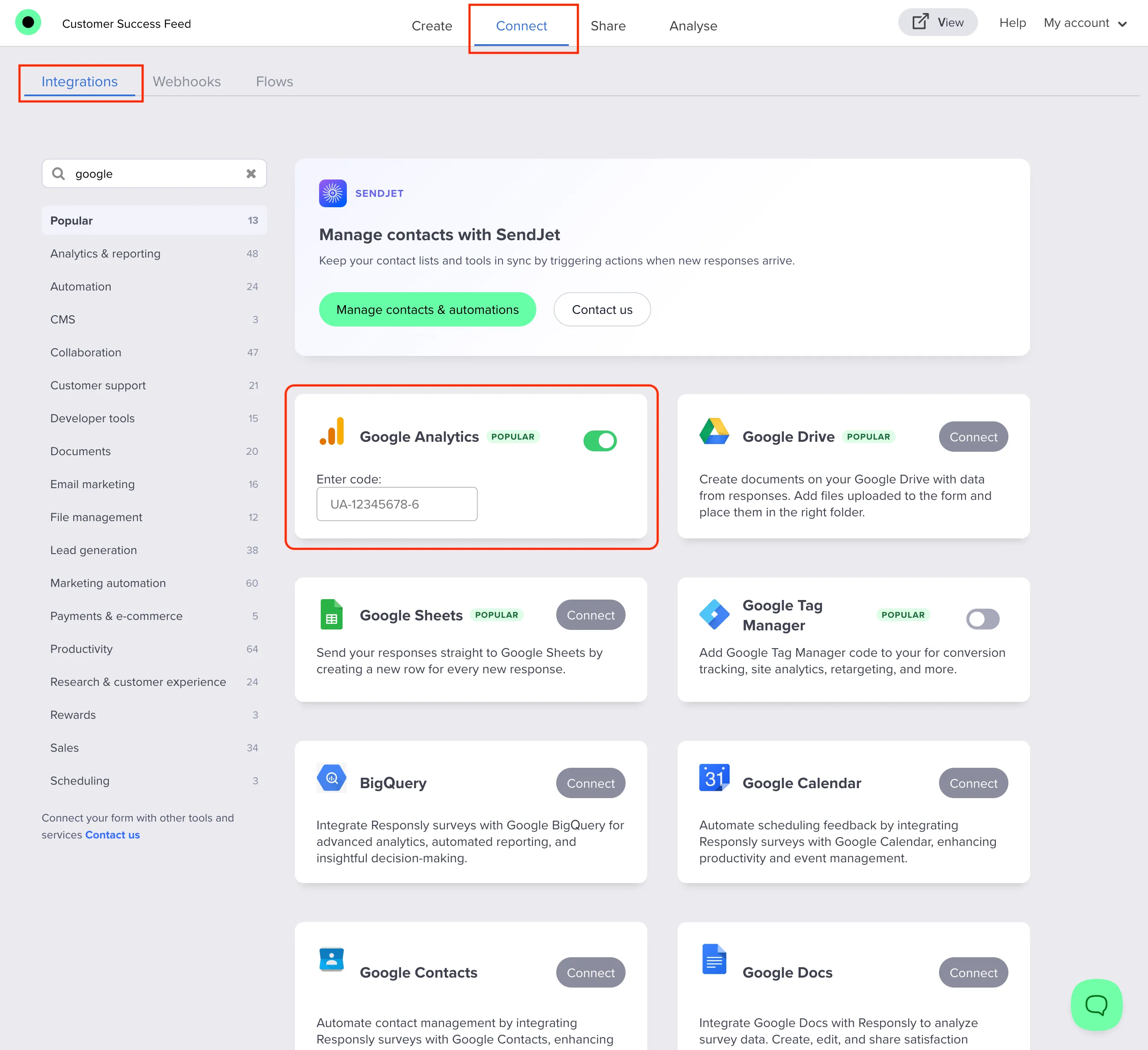
- Turn on Google Analytics using the toggle.
- When the code field appears, enter Enter code and paste your
UA-XXXXXXXX-Xtracking ID exactly as shown in Google Analytics (example shape:UA-12345678-6). - Wait for settings to save (Responsly patches form settings when the value is valid).
If the ID is rejected, check that there are no extra spaces, that it starts with UA-, and that it matches the pattern your Google property shows.
What gets tracked
With this integration enabled:
- The public form page loads the classic Universal Analytics snippet (
analytics.js) tied to yourUA-...ID. - A page view is sent when respondents load the tracked page.
Responsly does not automatically fire separate Google Analytics events for each question or answer choice through this field—that kind of funnel detail usually requires Google Tag Manager and custom tags/triggers you define.
Verify that tracking works
- Open Google Analytics for the same property as your
UA-...ID. - Go to Realtime (or the closest live reporting view available for your setup).
- In another browser window (or incognito), open your live form URL and interact with the page.
- Within a couple of minutes you should see active users or page views attributed to that session.
If nothing appears:
- Confirm you used the published link, not only an internal preview.
- Disable ad blockers and tracking protection for the test (they often block Google Analytics).
- Double-check that the
UA-ID belongs to the property you are looking at in GA. - Ask teammates whether a consent banner or cookie policy on your site might block analytics until accepted—your form page may be subject to the same rules when embedded.
Troubleshooting
| Issue | What to check |
|---|---|
| Field shakes or ID does not save | Format must match UA-XXXXXXXX-X (Universal Analytics). Remove typos and spaces. |
| No data in Realtime | Wrong property, ad blocker, or delay—retry incognito on the real URL. |
| Data in UA but you expected GA4 only | GA4 is a different reporting model; use GTM + GA4 if you need GA4-specific reports. |
| Need per-question events | Use Google Tag Manager and define tags/triggers for the behaviors you want to measure. |
Google Tag Manager vs Google Analytics in Responsly
- Google Analytics in Responsly: enter a
UA-...ID for Universal Analytics page-level tracking on the form page. - Google Tag Manager: separate integration—paste your
GTM-XXXXcontainer ID. Use GTM when you want GA4, Google Ads, conversion tags, or custom events without changing Responsly code.
You can discuss advanced setups with your marketing team or Responsly support if you are unsure which option fits compliance and consent requirements for your visitors.
Related workflows
Pair analytics with a strong Survey introduction so respondents understand why you collect feedback. When you are ready to go live, use Sharing survey link to distribute the form, then use How do I export survey data? when you need spreadsheets alongside analytics. For the reporting workflows this unlocks, see the Google Analytics integration; for tag-based event tracking, the Google Tag Manager integration.