When you publish a survey or form, Google Tag Manager (GTM) gives you one place to manage analytics and marketing tags without editing form code every time.
With GTM connected to your Responsly form, you can run GA4 tracking, Google Ads conversions, and other third-party tags from your container.
Before you start
You need:
- A Google Tag Manager account with a container ID in the format
GTM-XXXXXXX. - Editor access to the Responsly form you want to track.
- A published (live) form URL for testing.
Important: Adding a container ID in Responsly only loads GTM on your form page. Tracking appears in your analytics tools only after your tags and triggers are configured and published in GTM.
Connect Google Tag Manager in Responsly
Follow these steps in the form editor:
- Open the form you want to track.
- Go to Integrations in the builder navigation.
- Find Google Tag Manager (search or scroll to tracking integrations).
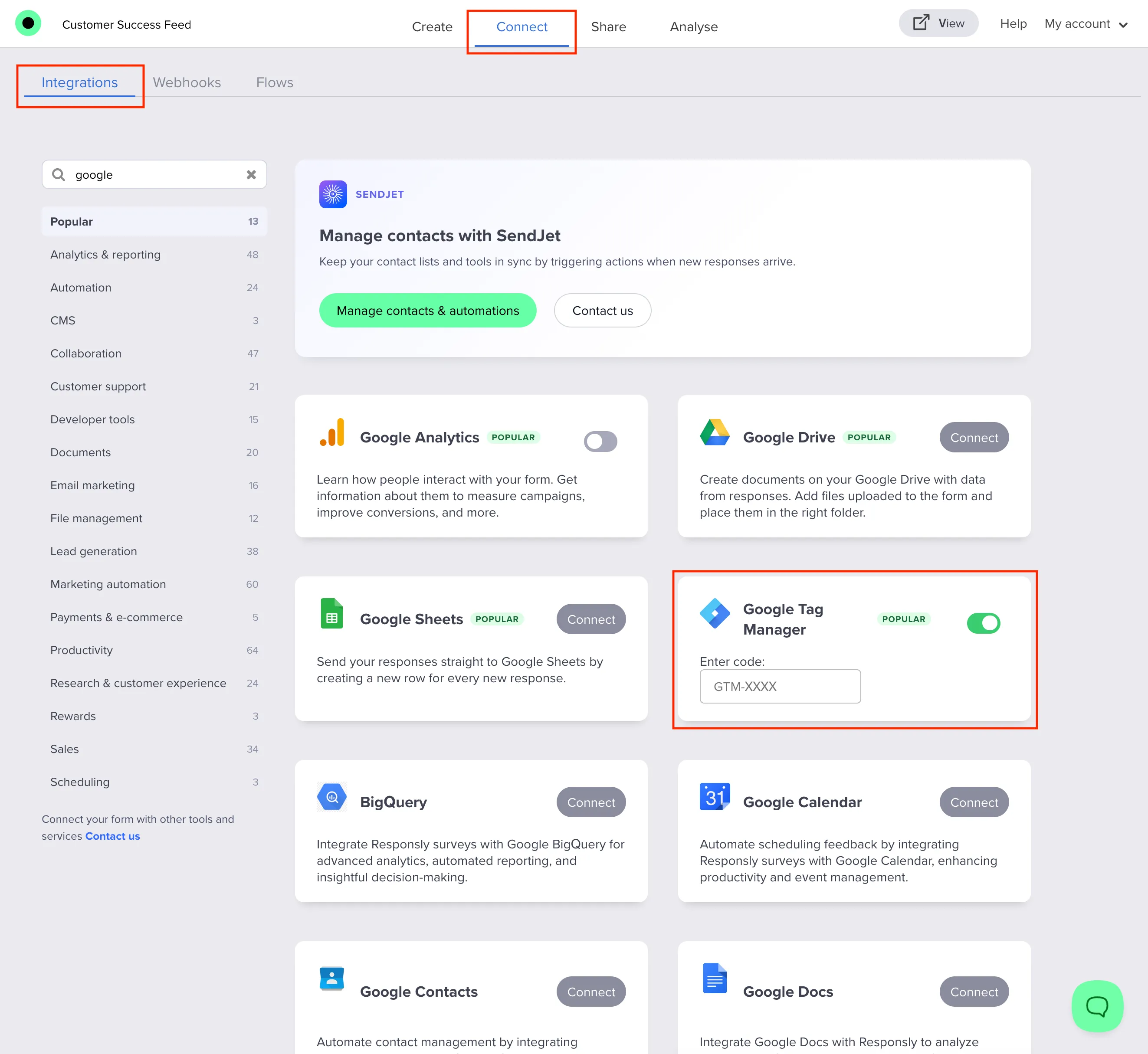
- Turn on the integration.
- Paste your Container ID (example format:
GTM-ABC1234). - Save your changes and publish your form updates.
If the value is rejected, check for typos, extra spaces, and correct GTM- format.
Set up tracking in GTM
After connecting Responsly, configure GTM itself:
- Open your container in Google Tag Manager.
- Add the tags you need (for example GA4 configuration, GA4 events, Google Ads conversion tags, or custom HTML tags).
- Attach triggers (for example page view or custom event conditions).
- Publish the container version.
Without this step, GTM is loaded but does not send useful tracking data.
Verify that GTM works on your form
- Open your live Responsly form URL.
- Use GTM Preview (Tag Assistant) to test container loading and tag firing.
- Complete a test submission.
- Confirm events in your destination tools (for example GA4 Realtime or Google Ads diagnostics).
If data is missing:
- Confirm you are testing the published form URL.
- Confirm your GTM container changes are published, not only saved as a draft.
- Check trigger conditions and event names in GTM.
- Disable ad blockers or browser tracking protection during testing.
- Verify cookie consent and privacy settings in your environment.
Troubleshooting
| Issue | What to check |
|---|---|
| Container ID does not save | Use only GTM-XXXXXXX format, no script snippet, no spaces. |
| GTM loads but no events in GA4 | Missing/unpublished tags or incorrect triggers in GTM. |
| Events work in preview but not production | Container version not published or wrong environment/container selected. |
| No conversions in ad platforms | Verify conversion tag configuration, trigger timing, and platform-side conversion settings. |
Google Tag Manager vs Google Analytics in Responsly
- Google Tag Manager: best for GA4, Google Ads, and multi-tool/custom tracking logic.
- Google Analytics integration: designed for direct UA-style ID integration.
If you need flexible event-based measurement, GTM is usually the better option.
Related workflows
Set clear expectations with a strong Survey introduction, go live with Sharing survey link, and combine behavior tracking with exports from How do I export survey data?. The Google Tag Manager integration covers what you can measure once the container is live, and the Google Analytics integration covers the reporting side.