Hidden variables let you reuse data you already have—often a name, segment, or campaign code—inside survey copy. Pass values in the survey URL, then insert variables into the welcome screen, questions, or end page so respondents see a personalized greeting or thank-you without retyping information you know from your CRM, e-mail tool, or invite link.
For a broader overview of fields and use cases, see What is hidden variables?. To polish welcome copy, use Text formatting and Survey introduction ideas alongside variables.
Add hidden variables and greet by name
Go to Settings → Hidden variables.
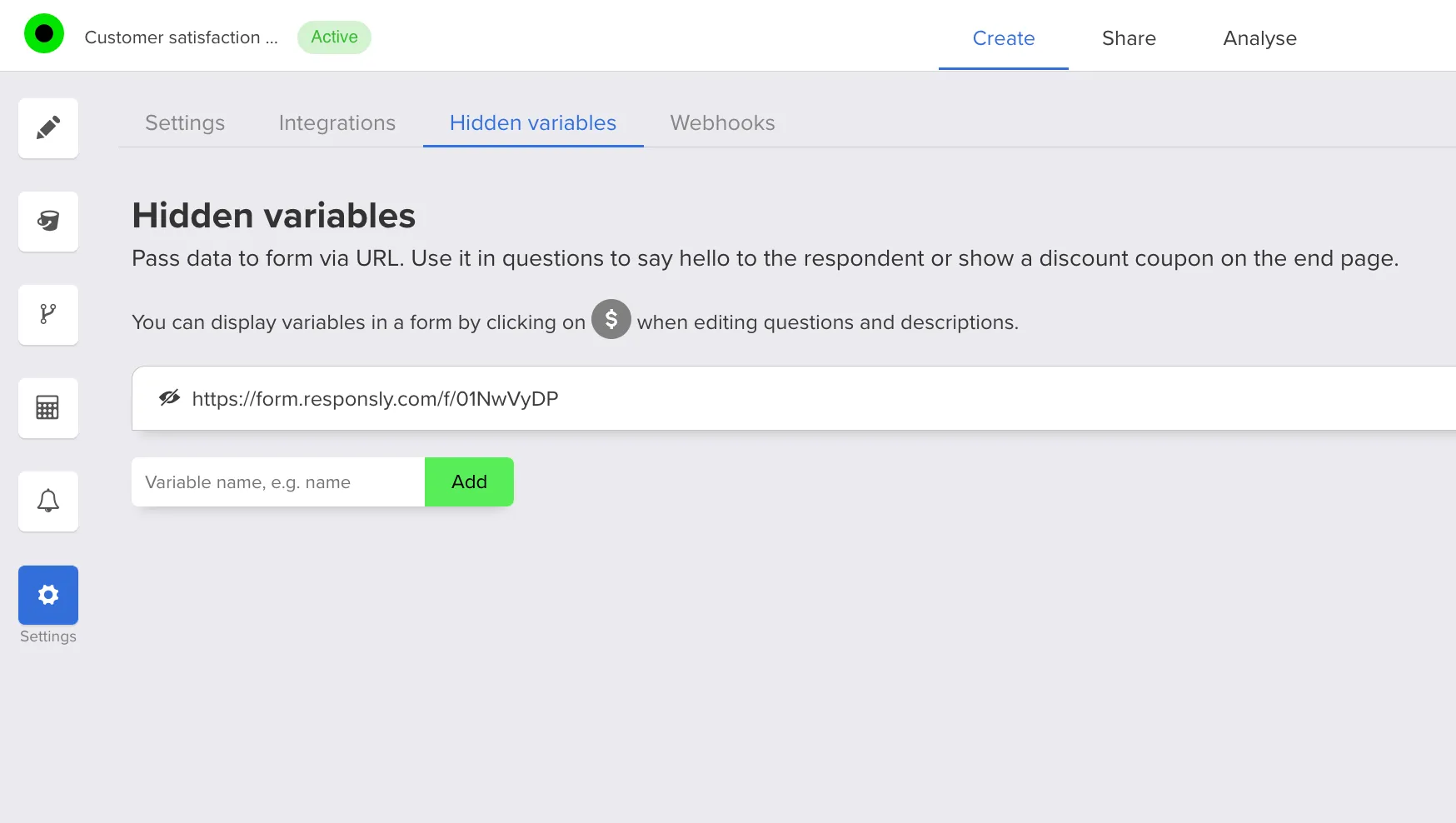
Add a hidden variable—for example
name—and click Add. Responsly shows a URL template that already includes the new parameter.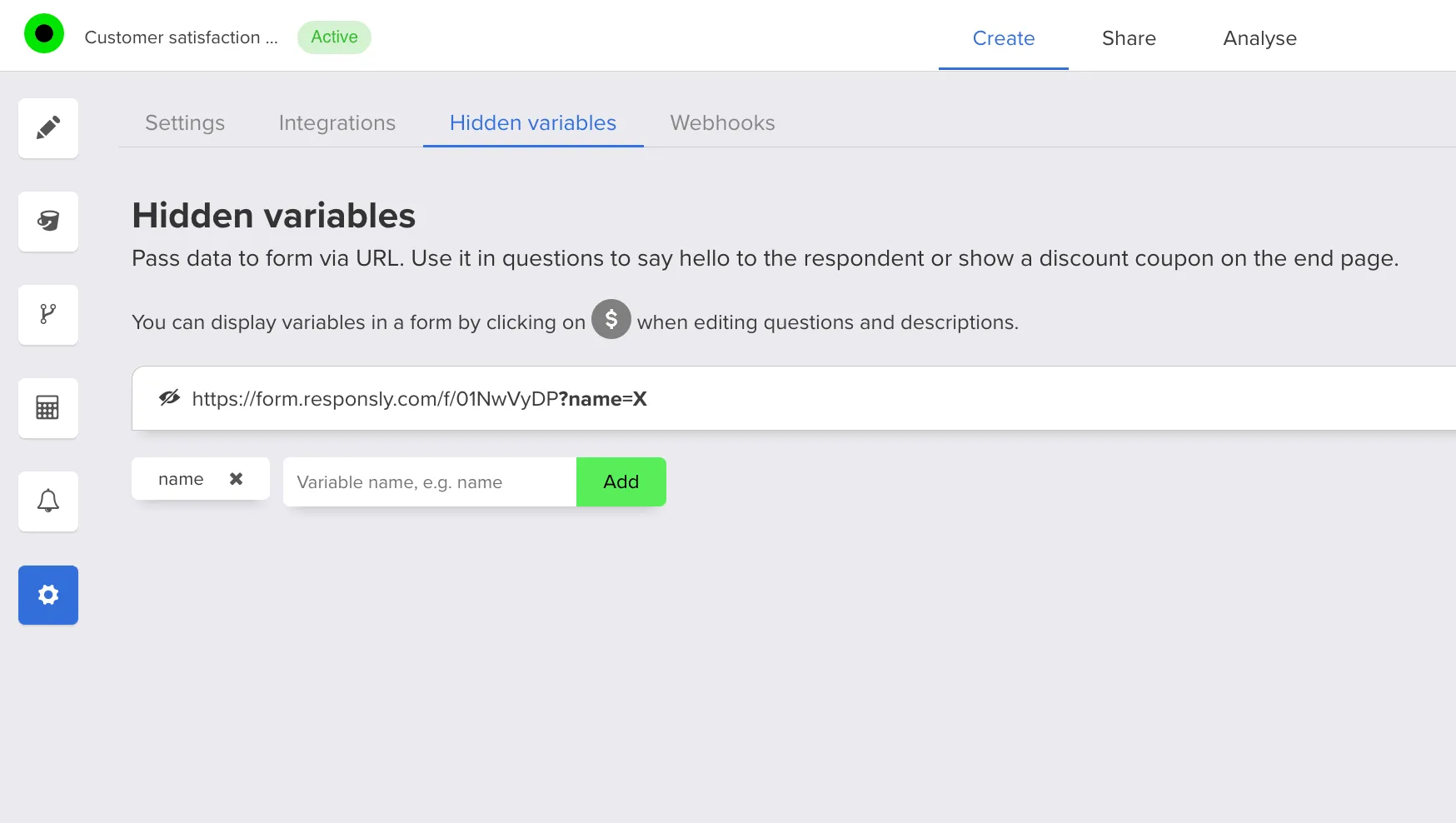
While editing questions or descriptions (including your opening screen), click the
$icon to insert variables into the text.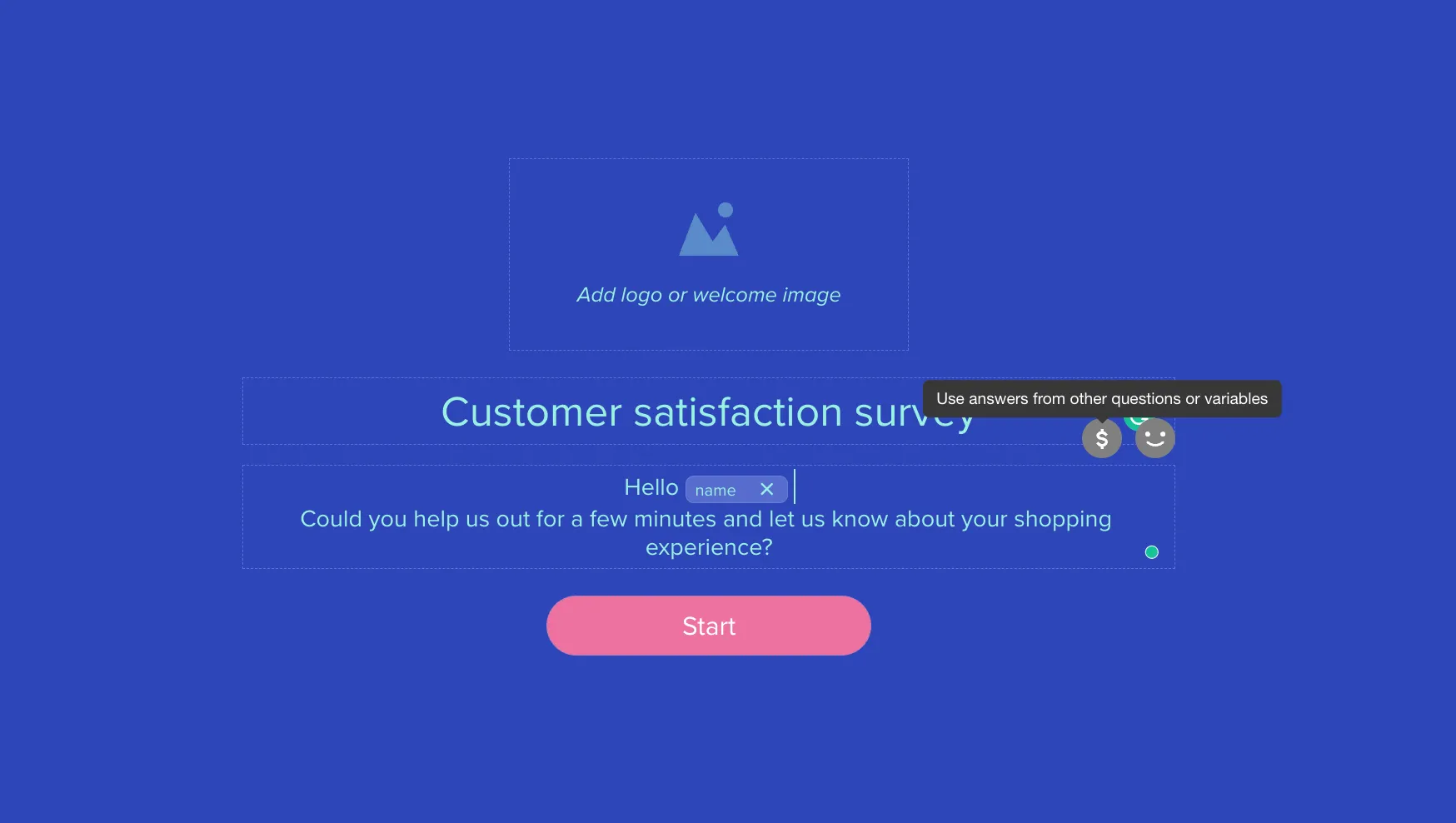
Return to the Hidden variables tab and copy the survey URL that includes the variable name.

The template usually shows a placeholder such as
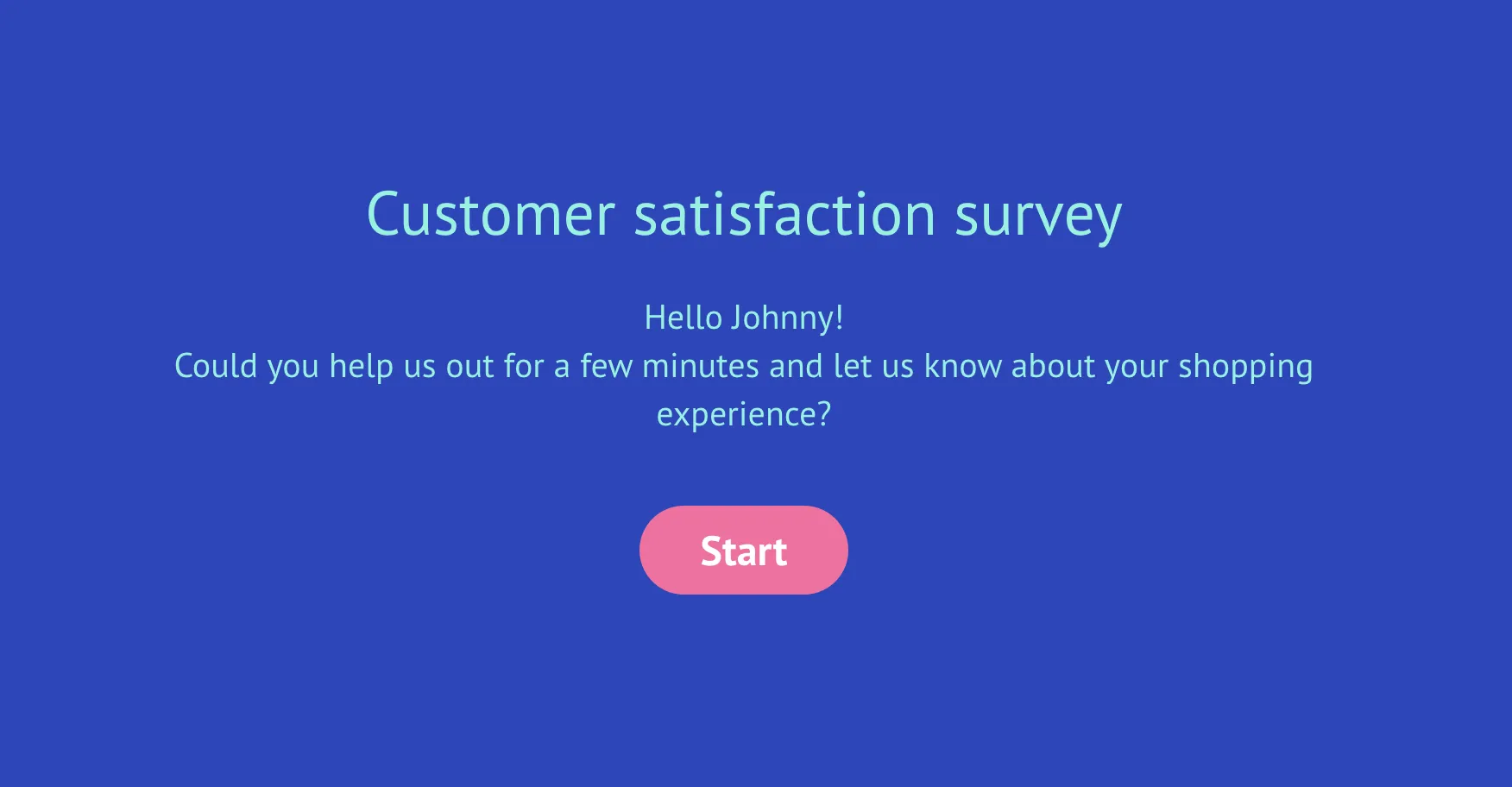
X. In each link you send, replaceXwith the real value—here, the respondent’s name—so the form resolves it on load.The respondent then sees their name on the first page (or wherever you placed the variable).
The value from the URL is saved with the submission, so you can use it in Analysis, filters, or exports together with the rest of the answers.