The Responsly app for HubSpot works in both directions. Survey responses go from Responsly to HubSpot, where they update contacts and, if you want, companies, deals and tickets. You can also send Responsly surveys from HubSpot: in e-mails, from workflows and straight from a record. For examples of what teams do with it, see the HubSpot survey integration page.
To set it up:
- Install the app and connect HubSpot.
- Set up a form to choose what Responsly saves in HubSpot.
- Optionally, add the Responsly responses card to HubSpot records and send surveys from HubSpot.
What the app does
When someone answers a survey that is connected to HubSpot, Responsly:
- finds the HubSpot contact by the respondent’s e-mail address or by the HubSpot survey link they used, and creates a new contact if the address isn’t in HubSpot yet,
- saves the latest NPS, CSAT, response date, form name and a link to the response on that contact, in properties the app adds to HubSpot (for example Responsly: last NPS),
- copies the answers you choose into the contact’s properties,
- adds a note with all answers to the contact’s timeline,
- can also associate the contact with the company of its e-mail domain and create a deal or ticket.
From HubSpot, you can send a survey with:
- a personal survey link in a HubSpot e-mail,
- the Create Responsly survey link and Send Responsly survey workflow actions, by e-mail or SMS,
- the Send survey button on the Responsly responses card, which also shows a record’s latest responses.
Before you begin
You need:
- A Responsly account on any plan, including Free, with edit access to the form you want to connect.
- A HubSpot account. The free HubSpot CRM works too. Only the two workflow actions need a HubSpot subscription with workflows (Professional or Enterprise).
- A HubSpot Super Admin, or a user with App Marketplace access, to install the app.
- A way to tell who answered: an e-mail question in the form, or a survey link sent from HubSpot (see Survey links in HubSpot e-mails).
- For SMS surveys, an SMS sender set up in Responsly.
Surveys that Responsly sends from HubSpot, with the Send Responsly survey action or the Send survey button, count towards the monthly e-mail and SMS limits of your Responsly plan.
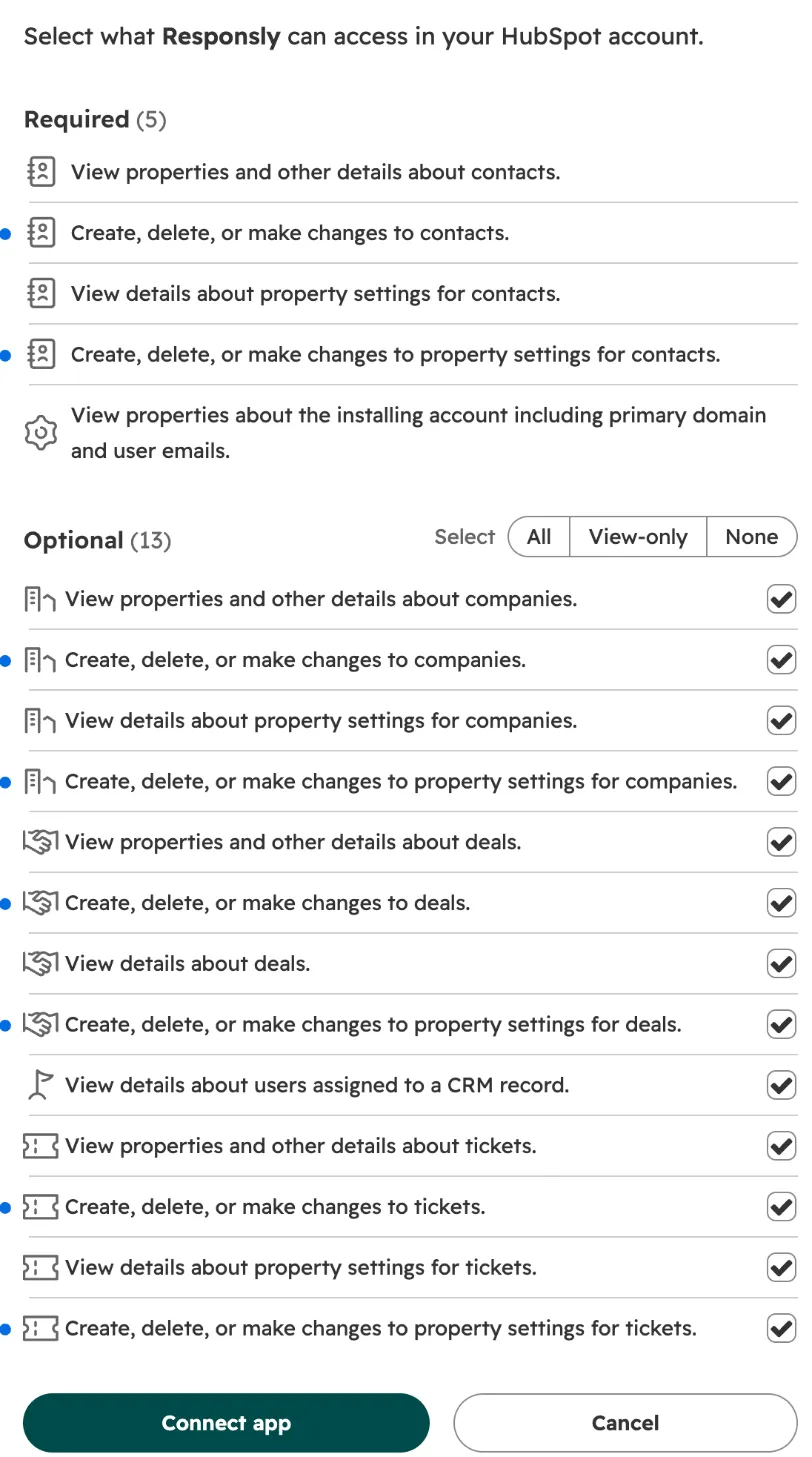
When you connect, HubSpot asks you to approve the access Responsly needs. Access to contacts and contact properties is required. Access to companies, deals, tickets and owners is optional. If you untick it, or a HubSpot admin has turned it off for the app, the features that use it are turned off and the rest works as usual.
Install the app and connect HubSpot
You can start in HubSpot or in Responsly. Either way, you end up in the HubSpot settings of a Responsly form.
From the HubSpot App Marketplace
In HubSpot, open the App Marketplace, find Responsly and click Install.
Log in to Responsly, or sign up for a free account.
Choose the HubSpot account. HubSpot lists the required and the optional access. Keep the optional access ticked if you want to use companies, deals, tickets or owners, then click Connect app.
Back in Responsly, you’ll see “HubSpot account connected”. Pick a form in Select a form to connect and click Connect. If you don’t have a form yet, click Go to Workspace and create one first.
The form opens on its HubSpot settings. Go on to Set up a form.
From Responsly
Open the form and go to the Connect tab. On Integrations, click Connect on the HubSpot tile.
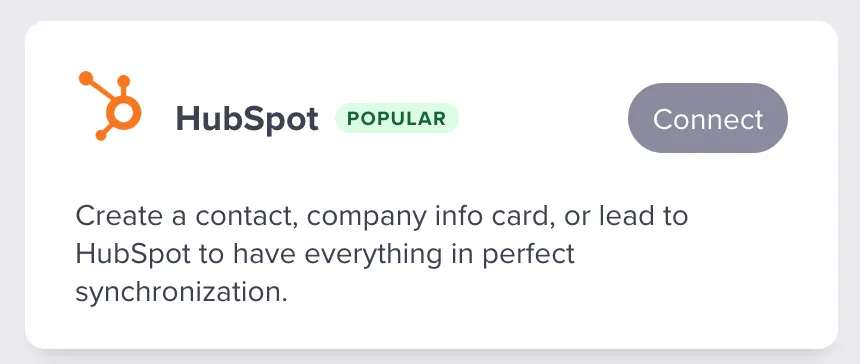
Click Connect HubSpot. In the HubSpot window, choose the account and approve access, as in step 3 above. If the window doesn’t open, allow pop-ups for the Responsly site and click again.
Once you connect, Responsly adds a property group called Responsly to your HubSpot account. Its properties are listed in Data shared with HubSpot. If you didn’t approve the required access, Responsly shows an error: click Connect HubSpot again and approve it.
To see responses on HubSpot records, you also need to add the Responsly responses card once. See The Responsly responses card on records.
Set up a form
The HubSpot panel of a form has two tabs: Settings and Survey link. On Settings you decide what Responsly saves in HubSpot. Go through the sections below, then turn on Active and click Save changes.
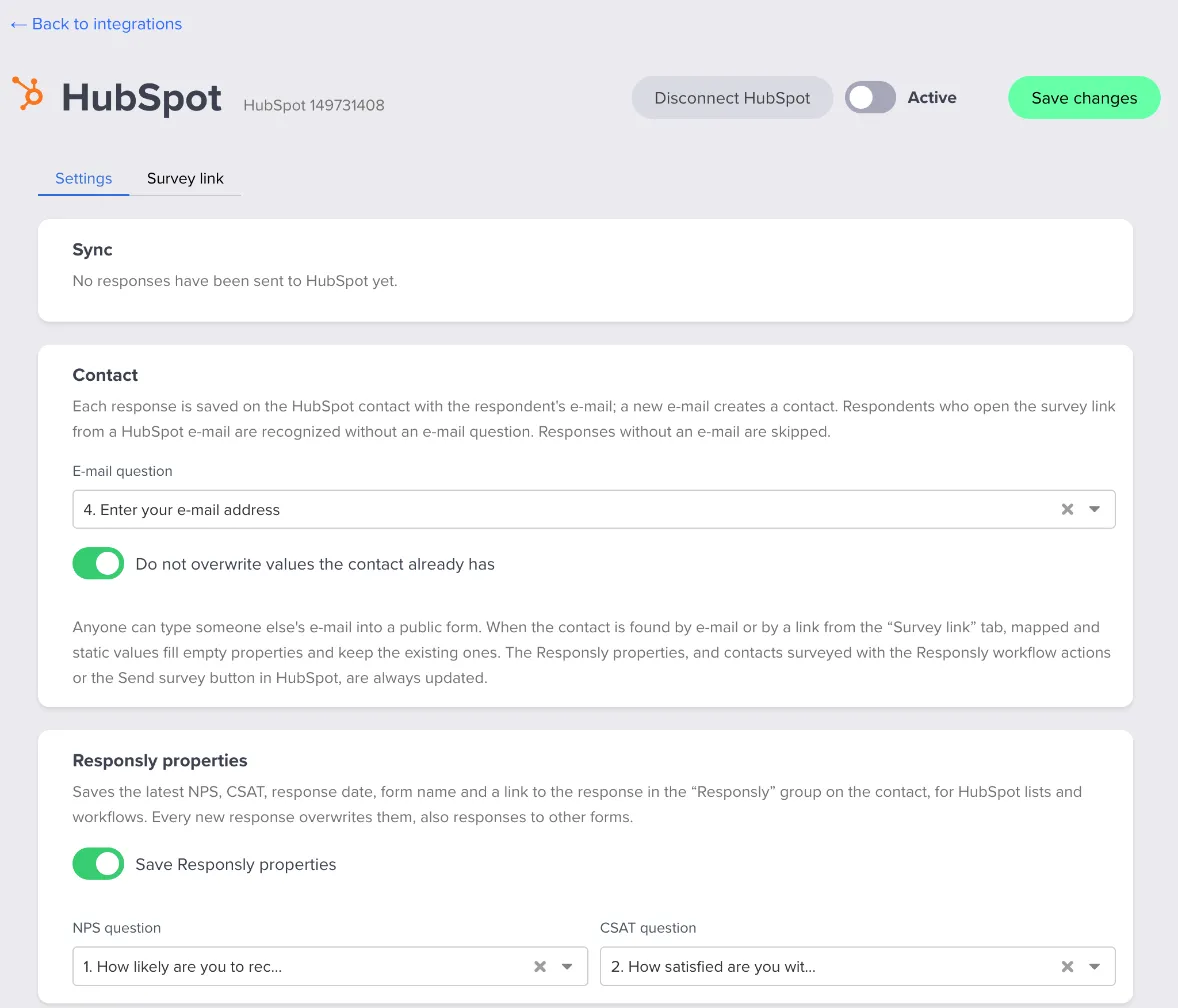
Contact. In E-mail question, choose the question that asks for the respondent’s e-mail. Responsly saves each response on the HubSpot contact with that address, and creates a new contact if the address isn’t in HubSpot yet.
Do not overwrite values the contact already has is on by default. Anyone can type someone else’s e-mail address into a public form, so with this option on, Responsly only fills properties that are empty and keeps the values the contact already has. This applies to contacts found by e-mail and to contacts from a link pasted into a HubSpot e-mail. It covers the answers you map and the static values. The Responsly properties are always updated. Contacts you survey with the Responsly workflow actions or the Send survey button get a signed link. Responsly then knows the response is theirs and overwrites their values even with this option on.
Responsly properties. Keep Save Responsly properties on and choose the NPS question and the CSAT question. Every new response, from any form, updates the date, the form and the link, so Responsly: last form shows where the latest response came from. Last NPS and last CSAT change only when a response has that score, so they can come from an earlier response.
Note with answers. With Add a note to the contact on, Responsly adds a note with all answers and a link to the response to the contact’s timeline.
Company. Associate the contact with the company links the contact to the HubSpot company whose domain matches the contact’s e-mail address. Addresses from free mailboxes such as gmail.com are skipped. If HubSpot has no company with that domain, turn on Create the company when HubSpot has none with this domain and Responsly creates one.
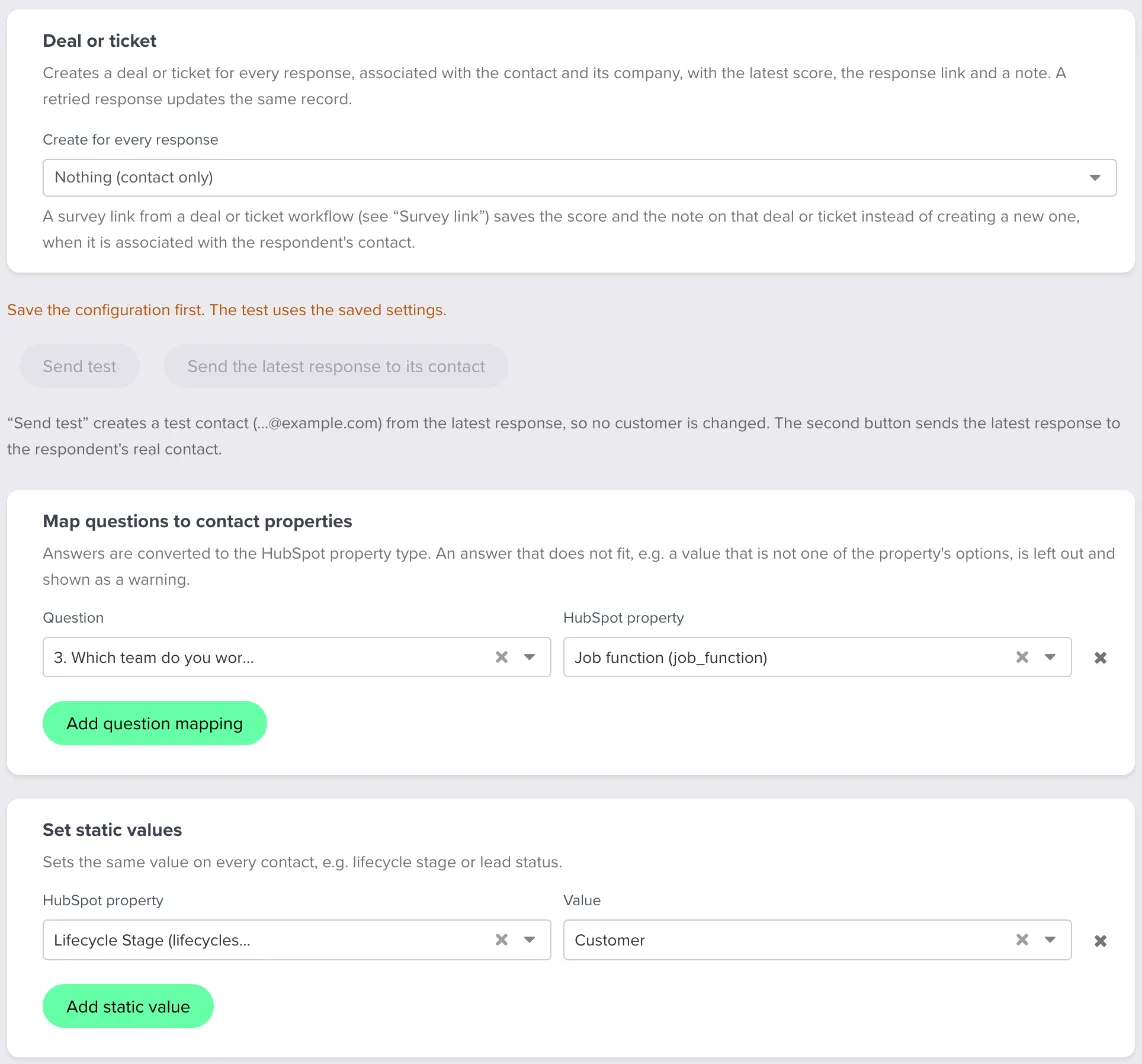
Deal or ticket. To create a deal or ticket for every response, choose Deal or Ticket in Create for every response. Then pick the Pipeline and Stage, and set the Name. In the name,
{form}stands for the form name,{email}for the respondent’s e-mail and{date}for the response date. You can also map questions and static values, such as the owner or priority, to the record’s properties, and add a missing property with Create property, as for contacts. If a response is sent again, for example after an error, Responsly updates the same deal or ticket. If the survey was sent from a deal or ticket workflow or record, Responsly saves the score on that deal or ticket instead of creating a new one.Map questions to contact properties. Click Add question mapping, then choose the Question and the HubSpot property it goes to. Add a row for each answer you want in HubSpot. If the property doesn’t exist yet, click Create property next to it and Responsly creates it with the question’s type and options.
Set static values. Click Add static value and choose the HubSpot property and the Value. A static value is the same for every respondent, for example a lifecycle stage or a lead status. Responsly sets it on every contact who answers the form.
Responsly converts each answer to the type of the HubSpot property it goes to:
| HubSpot property type | What Responsly writes |
|---|---|
| Dropdown select, radio select | The option whose label or internal value matches the answer |
| Multiple checkboxes | All matching options |
| Single checkbox | Yes or no |
| Number | The number |
| Date picker | The date |
| Single-line or multi-line text | The answer as text. Matrix, ranking and similar answers become one text. |
If an answer doesn’t fit the property, for example because it isn’t one of the property’s options, Responsly leaves that answer out and shows a warning. The rest of the response is still saved.
Test the setup
Save the settings before you test, because the test uses the saved version.
- Send test takes the latest response and saves it on a test contact with an @example.com address, so none of your real contacts change.
- Send the latest response to its contact saves the latest response on the real contact.
In both tests, the note and the deal or ticket are marked [Test]. If the form creates deals or tickets, the test creates a real one in the pipeline you chose, so delete it when you’re done. Tests don’t show on the Sync card or on the Responsly responses card.
Survey links in HubSpot e-mails
If you send the survey from HubSpot, the form doesn’t need an e-mail question. Use a survey link with HubSpot personalization tokens: HubSpot puts the recipient’s details into the link, and Responsly saves the response on the right contact.
A link in a HubSpot e-mail
- In the form’s HubSpot panel, open the Survey link tab.
- In E-mail sent from a workflow of, choose what your workflow is based on: Contact, Deal or Ticket. For a deal or ticket, HubSpot also puts the record’s ID into the link, so the score and the note land on that deal or ticket too. Use a deal link only in e-mails of deal-based workflows, and a ticket link only in ticket-based ones.
- Paste the link into a HubSpot marketing e-mail or workflow e-mail. If you’d rather use a button, copy the HTML from Button for a HubSpot e-mail and paste it into a rich text or HTML module, in the source code view.
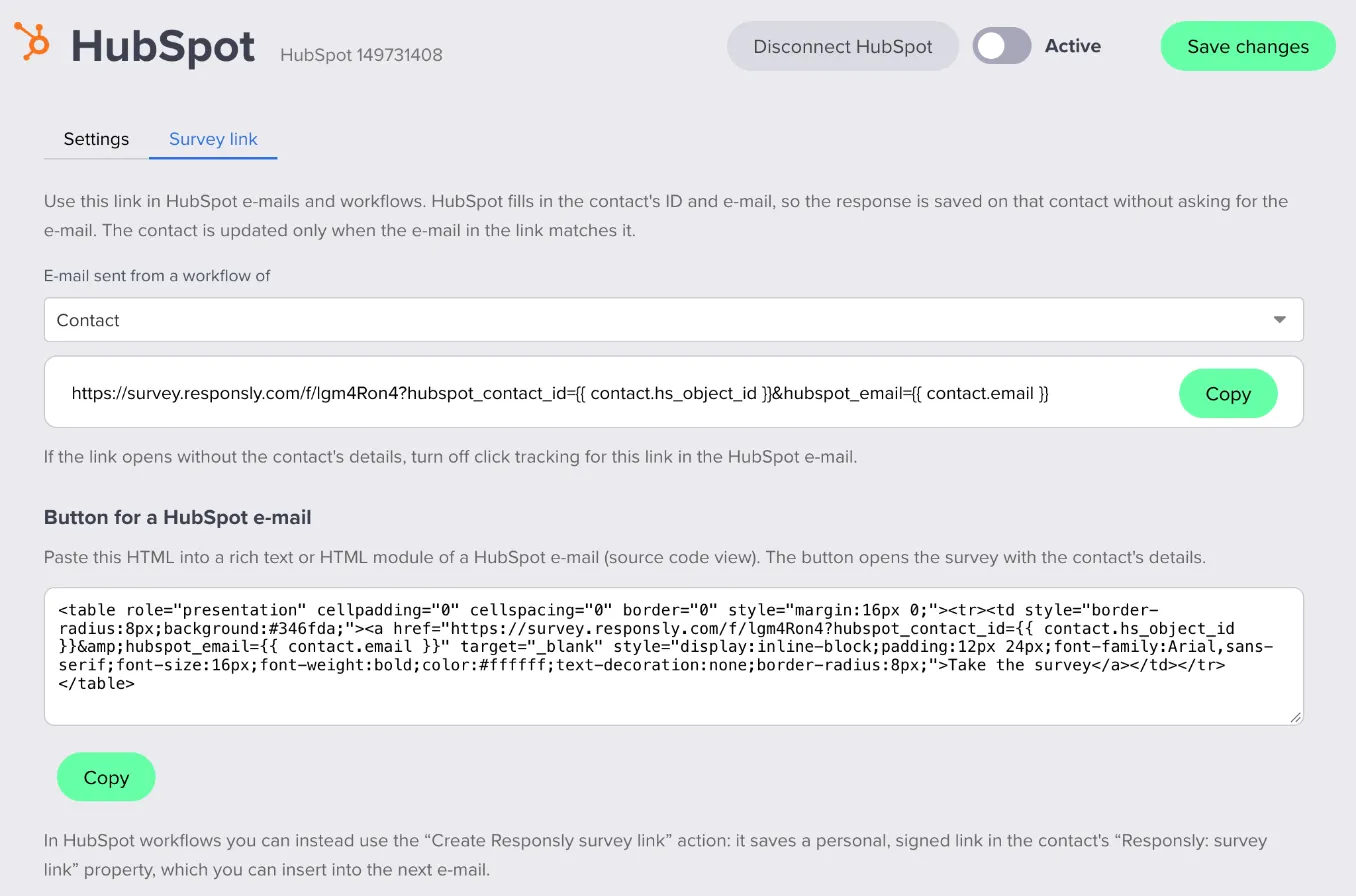
When HubSpot sends the e-mail, it fills in the contact’s ID and e-mail address in the link. Responsly checks both. It updates the contact only if the e-mail in the link matches it, and a deal or ticket only if the record is associated with that contact.
Anyone who knows a contact’s ID and e-mail address could type them into such a link. That’s why Responsly treats these contacts like contacts found by e-mail: unless the form allows overwriting, mapped and static values only fill empty properties, and the contact’s e-mail address never changes.
HubSpot doesn’t fill in the tokens in one-to-one e-mails sent from a record. To survey one person, use Send survey on the record instead. If a link opens without the contact’s details, turn off click tracking for that link.
The Create Responsly survey link action
In a contact-based workflow, add the Create Responsly survey link action and choose the Survey. The action creates a personal link for the contact and saves it in the contact’s Responsly: survey link property. Insert that property as a personalization token in the next e-mail of the workflow. The link is signed, so responses from it are saved on this contact.
The Survey list shows only surveys that have the HubSpot integration turned on for this HubSpot account.
Send surveys from HubSpot
The Send Responsly survey action
Add Send Responsly survey to a contact, deal or ticket workflow. Responsly sends the survey by e-mail or SMS with a personal link, so the response is saved on the contact.
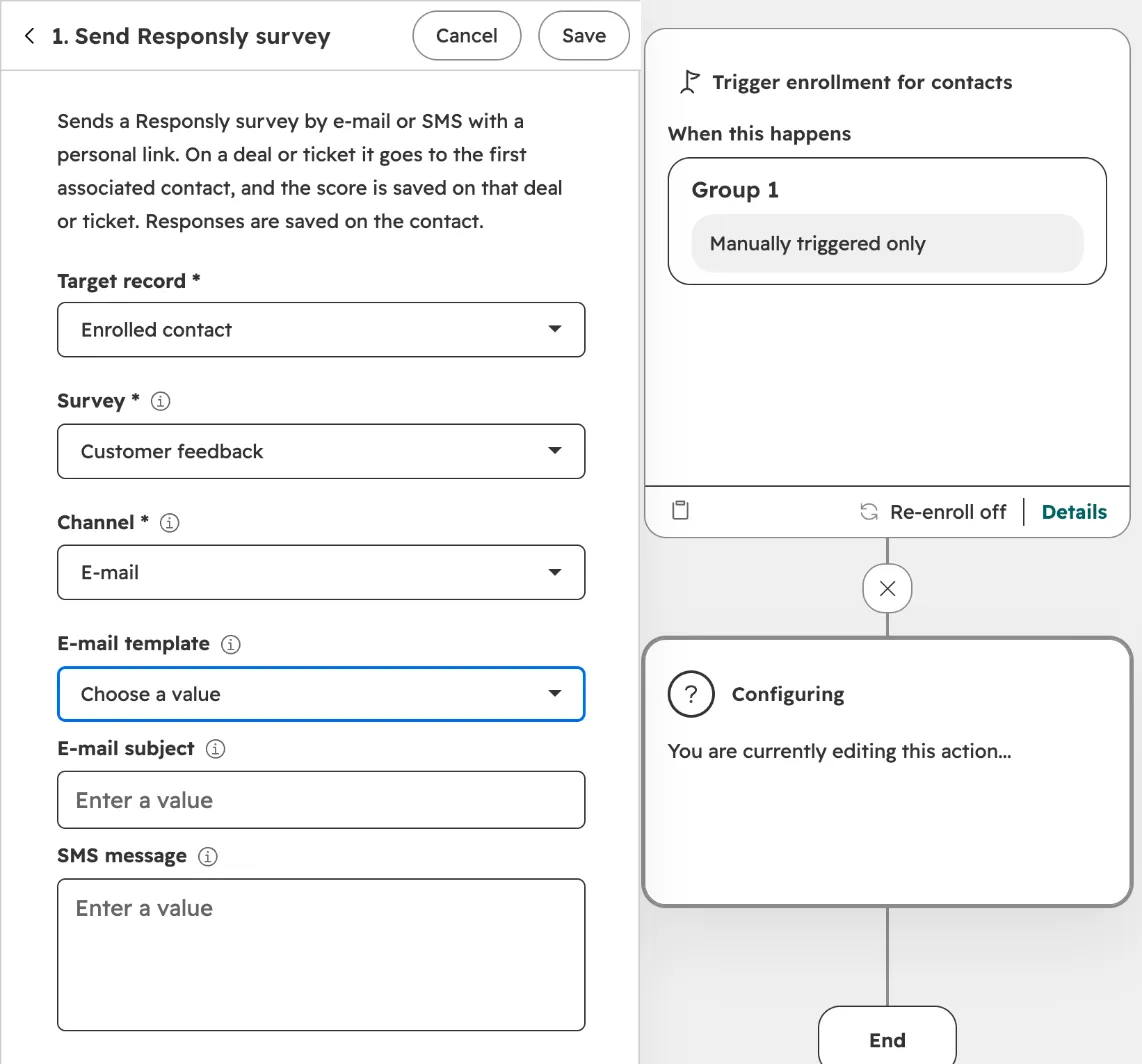
| Field | What to set |
|---|---|
| Target record | The record the workflow runs on, e.g. Enrolled contact |
| Survey | A survey that has the HubSpot integration turned on for this HubSpot account |
| Channel | E-mail or SMS |
| E-mail template | Optional. One of the templates in Email templates in Responsly, from the survey’s team. Leave it empty to send a simple e-mail with a button. |
| E-mail subject | Optional. If you leave it empty, Responsly uses the template’s subject, or “We would love your feedback!” when there is no template. |
| SMS message | Optional. Responsly replaces {link} with the survey link, and adds the link at the end if the message has no {link}. If you leave it empty, the message is Please take our brief survey: {link}. |
- Responsly sends the e-mail from your team’s default mailbox, or from Responsly if your team has none. It sends an SMS to the contact’s mobile phone number, or to the phone number if there is no mobile number.
- In deal and ticket workflows, the survey goes to the first contact associated with the record, and the score is saved on that deal or ticket.
- Each run of the action sends the survey once, even if HubSpot retries the action.
- The action also returns the Survey link, which you can use in later steps of the workflow.
- If the action can’t send the survey, for example because the contact has no e-mail address, the action fails and the workflow continues.
The Responsly responses card on records
The Responsly responses card shows a record’s latest responses with the survey, the date, NPS and CSAT. Click Open in Responsly to see a full response. The card works on contacts, companies, deals and tickets, on every HubSpot plan. On a company, it shows responses from forms that associate the contact with the company.
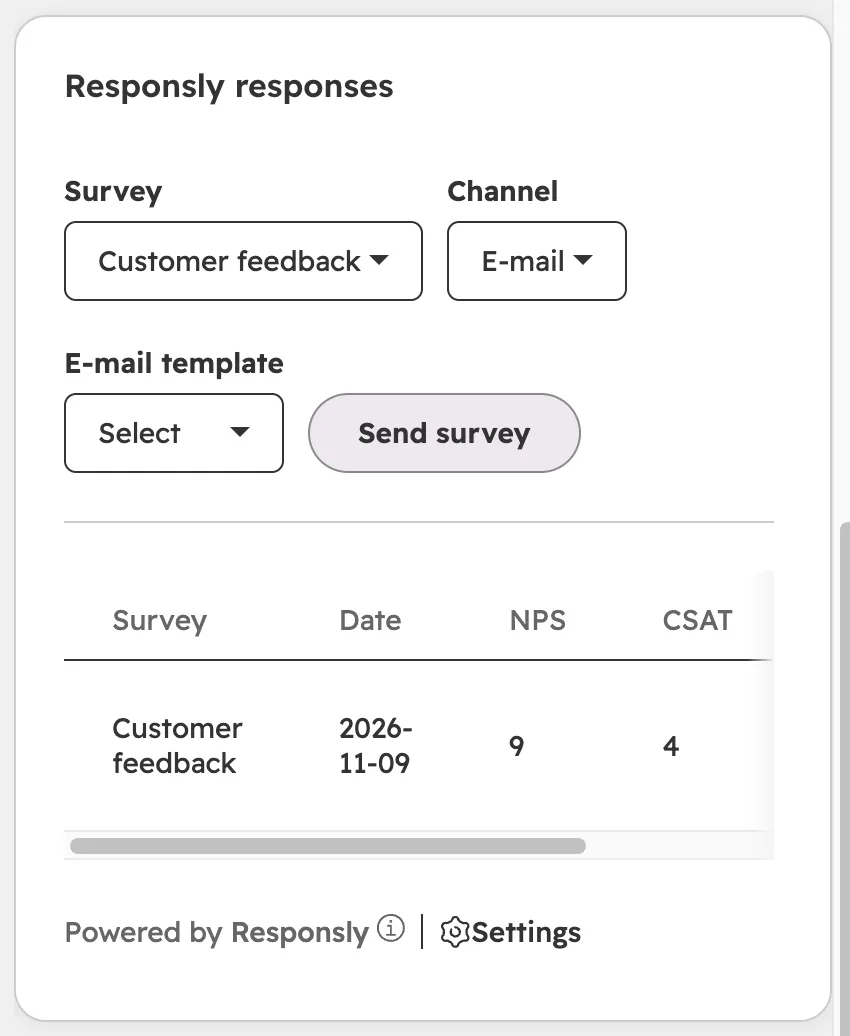
HubSpot doesn’t add the card to records by itself. A Super Admin, or a user with the Customize record page layout permission, needs to add it once:
- In HubSpot, click the settings icon and go to Integrations > Connected Apps.
- Click Responsly, open the Settings tab and choose App cards.
- On the Responsly responses card, click Manage locations, choose the record views and click Save.
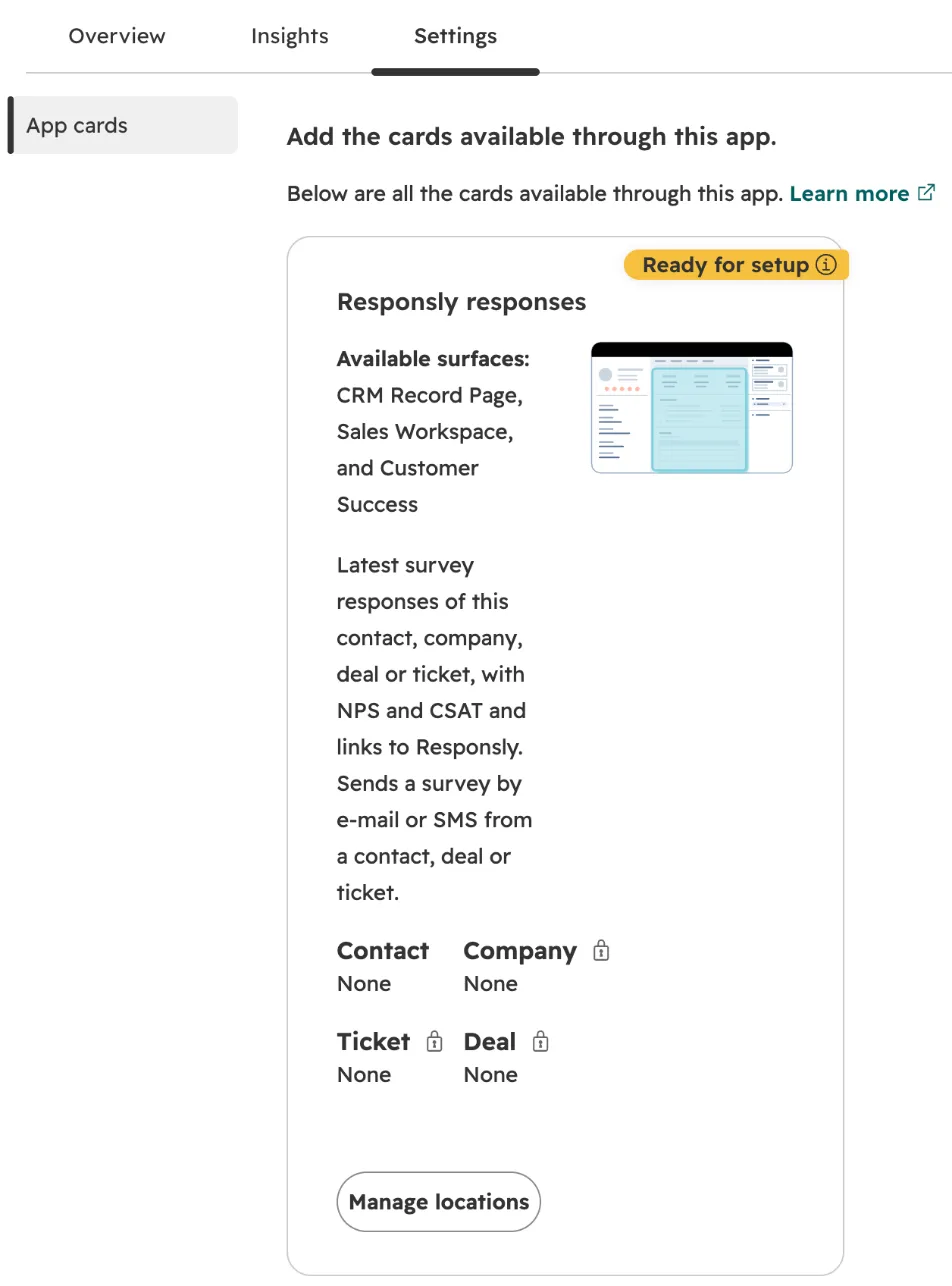
You can also add the card from a record: click Customize, add the card from the Card library (card type App) and click Save and exit.
On contacts, deals and tickets, the card has a Send survey button that sends a survey right away. Choose the Survey, the Channel and, for e-mail, the E-mail template. Responsly sends it the same way as the workflow action. If no survey is listed, first turn on the HubSpot integration for a survey in Responsly.
Data shared with HubSpot
Responsly writes responses to HubSpot. It reads only what it needs to find contacts and send surveys.
| HubSpot data | Access | Responsly reads | Responsly writes |
|---|---|---|---|
| Contacts | Required | Contacts by e-mail or ID; e-mail, phone and mobile phone to send surveys | New and updated contacts: Responsly properties, mapped and static values, notes with answers |
| Contact properties | Required | Names, types and options, for mapping | The Responsly group and its properties; properties made with Create property |
| Companies | Optional | Companies by e-mail domain | Associations with contacts, new companies when turned on, scores on the company |
| Deals | Optional | Pipelines, stages and properties; the deal from a survey link | New and updated deals: scores, mapped and static values, associations, notes; the Responsly properties and properties made with Create property |
| Tickets | Optional | Pipelines, stages and properties; the ticket from a survey link | New and updated tickets: scores, mapped and static values, associations, notes; the Responsly properties and properties made with Create property |
| Owners | Optional | The list of owners, for static values | Nothing |
The properties Responsly adds are in the Responsly group. You can use them in lists, workflows and reports, and the property history shows how a score changed over time.
| Object | Properties in the Responsly group |
|---|---|
| Contacts | Responsly: last NPS, last CSAT, last response date, last form, last response link, survey link |
| Companies | Responsly: last NPS of a contact, last CSAT of a contact, last response date of a contact |
| Deals and tickets | Responsly: response ID, last NPS, last CSAT, last response date, last response link |
On a company, these properties show the latest score from any of its contacts. Responsly: response ID is unique, so when a response is sent again, Responsly updates the deal or ticket it already created.
Check the sync
The Sync card in the form’s HubSpot panel shows the latest response with its status (sent, skipped, failed or in progress) and any warnings, plus the last error. When responses are waiting to be sent, buttons appear below it:
- Send N responses again resends responses that failed (fix the mapping first) and responses that came in while HubSpot was disconnected.
- Send N older responses sends responses that never went to HubSpot: from before you set up the integration, or from a time when Active was off.
If the connection is lost, for example because someone uninstalled the app in HubSpot, new responses wait. Responsly sends them automatically after you connect HubSpot again.
Both buttons, and the automatic sending after you reconnect, cover the last 30 days. Responsly sends the oldest responses first, so the Responsly properties end up holding the newest one. Responses with no e-mail address and no contact from a survey link are skipped, and the buttons don’t send them again.
Disconnect or uninstall
Disconnect in Responsly
Click Disconnect HubSpot in the form’s HubSpot panel, or remove HubSpot in Profile → Integrations. This removes your connection:
- Responsly revokes its access to the HubSpot account. It also uninstalls the app from that account, unless another Responsly user is still connected to it.
- The HubSpot settings of every form that used this connection are deleted, and new responses no longer go to HubSpot.
- To start again, connect HubSpot and set up the forms again. The Sync card then offers to send the responses of the last 30 days that didn’t reach HubSpot.
Uninstall in HubSpot
- In HubSpot, click the settings icon in the top navigation bar.
- In the left sidebar menu, go to Integrations > Connected Apps.
- Click Responsly, then click Actions and choose Uninstall Responsly.
- Type “uninstall” and click Uninstall.
Responsly notices the uninstall the next time it uses the connection. It marks HubSpot as disconnected and sends an e-mail to the person who connected it. The form settings are kept and new responses wait. When that person connects HubSpot again, the waiting responses are sent automatically. Until then, the Responsly workflow actions and the Responsly responses card don’t work.
What happens to your data
- Everything already in HubSpot stays there: contacts, companies, deals, tickets, notes and the Responsly properties with their values. Responsly doesn’t delete anything in HubSpot. To remove the Responsly properties, delete them in HubSpot’s property settings, in the Responsly group.
- Responses stay in Responsly. Deleting a response in Responsly doesn’t remove it from HubSpot.
Troubleshooting
| What you see | What to do |
|---|---|
| A warning says a value “is not an option of the HubSpot property” | Add the option to the property in HubSpot, or map the question to another property. Then click Send N responses again. |
| An error says “The connected HubSpot account did not allow access to companies” (or to these records) | Disconnect HubSpot, connect it again and tick that access on HubSpot’s consent screen. Disconnecting deletes the forms’ HubSpot settings, so you’ll need to set them up again. If the boxes on the consent screen are locked, a HubSpot admin has turned that access off for the app and needs to turn it on first. |
| Connecting HubSpot says “Another HubSpot account is connected” | Your Responsly account can be connected to one HubSpot account at a time. To switch, remove the current connection in Profile → Integrations, connect the other account and set up the forms again. Removing the connection deletes their HubSpot settings. |
| A response is skipped because it has no e-mail | Add an e-mail question to the form, or send the survey with a HubSpot survey link. |
| A link from a HubSpot e-mail opens without the contact’s details | Turn off click tracking for that link. Don’t use the link in one-to-one e-mails, because they don’t fill in the tokens. |
| A warning says the deal or ticket from the link “is not associated with the contact” | Associate the record with the contact in HubSpot. Until you do, Responsly doesn’t change that record. |
| A warning says the contact ID from the link “does not match the e-mail” | The e-mail in the link isn’t the e-mail of the contact with that ID, for example because the link was edited or the contact’s e-mail changed after the e-mail went out. Responsly leaves that contact unchanged. If the respondent typed an e-mail in the form, the response is saved on the contact with that address. |
| A survey is missing from a workflow action or from Send survey | Turn on the HubSpot integration for that survey, with the same HubSpot account. |
| Send Responsly survey fails | Check that the contact has an e-mail address (or a phone number for SMS), that SMS is set up in Responsly, and that your plan’s monthly message limit isn’t used up. In a deal or ticket workflow, the record also needs an associated contact. |
| You got an e-mail from Responsly saying HubSpot was disconnected | Connect HubSpot again. Waiting responses are sent automatically. |
| The Responsly responses card isn’t on records | Add it in Integrations > Connected Apps > Responsly > Settings > App cards > Manage locations. |
Support
If you need help, write to support@responsly.com or use the contact form.
To send responses to tools without a native integration, use webhooks or Zapier. For another CRM, see the Salesforce integration.