Installing the SDK is a task for the developer of your app, done once. This article explains what they need from you and what to agree on before they start. The technical steps are in the Mobile SDK documentation.
What to give your developer
- Open a form in Responsly and go to Share → Mobile app.
- Scroll to the Installation card.
- Copy the SDK key and send it to your developer with the link to the documentation.
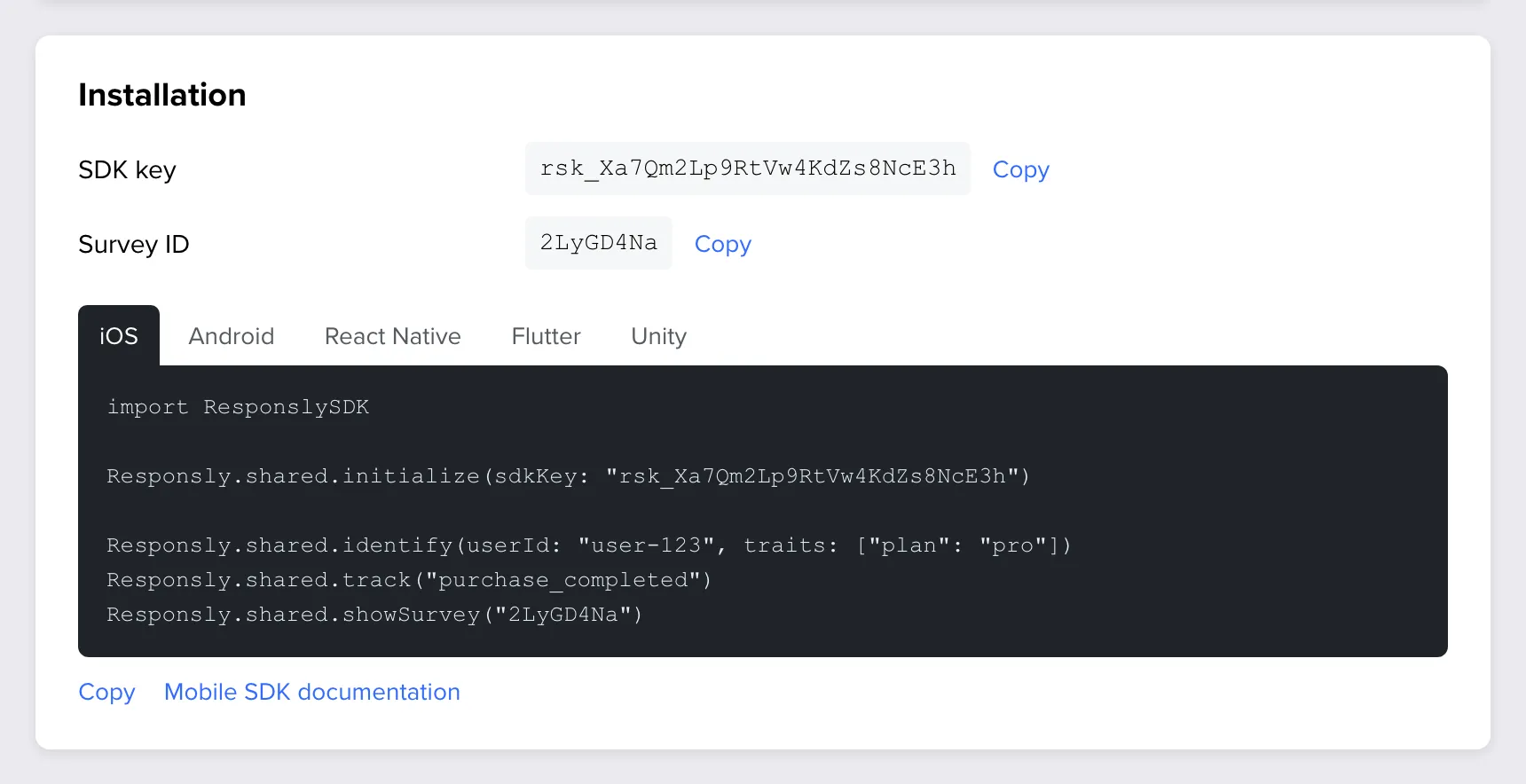
| What it is | When the developer needs it | |
|---|---|---|
| SDK key | A key that starts with rsk_. One per team, the same for iOS and Android. It is not a secret. | Always: the SDK starts with it. |
| Survey ID | Identifies one form. | Only to open that form from the app’s own code, for example from a “Give feedback” button. |
The card also shows a short code sample for each platform, ready to copy.
Note: No Mobile app tab? Mobile app surveys are switched on per team, and the SDK packages are provided on request. Write to contact@responsly.com.
Supported platforms
| Platform | Minimum version | Documentation |
|---|---|---|
| iOS | iOS 15 | iOS installation |
| Android | Android 6.0 | Android installation |
| React Native, including Expo development builds | React Native 0.75 | React Native installation |
| Flutter | Flutter 3.24 | Flutter installation |
| Unity | Unity 2022.3 LTS | Unity installation |
What the developer adds to the app
- Starting the SDK when the app starts, with your SDK key.
- Events. A line of code wherever something worth reacting to happens, such as a finished purchase. You then use the event’s name as a trigger.
- Screens. The name of the screen the user is on, if you want surveys tied to screens.
- The user. Optionally, the user’s ID and attributes such as their plan or country. You can target surveys with them and save them with responses. See Identify app users and pass data to responses.
After that, no survey appears on its own. A form is shown only when its Mobile app channel is on and one of its rules matches.
Agree on names first
Triggers and audience rules compare names exactly, including upper and lower case. purchase_completed and Purchase Completed are two different events. Before the developer starts, write down together:
| What | Example | Where you use it |
|---|---|---|
| Event names | purchase_completed, onboarding_finished | When to show, trigger type Event |
| Event properties | total, category | Conditions on an event trigger |
| Screen names | OrderConfirmation, Settings | When to show, trigger type Screen |
| User attributes | plan, country, signed_up | Who sees it, and hidden fields of the form |
Tip: Keep the list where both of you can reach it. When a survey does not appear, a name spelled differently in the app and in Responsly is the most common reason.
Check that it works
- Switch the Mobile app channel on for a test form and add a trigger with an event the app sends.
- Set Share of users to 100 and the frequency to Every time while testing.
- Wait about 10 minutes, or reinstall the test build, so that the app has the new settings.
- Run the app and do the action. The survey should appear.
If it does not, see Mobile app surveys: FAQ and troubleshooting. Developers can turn on the SDK’s debug log, which says why a survey was not shown: Testing & debugging.