Responsly connects to Klaviyo so you can turn survey responses into profile data, custom events, and list growth — directly inside your email marketing stack. With this integration, you can:
- Map survey answers to Klaviyo profile properties (standard fields and custom properties)
- Add mapped answers to the response event as extra properties on the branded metric Responsly Survey Response
- Fire that response event on every identified submission (always includes
form_id,response_id, andsubmitted_at) - Create or update profiles and optionally add them to a Klaviyo list
- Request email marketing consent when respondents answer yes on a mapped Yes/No or Legal (checkbox) question
- Personalize survey links in Klaviyo emails using hidden variables and URL parameters
This guide walks through a Post-Purchase Feedback survey: collect NPS after an order, confirm the shopper’s email, and capture marketing consent — then sync everything to Klaviyo for segmentation and flows.
Prerequisites
Before setting up the integration, ensure you have:
- A Responsly account with the Klaviyo integration available on your plan
- A Klaviyo account and permission to authorize the Responsly OAuth application
- Pop-ups enabled in your browser for
app.responsly.com(required for OAuth) - For list membership and consent: familiarity with your Klaviyo list opt-in settings (including double opt-in, if enabled)
How sync works
When a respondent submits a survey and the Klaviyo integration is Active for that form, Responsly queues a background job that:
- Checks that the respondent is identified — Klaviyo profile ID in a hidden variable whose name contains
klaviyo_profile_id, and/or a valid email (from URL parameters ending in_email, mapped profile email, or the email question used for list enrollment) - Creates or updates the Klaviyo profile when there are mapped profile properties (or when a profile ID or email is needed for downstream steps)
- Requires a Klaviyo profile ID after upsert before list membership, marketing consent, or events can run — if Klaviyo does not return a profile ID, those steps are skipped
- Optionally adds the profile to a list (when Add contacts to Klaviyo list is on and marketing consent is not handling subscription for that list)
- Optionally subscribes the profile to email marketing when the mapped consent question is yes or checked
- Sends one branded metric event per response — Responsly Survey Response — with
form_id,response_id, andsubmitted_at, plus any fields from mappings with target Event property (question mappings and static values on the same event)
If the respondent cannot be identified, the sync is skipped and no data is sent to Klaviyo.
Note: Responsly does not send a separate metric per mapping row. All Event property rows add fields to the single Responsly Survey Response event.
Step 1: Create Your Post-Purchase Feedback Survey
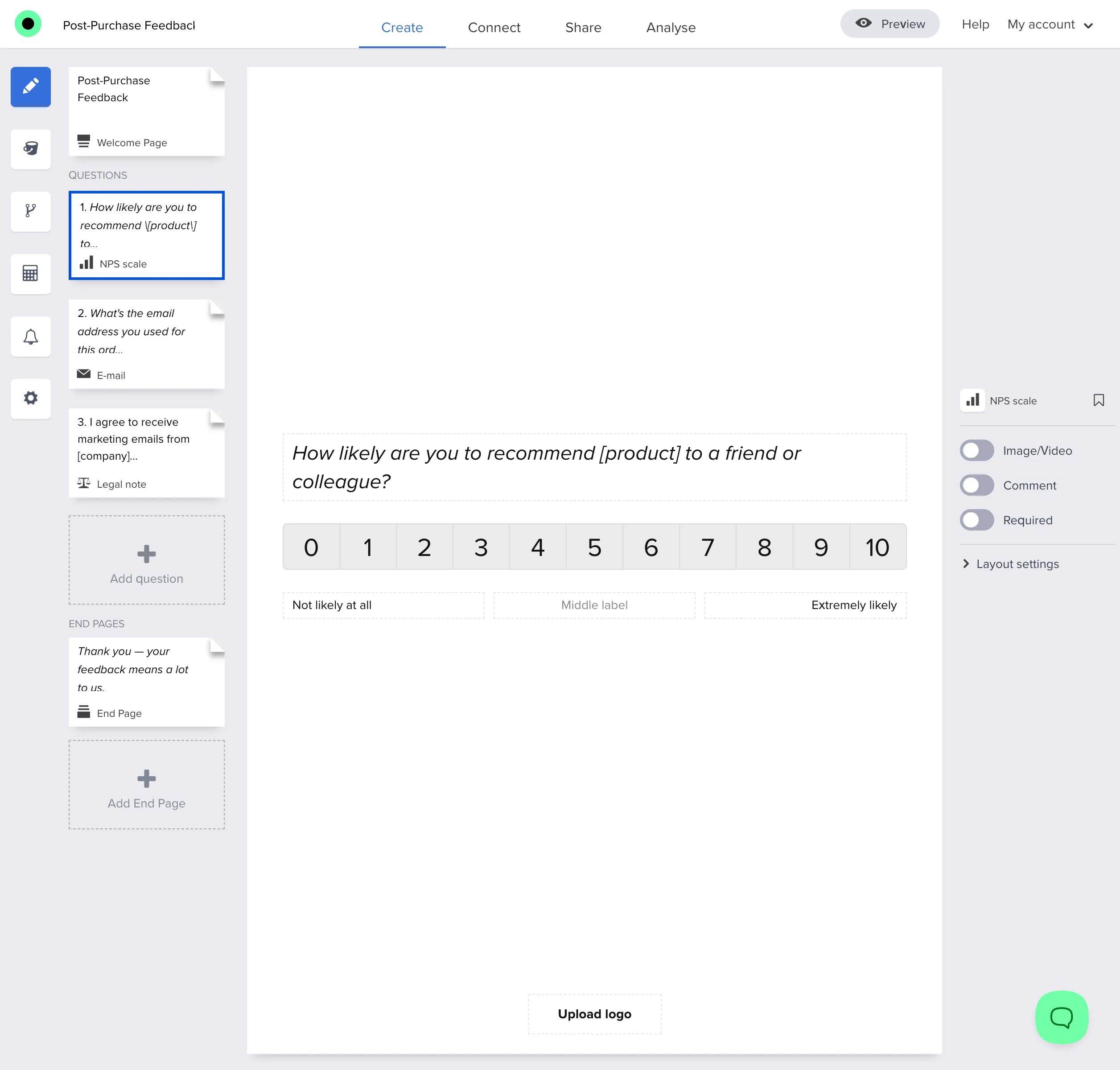
Build a short survey you send from a Klaviyo post-purchase flow or order confirmation email. For this use case, three questions are enough:
- NPS — How likely are you to recommend [product] to a friend or colleague?
- Add an NPS question (0–10 scale). Replace
[product]with your product name or use a hidden variable if the product varies per order.
- Add an NPS question (0–10 scale). Replace
- Email — What’s the email address you used for this order?
- Add an Email question. Shoppers confirm the address tied to the order so Responsly can create or match the Klaviyo profile — especially when you do not pass
klaviyo_profile_emailin the survey link.
- Add an Email question. Shoppers confirm the address tied to the order so Responsly can create or match the Klaviyo profile — especially when you do not pass
- Legal (consent) — I agree to receive marketing emails from [company] (product updates, offers, and news).
- Add a Legal (checkbox) question. Map it under Marketing consent (optional) in Step 3 so Responsly requests email marketing subscription in Klaviyo when the box is checked.
Steps in Responsly:
- Log in to your Responsly dashboard.
- Click Create new survey and choose a template, the AI survey generator, or build from scratch.
- Add the three questions above in that order (NPS → Email → Legal).
- Optionally remove or shorten the Welcome page so the NPS question is the first screen — better for email links.
Step 2: Connect Responsly to Klaviyo
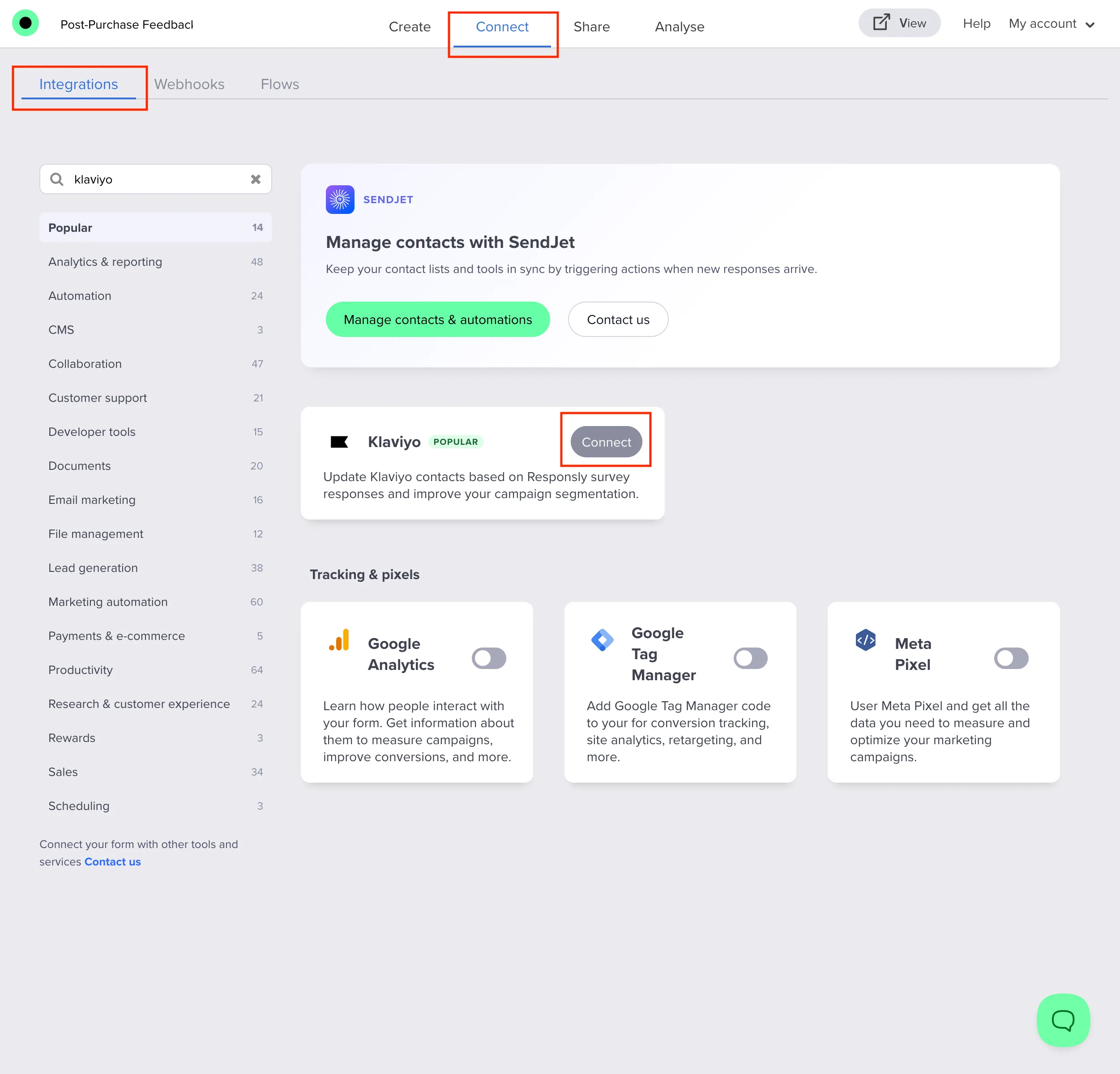
Responsly uses OAuth (PKCE) to connect securely to your Klaviyo account. You can authorize from the survey builder or from the Klaviyo marketplace install page.
From a survey (typical):
- Open your survey in Responsly.
- In the top navigation, go to Integrate → Integrations.
- Select Klaviyo and click Connect Klaviyo.
- A pop-up opens — log in to Klaviyo and authorize Responsly.
If the pop-up does not appear, allow pop-ups for
app.responsly.comin your browser.
From Klaviyo marketplace (optional):
- Open the Responsly install URL:
https://app.responsly.com/integrations/install/klaviyo. - Sign in to Responsly if prompted, then complete Klaviyo OAuth in the pop-up.
- On the install page, choose which survey should use Klaviyo and click Connect — you land in that survey’s Klaviyo settings.
Step 3: Configuration (Settings tab)
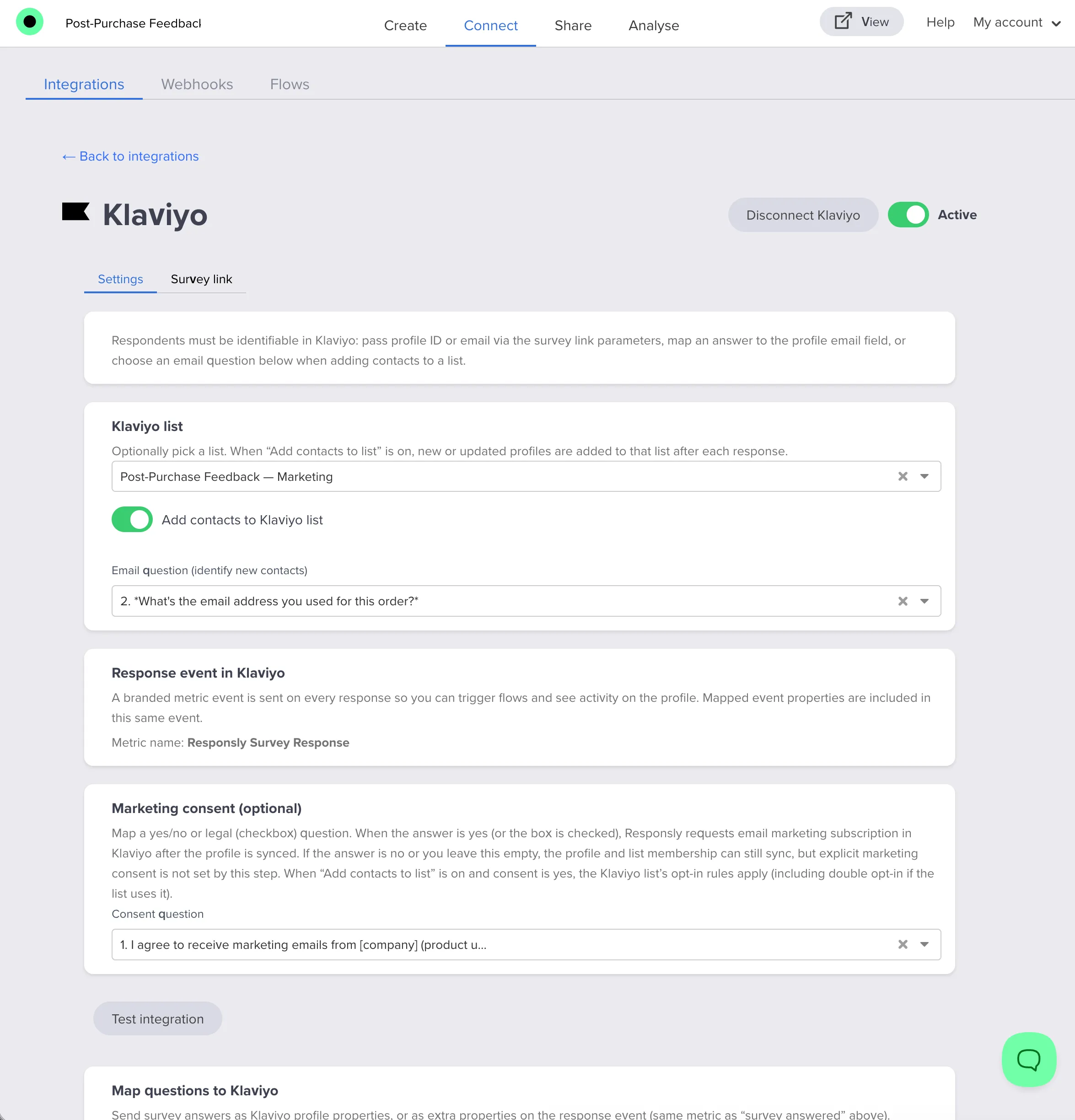
Open the Klaviyo integration and stay on the Settings tab. Sections appear in this order (top to bottom):
- Identification notice
- Klaviyo list
- Response event in Klaviyo
- Marketing consent (optional)
- Test integration
- Map questions to Klaviyo
- Set static values
Identification notice
At the top of the Settings tab, Responsly reminds you that respondents must be identifiable in Klaviyo: pass profile ID or email via Survey link parameters, map an answer to the profile email field, or choose an Email question when Add contacts to Klaviyo list is enabled.
Klaviyo list
Optionally sync post-purchase respondents to a Klaviyo list (for example, Post-Purchase Feedback or Newsletter):
- Select a Klaviyo list from the dropdown (lists are loaded from your connected account).
- Enable Add contacts to Klaviyo list if you want each identified respondent added to that list after their profile is created or updated.
- When Add contacts to Klaviyo list is on, select the Email question (identify new contacts) — choose What’s the email address you used for this order? (required on save; must be an Email-type question).
Profiles are added to the list after a successful profile upsert and when a Klaviyo profile ID or email is available. If you also use Marketing consent (optional) with the same list and the respondent consents, Responsly uses Klaviyo’s subscription API for that list instead of a separate list-add step — see Marketing consent.
Response event in Klaviyo
On every identified response, Responsly sends one branded metric event to Klaviyo — useful for Flows and the profile timeline. This is the only metric Responsly uses for event-property mappings.
- Metric name (fixed):
Responsly Survey Response - Always included:
form_id,response_id,submitted_at - Plus: any fields from Event property mappings (questions or static values)
What goes into the event:
| Source | Properties on the event |
|---|---|
| Branded response event (always) | form_id, response_id, submitted_at |
| Event property mappings (questions or static values) | Your custom keys (e.g. score, source) |
Example timeline payload when NPS is mapped as event property score:
Metric: Responsly Survey Response
Properties: form_id, response_id, submitted_at, score
Marketing consent (optional)
To request email marketing subscription in Klaviyo when a respondent opts in:
- Use a Legal (checkbox) or Yes/No consent question (for example I agree to receive marketing emails from [company]…).
- In Marketing consent (optional), select that question under Consent question.
- When the answer is yes or the Legal box is checked, Responsly calls Klaviyo’s subscription API after the profile is synced.
If Add contacts to Klaviyo list is enabled and the respondent consents, Responsly subscribes via the selected list and that list’s opt-in rules apply (including double opt-in when configured on that list in Klaviyo). A separate list-add call is not used in that case.
If the consent question is empty or the answer is no, profile and property sync can still run, but explicit marketing consent is not set through this step.
Test integration
Test integration is available when configuring Klaviyo for a specific survey. Click it to send a test profile and event to Klaviyo without submitting a real survey.
Confirm the test profile appears in Klaviyo (search for an address like responsly-klaviyo-test-…@example.com) and that a Responsly Survey Response event shows on the profile timeline with source: responsly_integration_test and form_id.
Map questions to Klaviyo
Use Map questions to Klaviyo to send each answer to Klaviyo as either a profile property or an event property.
For each row:
- Question — select a survey question.
- Target — choose Profile property or Event property.
- Klaviyo property name — profile field or custom key on the response event (taggable).
Each row has three fields (no per-row metric name). When target is Event property, the value is added to the same event as in Response event in Klaviyo.
Click Add question mapping for additional rows.
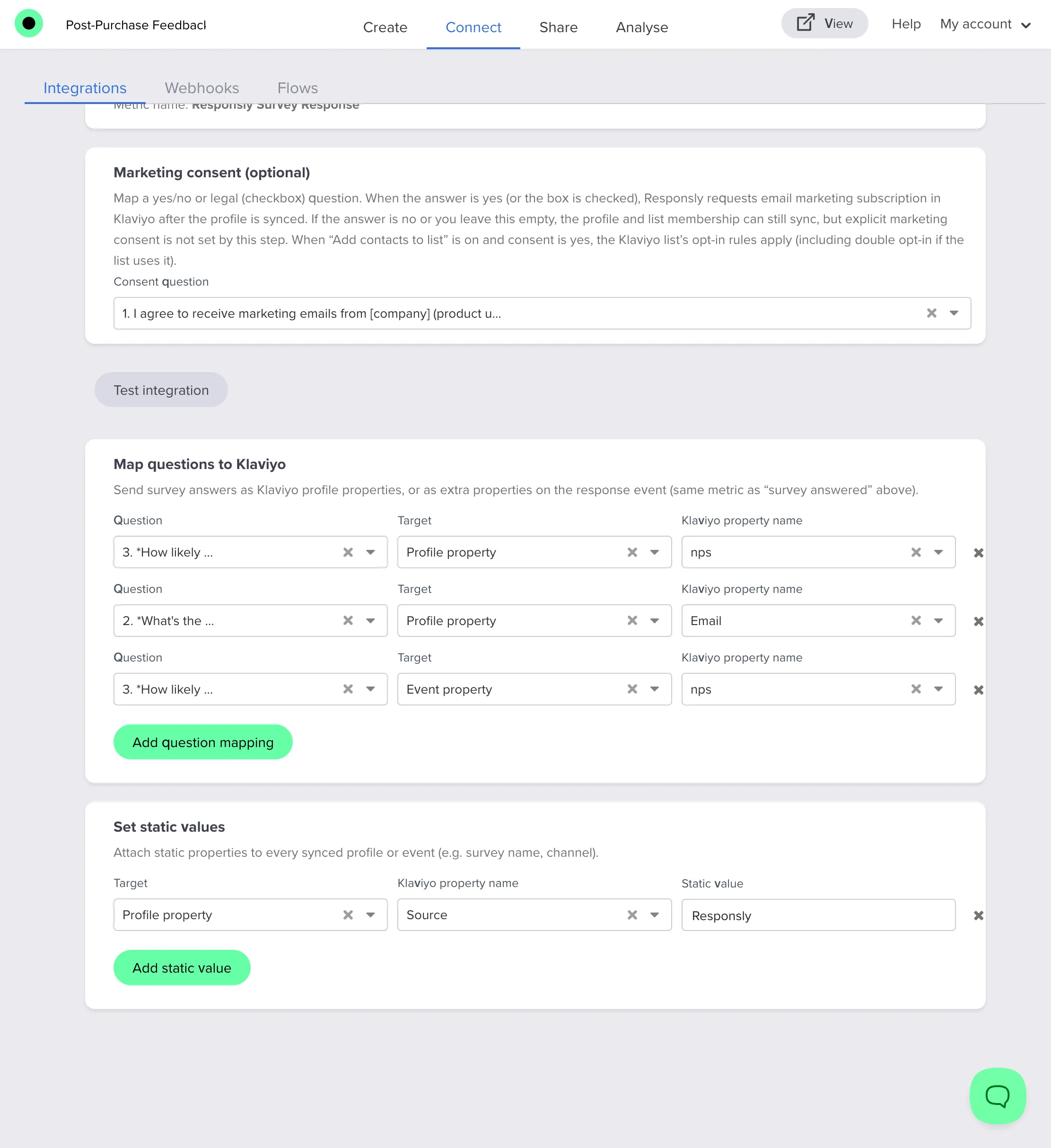
Example mappings for Post-Purchase Feedback:
| Question | Target | Klaviyo property name |
|---|---|---|
| NPS — How likely are you to recommend [product]… | Profile property | post_purchase_nps (custom — type it in) |
| Email — What’s the email address you used for this order? | Profile property | email |
| NPS — same question | Event property | score |
Do not map the Legal or consent Yes/No question to a profile field — use Marketing consent (optional) instead.
Tip: Map NPS to a profile property for segments (e.g. detractors 0–6). Map the same answer to Event property
scoreif you want that value on the timeline event and in Flow filters on Metric → Responsly Survey Response.
Standard profile fields supported in the UI:
| Property name | Use for |
|---|---|
email | Email address |
phone_number | Phone number |
external_id | External identifier |
first_name | First name |
last_name | Last name |
organization | Company / organization |
title | Job title |
city | City |
region | Region / state |
country | Country |
zip | Postal code |
image | Image URL |
Any other name is stored as a custom profile property in Klaviyo.
Warning: Matrix, ranking, and multi-scale (numbers scale) questions are sent as text or JSON. Responsly shows a warning in the UI for these types. Prefer rating, NPS, single-choice, or text questions for clean properties and segments.
Set static values
Attach the same value to every synced profile or event.
For each row:
- Target — Profile property or Event property.
- Klaviyo property name — field or custom property key.
- Static value — the value to send on every response.
Example for Post-Purchase Feedback:
| Target | Klaviyo property name | Static value |
|---|---|---|
| Event property | source | Responsly |
Event property rows add a fixed field to the same response event as question mappings (e.g. source = Responsly).
Click Add static value for more rows.
Step 4: Survey link
Use the Survey link tab to build a public URL that passes hidden variables into your survey. Klaviyo substitutes merge tags in the query string so each recipient gets a personalized link.
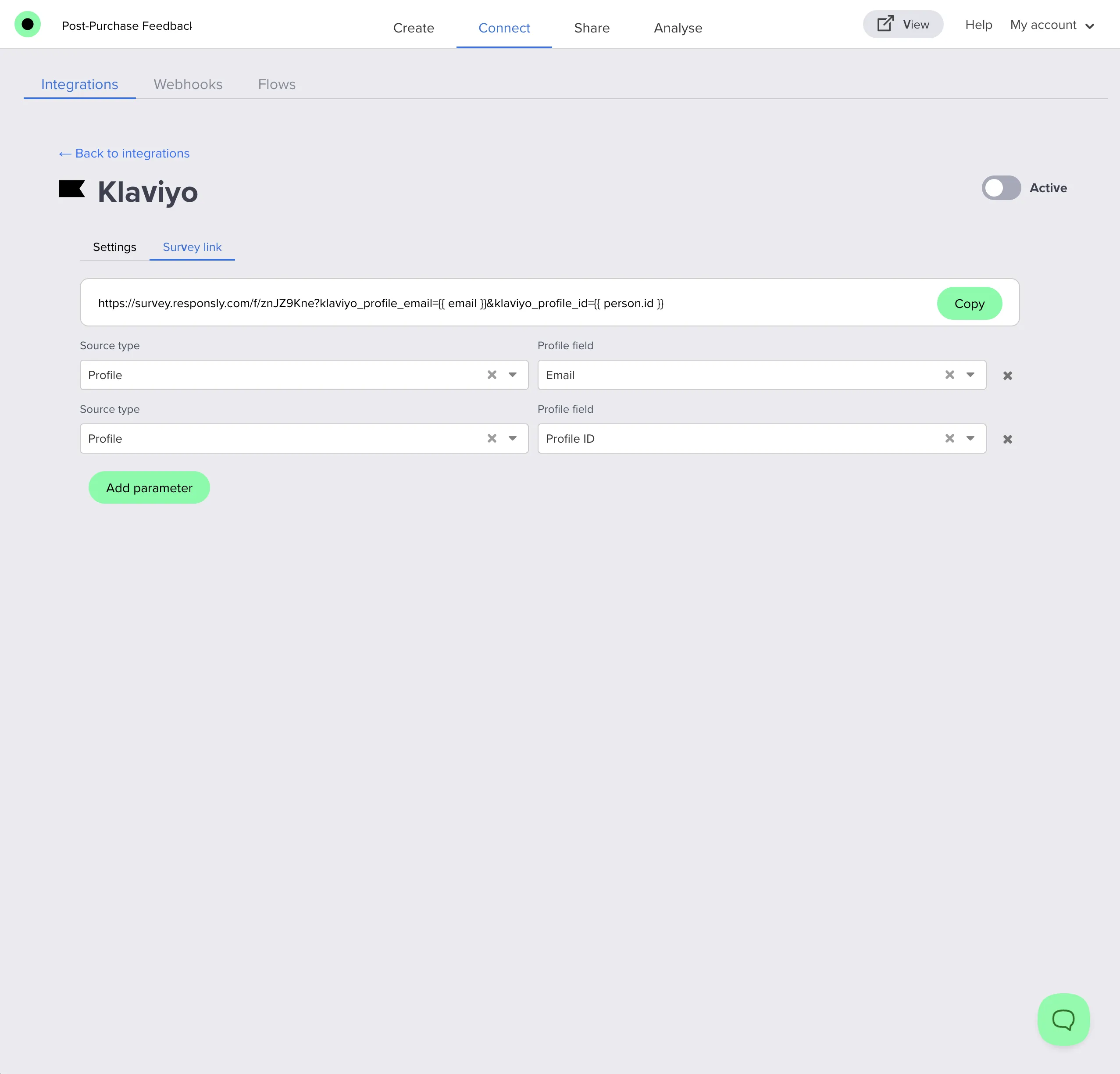
- At the top, copy the read-only survey URL — Responsly appends query parameters with Klaviyo merge tags as values.
- Click Add parameter to add rows. The first click adds two defaults:
- Profile → Email → hidden variable
klaviyo_profile_email(merge tag{{ email }}) - Profile → Profile ID → hidden variable
klaviyo_profile_id(merge tag{{ person.id }})
- Profile → Email → hidden variable
- For each parameter, choose Source type and the field:
- Profile — standard profile fields (email, first name, Profile ID, etc.) or any custom profile property (taggable). Hidden variable name:
klaviyo_profile_{field}(for exampleklaviyo_profile_id). - Case — pass a Klaviyo profile property into the survey for context (presets: Order ID, Campaign ID, or a custom property name). Hidden variable name:
klaviyo_case_{field}(for exampleklaviyo_case_order_id). Case parameters do not identify the respondent by themselves — still pass profile email or ID for sync.
- Profile — standard profile fields (email, first name, Profile ID, etc.) or any custom profile property (taggable). Hidden variable name:
- Click Save changes after configuring parameters so hidden variables are added to your form definition.
When sending from Klaviyo campaigns or flows, paste this URL into your email CTA or button. Klaviyo substitutes the merge tags with each recipient’s profile data.
Important: The integration does not sync anonymous responses. Always pass profile ID and/or email in the link (for example
klaviyo_profile_idandklaviyo_profile_email), map email from a survey answer, or use the email question required when Add contacts to Klaviyo list is enabled.
For more background, see Hidden Variables and Identification of Respondents.
Step 5: Distribute your Post-Purchase Feedback survey via Klaviyo
Post-purchase flow or order email
- Copy the personalized survey link from the Survey link tab (Step 4).
- In Klaviyo, add the link to your Placed Order (or similar) flow — for example in the thank-you or delivery email a few days after purchase.
- Add a CTA such as How was your order? pointing to the survey URL (merge tags in the query string are resolved per recipient).
- Activate the flow or send the campaign.
Campaign email
- Use the same survey link in a one-off campaign if you are not using a post-purchase flow.
- Add a button or text link; merge tags resolve per recipient when the message sends.
Direct link
- Open Integrate → Share in Responsly.
- Copy the public link, or use the link from the Klaviyo Survey link tab with parameters configured.
- Share via SMS, social, or other channels (identification via URL parameters still applies).
Trigger Klaviyo Flows from Post-Purchase Feedback
Unlike CRM workflow rules, Klaviyo automation is driven by metrics (events) and profile properties. After Responsly syncs:
- Trigger a Flow on Metric → Responsly Survey Response to thank promoters or follow up with detractors.
- Filter on event property score (from your NPS event mapping) — for example score less than 7.
- Segment profiles where profile property post_purchase_nps is 9–10 for loyalty campaigns, or 0–6 for recovery outreach.
- Combine Marketing consent with list settings so opted-in shoppers enter your main marketing list when they answer yes on the consent question.
Example: Metric → Responsly Survey Response where score is less than 7 → send a personal check-in email from support.
Step 6: Testing
Before going live, test end to end:
- Connect Klaviyo and complete Settings + Survey link configuration.
- Turn Active on and Save changes (including after Survey link parameters, so hidden variables exist on the form).
- Click Test integration and verify the test profile and event in Klaviyo.
- Send yourself a test email from Klaviyo with the personalized survey link, or open the URL manually with test query values (e.g. your email in
klaviyo_profile_email). - Submit the survey as a test respondent — answer the NPS question, enter your email, and check or leave the Legal consent box.
- Verify in Klaviyo:
- Open the profile → check Properties for
post_purchase_nps(or your mapped NPS field) andemail. - Check List membership if enabled.
- Check the profile timeline for a Responsly Survey Response event with
score,form_id,response_id, andsubmitted_at. - If you opted in, confirm email marketing subscription status matches your list’s opt-in rules.
- Open the profile → check Properties for
- Verify in Responsly:
- Open Integrate → Analyze → confirm the response and hidden variable values.
Troubleshooting
| Issue | What to check |
|---|---|
| Responses not appearing in Klaviyo | Integration Active and Save changes clicked; Klaviyo still connected (not disconnected); respondent identified by email or profile ID |
| Profile not created | Valid email in URL (klaviyo_*_email), mapped email field, or email question; correct hidden variable names after Save changes |
| List membership or events missing after response | Klaviyo returned a profile ID after upsert; check logs if profile upsert succeeded but downstream steps were skipped |
| Hidden variables empty on response | Survey link parameters saved with Save changes; parameter names match klaviyo_{source}_{field} |
| List membership missing | List selected; Add contacts to Klaviyo list enabled; Email question selected when required; profile upsert succeeded |
| Marketing consent not applied | Yes/No or Legal consent question mapped; answer is yes / checkbox checked; email valid on profile |
| Event properties missing on timeline | Event property mappings use a property name; profile ID must exist after upsert — the branded event always includes form_id, response_id, submitted_at |
| No event on timeline | Profile ID missing after upsert (identification or profile-import failed) |
| OAuth pop-up blocked | Allow pop-ups for app.responsly.com |
| API or connection errors | Disconnect and Connect Klaviyo again on the survey, or remove and reconnect the account under Profile → Integrations; confirm Klaviyo API access |
Supported question types and how values are sent
Responsly formats answers automatically before sending to Klaviyo:
| Answer type | How it is sent |
|---|---|
| Text, email, number, rating, NPS, yes/no, single choice | Single value (choice labels as text) |
| Multiple choice | Selected labels joined with ; |
| Date | YYYY-MM-DD |
| Matrix, ranking, numbers scale | Text or JSON (use with caution) |
Profile vs event targets
| Target | Best for | Notes |
|---|---|---|
| Profile property | Segmentation, profile fields, long-lived attributes | Standard fields or custom properties in Klaviyo |
| Event property | Extra fields on Responsly Survey Response | Merged into one event; multiple rows → more properties on that event |
Tip: For Post-Purchase Feedback, map NPS to profile property
post_purchase_npsfor segments and to event propertyscorefor Flow filters on the same response metric.
Analyze survey results
In Responsly
After collecting responses, use Integrate → Analyze:
- Overall Results — aggregated statistics and charts
- Individual Responses — each submission with hidden variables
- Export — XLSX, CSV, or PDF reports
In Klaviyo
Synced data appears on each profile:
- Properties — standard and custom fields from mappings and static values
- Lists — membership when list sync is enabled
- Activity — the response metric event (with default and mapped properties) on the profile timeline
Use this data for segments, campaigns, and Flows based on survey behavior and scores.
Best practices
- Identify early: Pass
klaviyo_profile_emailand/orklaviyo_profile_idin post-purchase emails, and keep the Email question as a fallback. - Save after Survey link changes: Hidden variables are created when you Save changes, not when you only copy the URL.
- Three questions is enough: NPS, order email, and Legal consent keep completion high in order confirmation and flow emails.
- One metric per response: Flows and segments should use Responsly Survey Response; map custom data as event properties (e.g.
score,source) rather than expecting a separate metric per field. - Respect consent: Map the Legal checkbox to Marketing consent only when copy matches what subscribers agree to; align with your list’s double opt-in settings in Klaviyo.
- Test before launch: Use Test integration and a real test send from Klaviyo with your own profile.
- Reconnect when needed: If the teammate who authorized Klaviyo leaves, another user should connect their Klaviyo account so sync continues.
Remove a connected Klaviyo account
Klaviyo is authorized per Responsly user (OAuth). To revoke access for your user account — for example when someone leaves the team or you want to connect a different Klaviyo login — remove the connection from account settings, not only from a single survey.
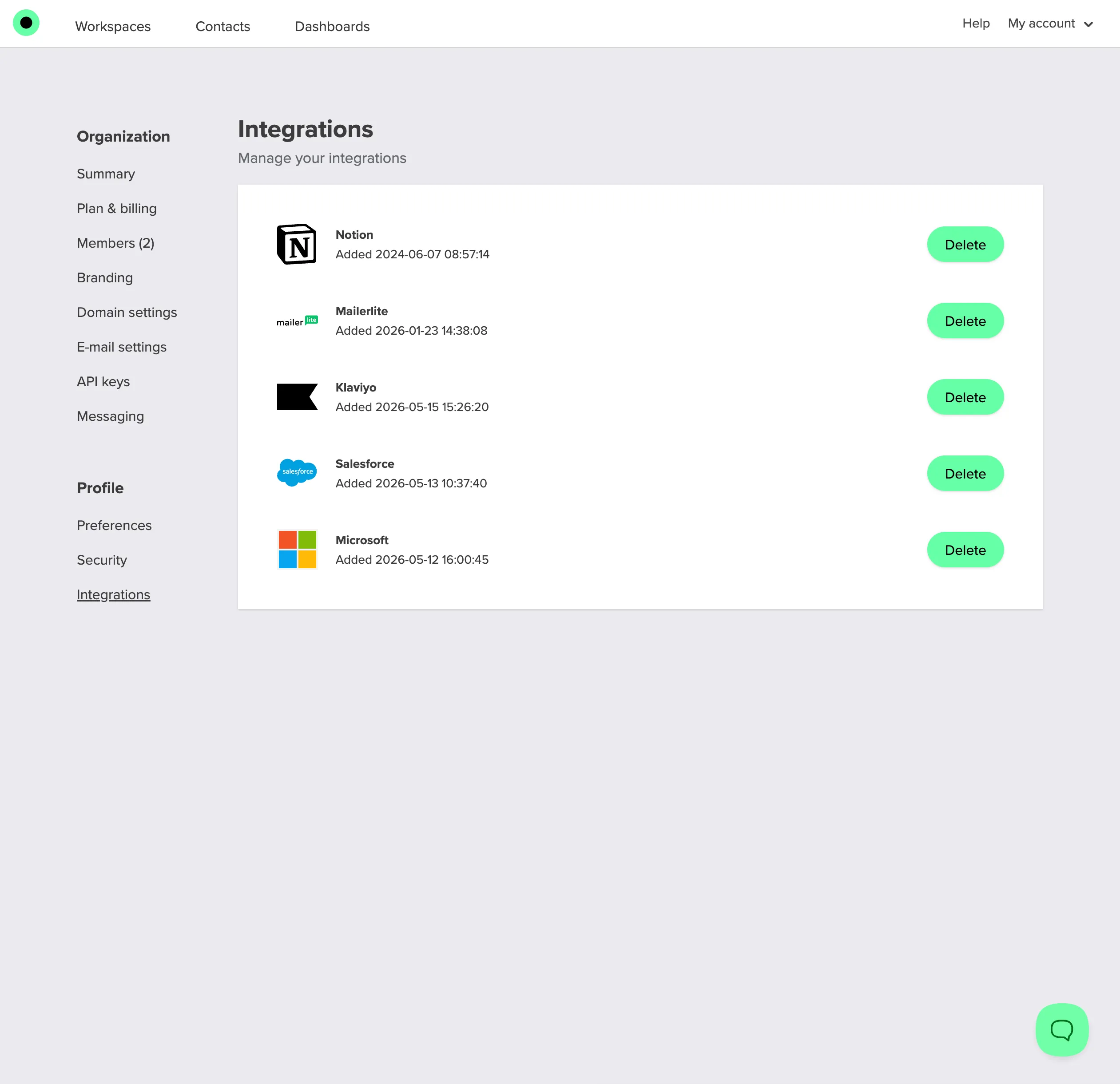
- Open Integrations in Responsly (My account → Profile → Integrations).
- Find Klaviyo in the list (with the date it was added).
- Click Delete next to Klaviyo and confirm.
After deletion, surveys that used your Klaviyo token will no longer sync until another team member connects Klaviyo on their account and reconfigures the integration. To restore sync without removing the account globally, open the survey’s Klaviyo settings and use Connect Klaviyo again with a valid Klaviyo login. You can also use Disconnect Klaviyo in the survey integration header to revoke OAuth for your user without visiting account settings.
Note: Deleting Klaviyo here removes the OAuth link for your Responsly user.