A tablet that stands in a public place should show your form and nothing else. Two locks do that together: the app’s exit PIN keeps people in the form, and the tablet’s own lock keeps them in the app.
The exit PIN
While a form is shown, the app has no buttons of its own. To leave the form:
- Hold the top right corner of the screen for two seconds.
- Type the tablet’s exit PIN.
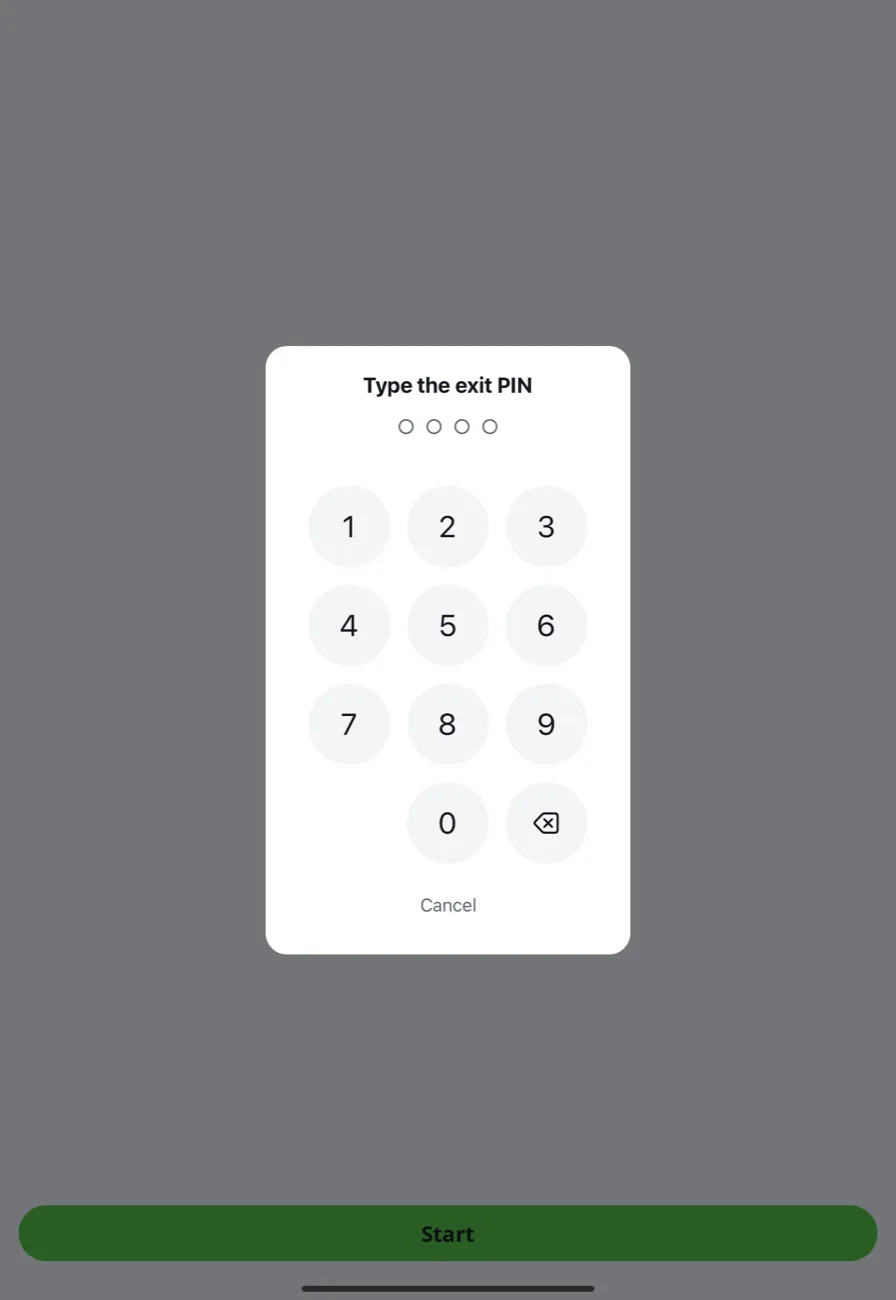
The app goes back to its staff screen, with the list of forms, the responses waiting to be sent and the PIN itself.
Each tablet has its own PIN of 4 to 8 digits. A new tablet gets a random one. The team’s owner or an admin changes it in Responsly: Share → Kiosk, then Edit next to the tablet.
After five wrong tries the keypad locks for 30 seconds. A keypad nobody touches closes by itself and the form stays on the screen.
Tip: Change the PIN after you set a tablet up in front of other people, and use more than four digits where the tablet is left alone.
Keep people in the app on an iPad
Use Guided Access, which locks an iPad to one app.
- On the iPad, open Settings → Accessibility → Guided Access and turn it on. Set a passcode for Guided Access there.
- Open Responsly Kiosk and start the form.
- Triple-click the top button (or the Home button on an iPad that has one), then choose Start.
To end Guided Access, triple-click the same button, enter the Guided Access passcode and choose End.
The staff screen of the app says whether Guided Access is on.
Keep people in the app on Android
When a form starts, the app asks Android to pin it to the screen. Confirm it. While the app is pinned, the Home and Recents buttons do not leave it, and the Back button does nothing in the form.
Android lets anyone unpin an app with a gesture of its own (holding Back and Recents, or swiping up and holding). To make that take the tablet’s screen lock:
- Set a screen lock (a PIN or a password) on the tablet.
- In the tablet’s security settings, open App pinning (on Samsung tablets: Pin app) and turn on Ask for PIN before unpinning. The names differ between manufacturers.
Leaving the form with the exit PIN unpins the app. If you dismissed Android’s question, leave the form with the exit PIN and start it again.
Keep the tablet running
- Power. Keep the tablet plugged in. The Team’s tablets list in Responsly shows each tablet’s battery level as of its last contact.
- Screen. The app keeps the screen on while a form is shown. Leave the app on the form when you walk away: on the staff screen the tablet’s own auto-lock applies.
- Updates and notifications. Turn on Do Not Disturb, so that nothing covers the form.
- Connection. A connection is not needed while people answer, but the tablet sends its responses only when it has one. See How kiosk surveys work offline.