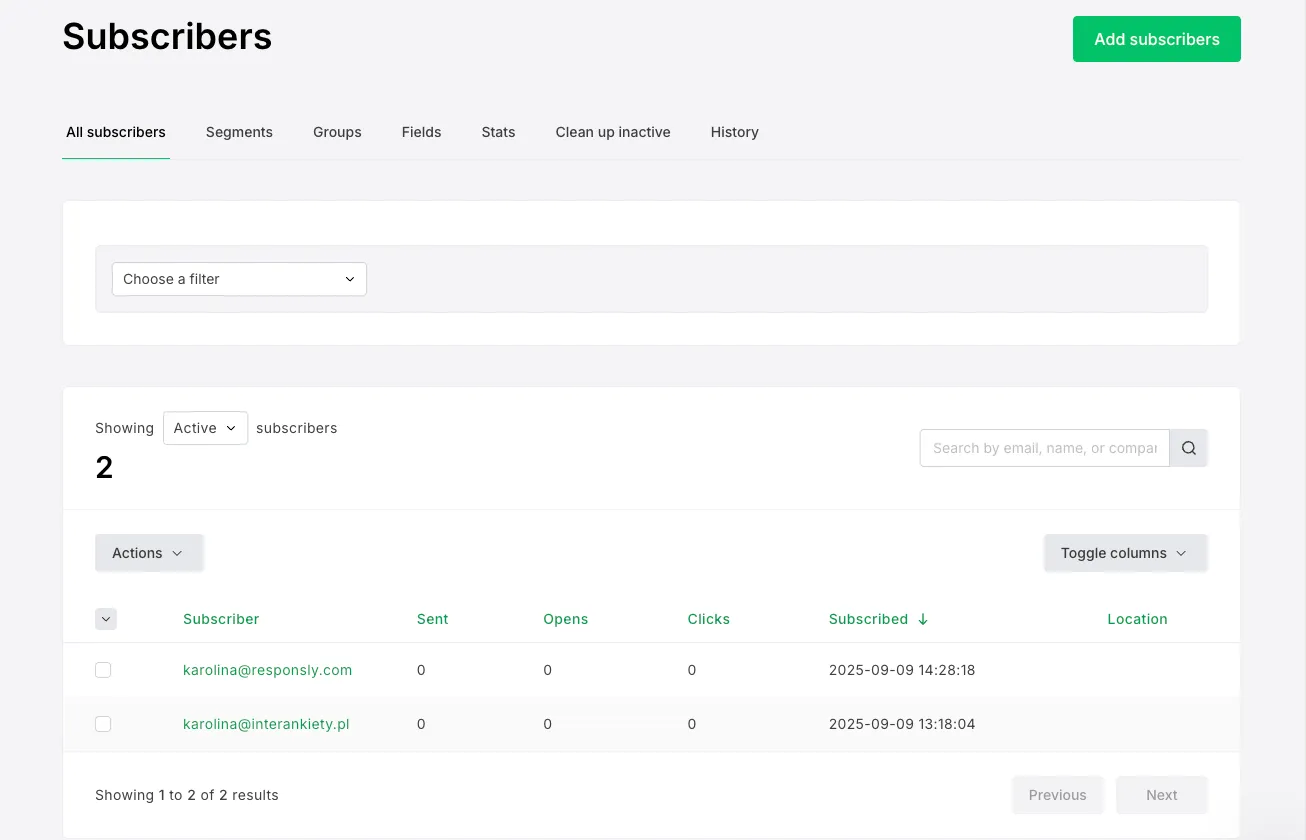
With the MailerLite integration, every survey response can be automatically added to your MailerLite audience. You decide how the data is mapped, which contacts are updated, and what information is stored – making it easy to keep your list accurate and actionable.
Before you begin
Make sure you have:
- a Responsly account with permission to set up integrations,
- a MailerLite account (the newer version) with access to API features,
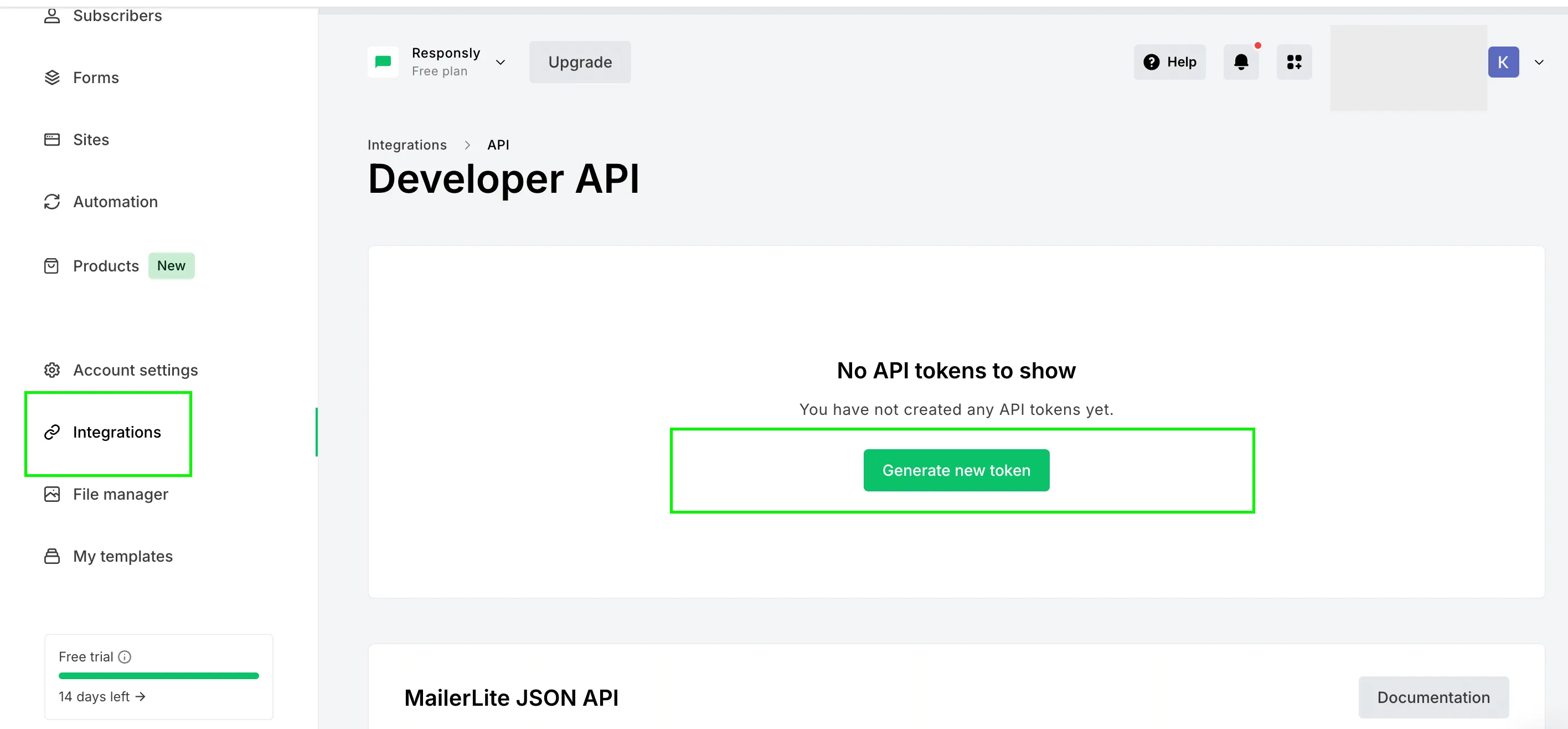
- your MailerLite API key (you can generate it in MailerLite → Integrations/API).
Step 1: Enable the integration
To connect Responsly with MailerLite:
- Log in to Responsly.
- Go to Connect → MailerLite.
- Paste your MailerLite API key and confirm the connection.
After that, the status will change to Connected, and you’ll be able to choose a MailerLite Group and configure field mappings.
Step 2: Map your survey fields
Once connected:
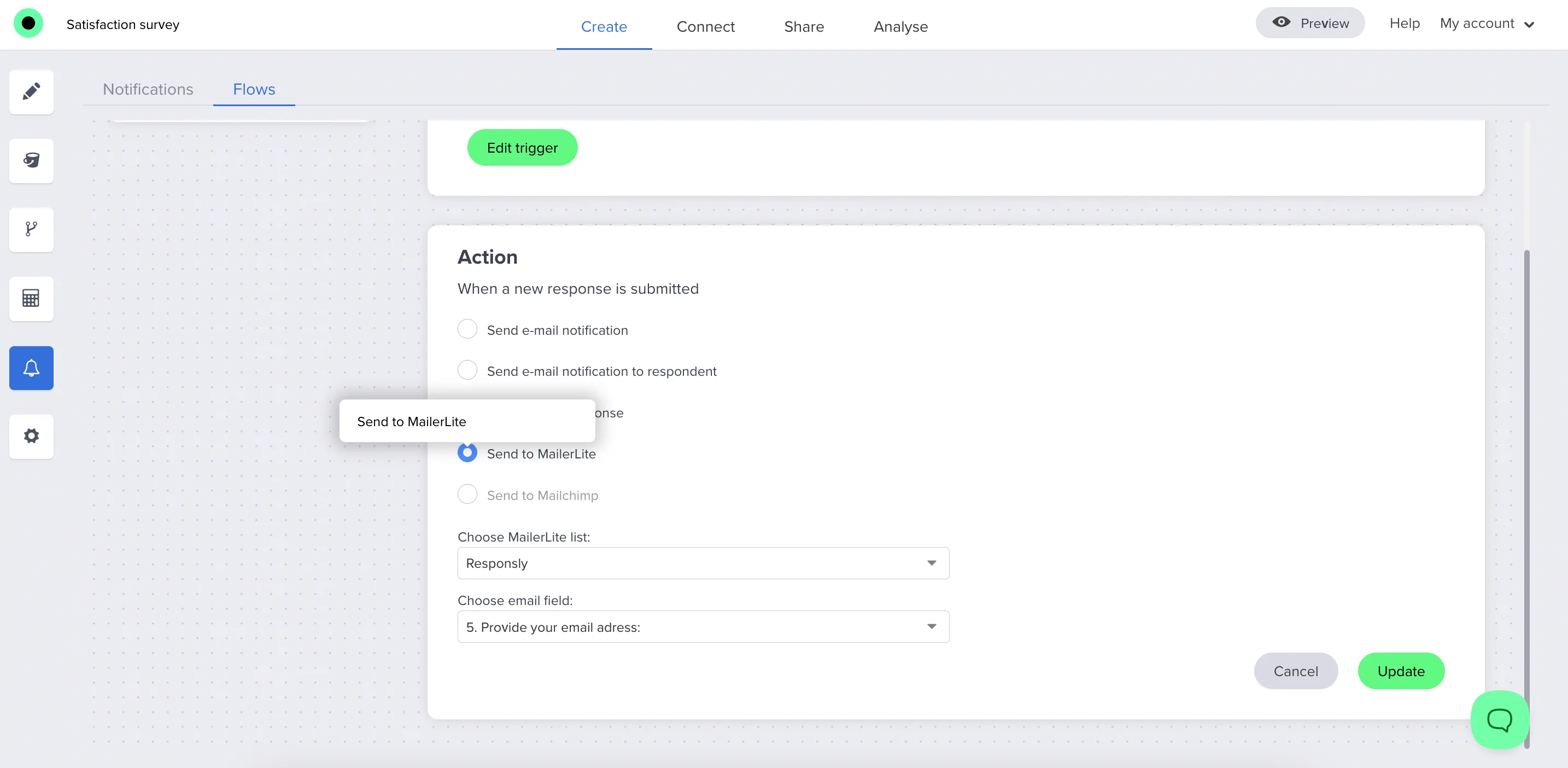
- select which MailerLite Group contacts should be added to,
- map your survey questions in Responsly to fields in MailerLite:
- at minimum, map e‑mail (required),
- you can also map first name, last name and other survey questions to custom fields,
- decide how to handle existing vs new subscribers:
- create new only, or
- update existing (e.g. add tags, fill in fields).
MailerLite supports custom fields and groups/lists – the fields and parameters are aligned with their API.
Step 3: How responses get sent
After setup, all responses that contain e‑mail addresses are sent to MailerLite by default – regardless of whether the survey is shared via:
- direct link,
- QR code,
- SMS survey,
- or embedded form.
When a respondent completes the survey, their data is transferred to MailerLite according to your field mappings.
Step 4 (optional): Use Flows to filter responses
If you want more control over which responses are sent to MailerLite, configure Flow conditions in Responsly, for example:
- require that the respondent provides an e‑mail address,
- require that they give consent.
If conditions are met → contact + response are sent to MailerLite.
If conditions are not met → the response stays in Responsly and is not exported.
Common issues & what to check
If things don’t work as expected:
- No responses in MailerLite? → check whether Flow conditions aren’t excluding them by mistake (e.g. missing e‑mail or no consent).
- Connection problems? → verify the API key is correct and active in MailerLite.
- Wrong/blank fields? → double‑check field mapping in both Responsly and MailerLite, and make sure custom fields exist in MailerLite.