A mobile app survey is a regular Responsly form. You build it in the editor like any other, then choose how its window looks in the app. Everything in this article can be changed later without an app update.
Build the form
Create a form or open an existing one. All question types, logic, translations and themes work in the app.
What works well on a phone, in the middle of using an app:
- One to three questions. People answer a survey in an app in a few seconds or close it.
- Start with a tap. Open with a question answered by one tap, such as NPS, a rating or a choice, and follow with an optional open question.
- No welcome page. Remove it so the first question is visible at once.
- Short texts. A bottom sheet shows less than a browser page. Long descriptions push the answers below the fold.
- A short end page. One line of thanks is enough. The window can close by itself after it.
Choose the window
Open Share → Mobile app and find the Appearance card.
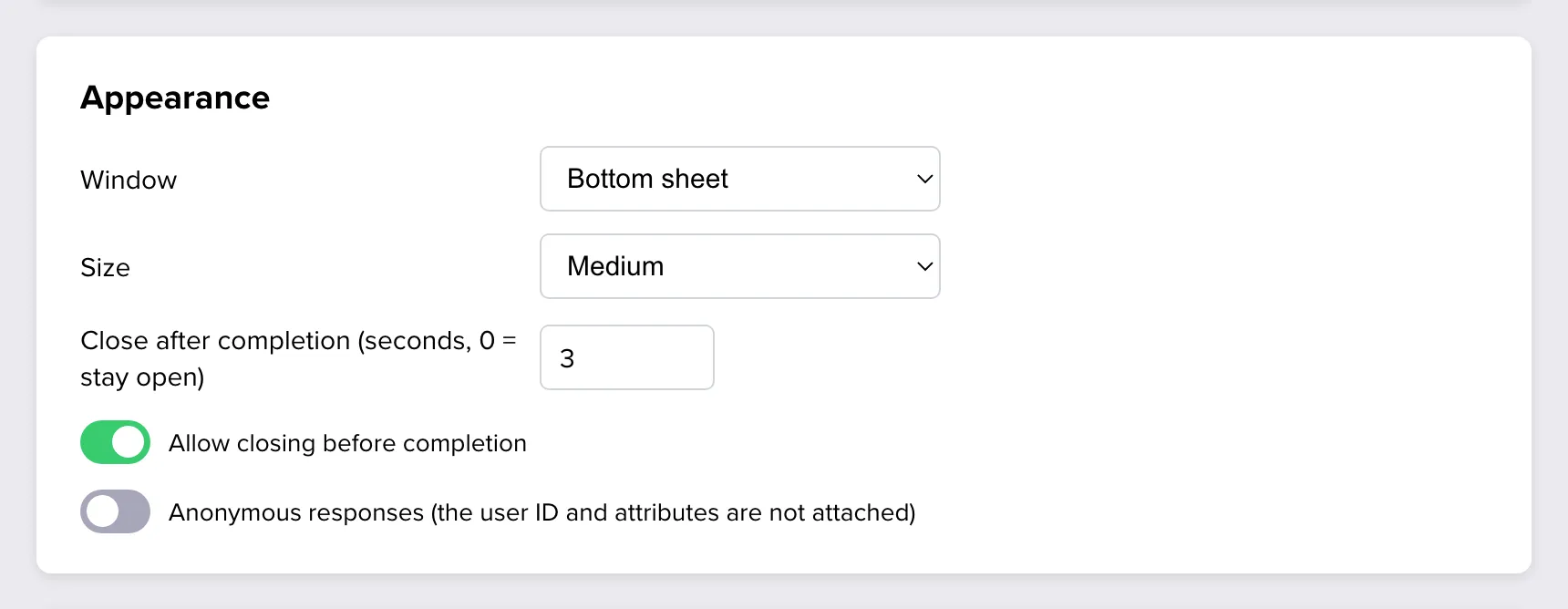
Window sets how the survey sits over your app.
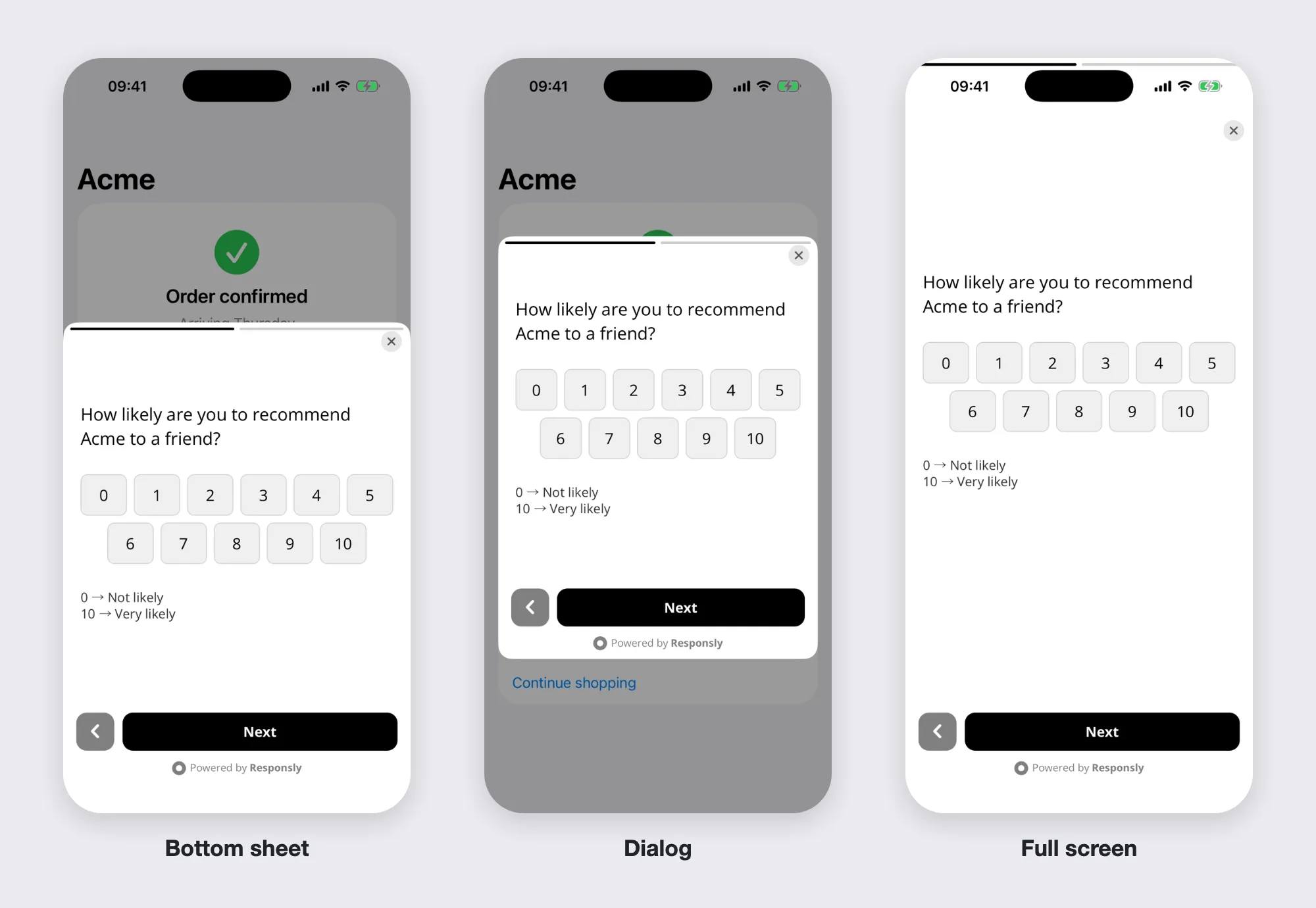
| Window | Looks like | Good for |
|---|---|---|
| Bottom sheet | Slides up from the bottom edge. The app stays visible above it, dimmed. | Most surveys. It feels native and keeps the context. |
| Dialog | A card in the middle of the screen. | A short question that needs attention. |
| Full screen | Covers the whole screen. | Longer forms, or a form opened from a button. |
Size sets the height of a bottom sheet or a dialog. Full screen ignores it.
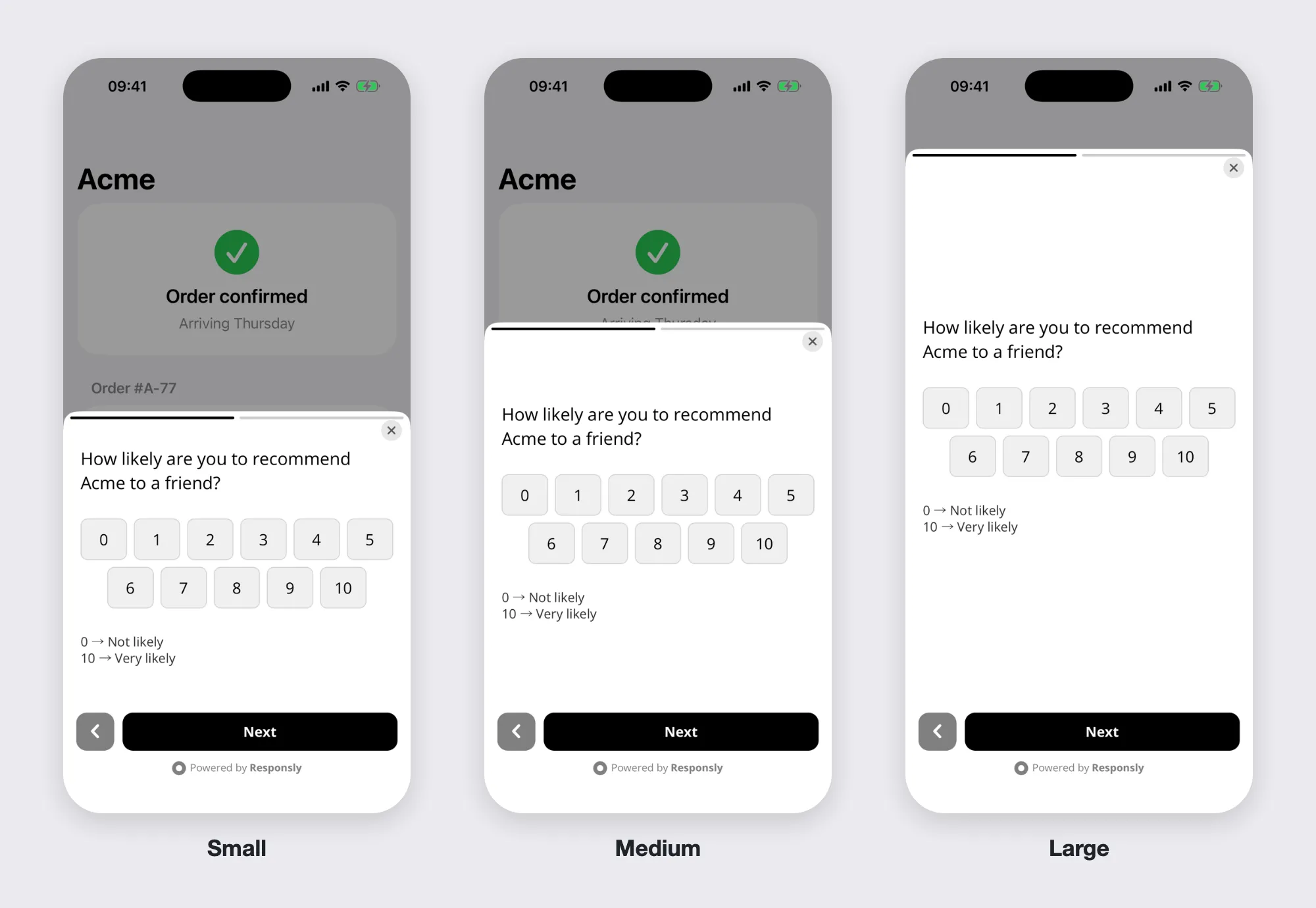
| Size | Bottom sheet | Dialog |
|---|---|---|
| Small | 45% of the screen height | 40% |
| Medium | 65% | 56% |
| Large | 88% | 80% |
Tip: Pick the size for your longest question. If a question does not fit, the respondent can scroll inside the window, but a survey that fits without scrolling gets more answers.
Closing the survey
| Setting | What it does |
|---|---|
| Close after completion | Seconds the end page stays visible before the window closes by itself. With 0 it stays until the respondent closes it. |
| Allow closing before completion | On: the respondent can close the survey at any time. Off: there is no close button until the survey is finished. |
Leave closing allowed unless the survey is part of a flow the user started. A survey people cannot leave gets rushed answers.
Colors and fonts
The survey uses the theme of the form, set on the Design tab: font, background, text and button colors. See Survey theme design: colors and fonts.
A light background with dark text is the safest choice over a dimmed app. Check the theme on a real phone, in daylight if you can.
Languages
The app shows the translation that matches the language of the device. If the form has no translation for it, the form’s own language is used. See Multilingual Surveys.
Developers can also set the language from the app, for example when the app has its own language setting: Language.
For developers
The window style and size can be set from code for a single call, and the app can react when a survey is shown, answered or closed: Appearance and Callbacks.