Two cards on the Share → Mobile app tab decide whether a survey appears: When to show sets the moment and Who sees it sets the audience. Both are checked on the user’s device, so no data about the user is sent anywhere to make the decision.
When to show
A trigger is something that happens in the app. When it happens and the user is in the audience, the survey opens.
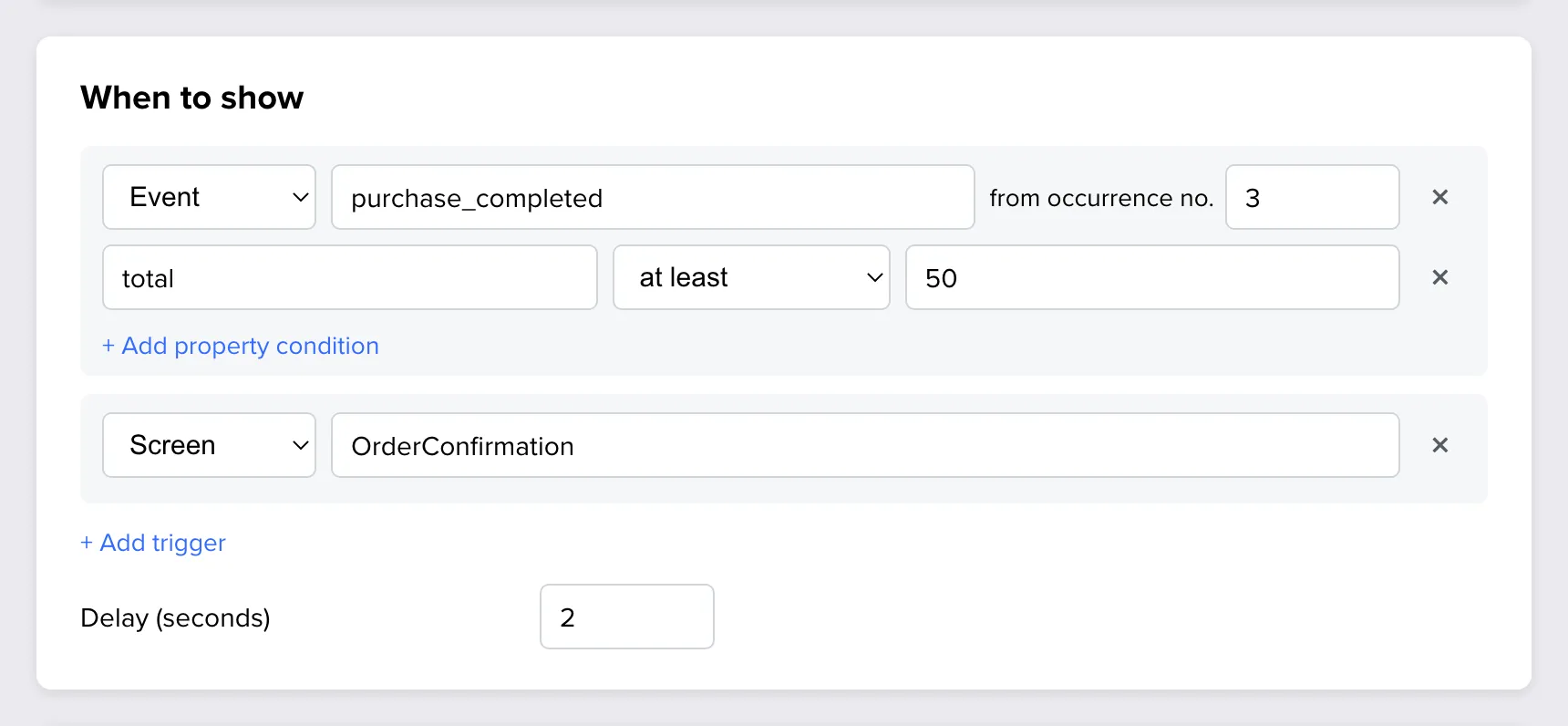
Click Add trigger and choose its type.
| Trigger | The survey appears when | You enter |
|---|---|---|
| Event | The app reports an event, such as a finished purchase. | The event’s name, exactly as the app sends it. |
| Screen | The user opens a screen. | The screen’s name, exactly as the app sends it. |
| App launch | The app starts. | Nothing. |
An event trigger has two more options:
- From occurrence no. The survey waits until the event has happened this many times on the device. With 3, it appears at the third purchase, not the first.
- Property conditions. Click Add property condition to react only to some events, for example purchases where
totalis at least 50. All conditions have to be true.
A survey can have several triggers. It is considered when any one of them matches.
Delay is the number of seconds between the trigger and the survey. Use it to let a screen settle before the survey slides in. For a screen trigger, the survey is skipped when the user has left that screen in the meantime.
Note: A survey without a trigger never appears on its own. It is shown only when the app opens it from code. Your developer can read about it in Show a survey manually.
Who sees it
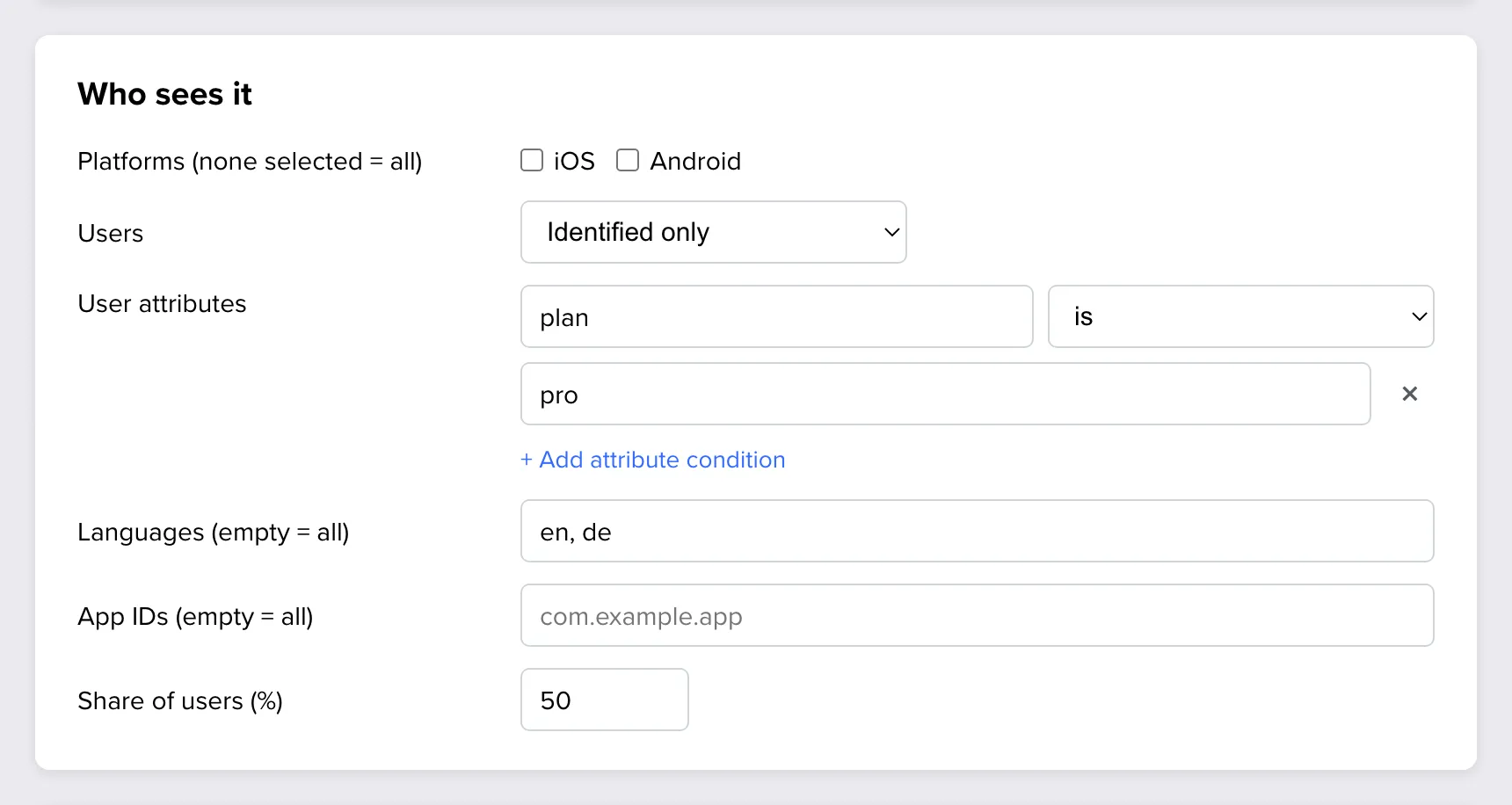
The audience narrows the survey down to some users. Every setting left empty means no restriction.
| Setting | Limits the survey to |
|---|---|
| Platforms | iOS, Android or both. With none ticked, both. |
| Users | Everyone, identified users only (the app knows who they are, usually after login) or users who are not identified. |
| User attributes | Users whose attributes match your conditions, such as plan is pro. With more than one condition, choose whether all of them or any of them has to be true. |
| Languages | Users of the listed languages, separated by commas: en, pl, pt-BR. pt also matches pt-BR. |
| App IDs | The listed apps, when your team has more than one app or a separate test build. |
| Share of users | A percentage of installs. With 20, one install in five can see the survey, and it is always the same ones. |
Conditions
| Operator | True when |
|---|---|
| is | The attribute equals the value. Upper and lower case do not matter. |
| is not | The attribute differs from the value, or is not set at all. |
| contains, does not contain | The value is, or is not, part of the attribute’s text. |
| is set, is not set | The attribute has any value, or none. |
| greater than, at least, less than, at most | The attribute compares that way, as a number or a date. |
Important: is not and does not contain are also true for users who do not have the attribute. To reach users whose plan is known and is not
free, add two conditions joined with All conditions:planis set andplanis notfree.
Attributes come from the app. See Identify app users and pass data to responses.
Names have to match exactly
Event names, screen names and attribute names are compared exactly as written, including upper and lower case. Copy them from your developer rather than typing them from memory. See the naming table in Install the Responsly Mobile SDK in your app.
Save and wait a moment
Click Save. A note next to the button shows when there are unsaved changes.

Apps pick up new rules within about 10 minutes, the next time they start or come back to the foreground. To see a change at once on a test phone, reinstall the test build or ask your developer to reset the SDK.
Examples
| Goal | Trigger | Audience |
|---|---|---|
| NPS for loyal customers | Event purchase_completed, from occurrence no. 3 | Identified users only |
| Feedback on a new screen | Screen NewCheckout, delay 5 seconds | Share of users 25 |
| Why free users do not upgrade | Event paywall_closed | plan is free |
| A survey for one market | App launch | Languages de |
How often a survey may come back is a separate setting: Set how often a mobile survey appears. The full list of rules and the order in which they are checked is in the developer documentation: Targeting.