Your app knows things about its users that a survey does not have to ask: who they are, which plan they have, when they signed up. The Mobile SDK can use that data in two ways: to choose who sees a survey, and to save it with each response.
What the app passes to the SDK
Your developer adds this once, in the app’s code:
| Data | Example | Set when |
|---|---|---|
| User ID | user-123 | The user logs in. |
| Attributes | plan: pro, country: DE, signed_up: a date | The user logs in, and whenever a value changes. |
Attributes can be texts, numbers, yes or no values and dates. The steps for developers are in Identify users & attributes.
Note: The data stays on the device. It is sent to Responsly only as part of a response, when a survey is actually shown, and only into the hidden fields described below.
Use the data for targeting
On the Share → Mobile app tab, under Who sees it, you can:
- limit a survey to identified users, or to users who are not identified, in the Users list,
- add conditions on attributes under User attributes, such as
planispro.
See Choose when and to whom a mobile survey appears. Targeting works without any hidden fields.
Save the data with responses
The user ID and attributes are saved through the form’s hidden fields. A value is kept only when the form has a hidden field with the same name.
- Open the form in the editor and go to hidden fields. See What Are Hidden Variables in Surveys?
- Add a field named
user_idto keep the user ID. - Add one field for each attribute you want to keep, named exactly like the attribute:
plan,countryand so on. - Save the form.
| Hidden field in the form | Filled with |
|---|---|
user_id | The user ID from the app |
plan | The plan attribute |
| any other name | The attribute with that name, when the app has set one |
From then on every response from the app carries these values. You see them with the response, can filter results by them, and they are included in exports, webhooks and integrations like any other hidden field.
Note: Hidden fields are available from the Professional plan.
Developers can also pass values for a single survey, for example the ID of the order the survey is about: Hidden fields.
Anonymous responses
To collect answers without knowing who gave them, turn on Anonymous responses in the Appearance card of the Mobile app tab.
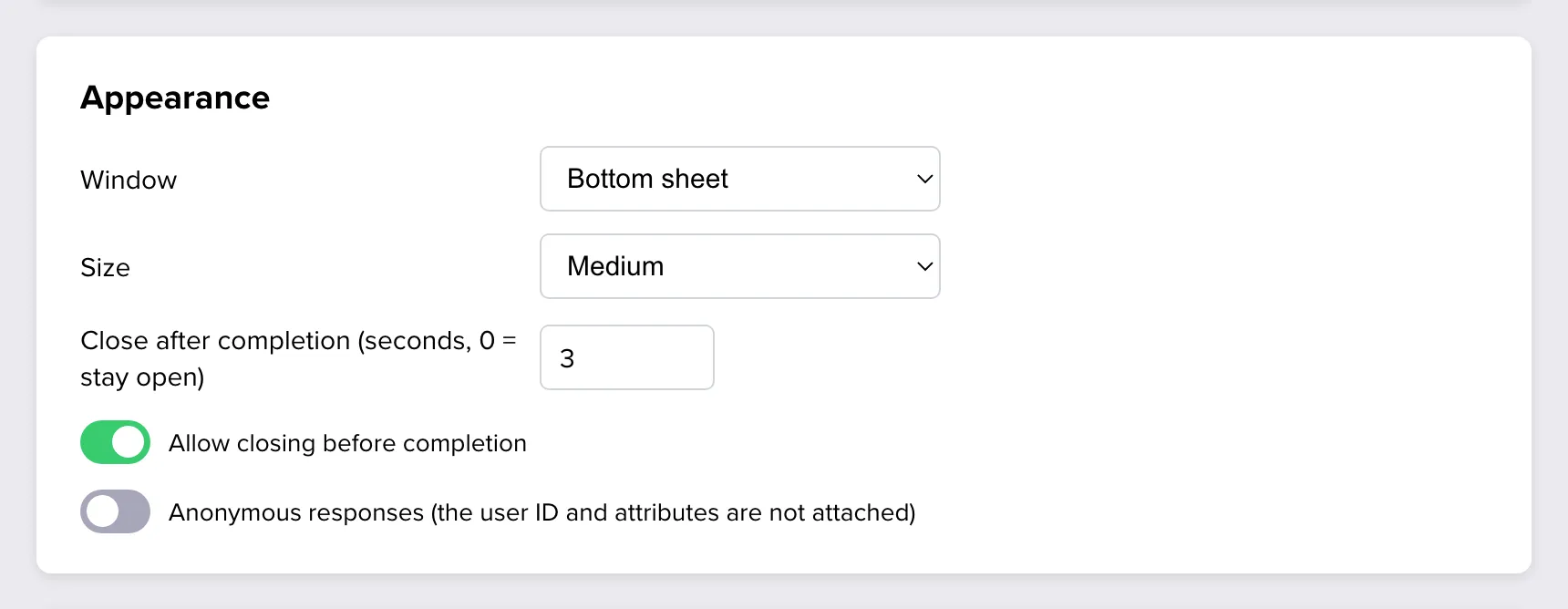
With the switch on:
- the user ID, attributes and hidden-field values are not attached to responses of this form, whatever the app passes,
- targeting still works, because the audience is checked on the device.
Important: The switch controls what Responsly stores. If you promise anonymity, also do not ask for identifying details in the survey itself, and make sure your app does not record the answers together with the user on its own.
When users log out
When a user logs out, the app should clear their identity in the SDK, so the next person on that device is not mistaken for them. Ask your developer to do this on logout. It also clears the history of shown surveys on that device, so frequency rules start again.
What Responsly receives
| When | What |
|---|---|
| The app starts | A request for the survey settings of your team. It contains no user data. |
| A survey is shown, closed or completed | An anonymous count for the Activity card. |
| A survey is shown | The form is loaded with the user ID, attributes and hidden-field values, unless responses are anonymous. |
| The respondent submits | The answers, saved as a response. |
The events and screens your app reports are not uploaded. The one exception: a response records which event or screen triggered its survey. The SDK uses no advertising identifier and no location. The details, including what to declare in the App Store and Google Play, are in Privacy & data.