Use the Responsly + Microsoft Teams integration when your audience already lives in Teams—for pulse surveys, training quizzes, IT or HR forms, and other flows where a channel post or targeted send beats a standalone e-mail thread.
You can:
- distribute surveys, forms, quizzes, and tests to Teams channels and users,
- run recurring sends so the same form reaches a channel or roster on a schedule.
For real-time alerts when someone submits (instead of—or in addition to—posting the form), use MS Teams survey notifications so selected channels get response notifications, respondent context inside Teams, and quick links into Responsly results.
This guide walks through posting a survey to a Teams channel via Contacts → Distributions.
Connect and configure an MS Teams distribution
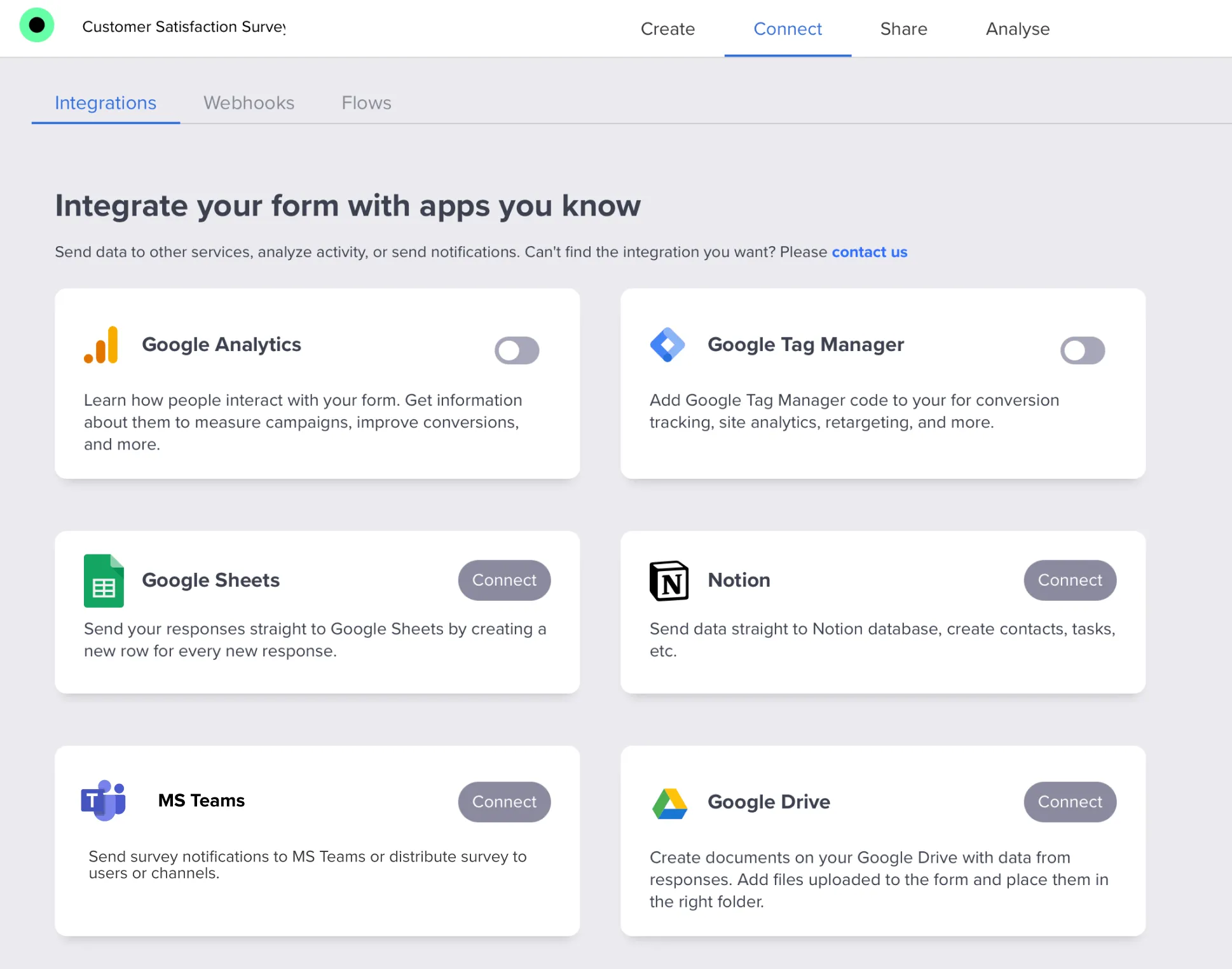
In the Connect tab, choose the MS Teams integration.
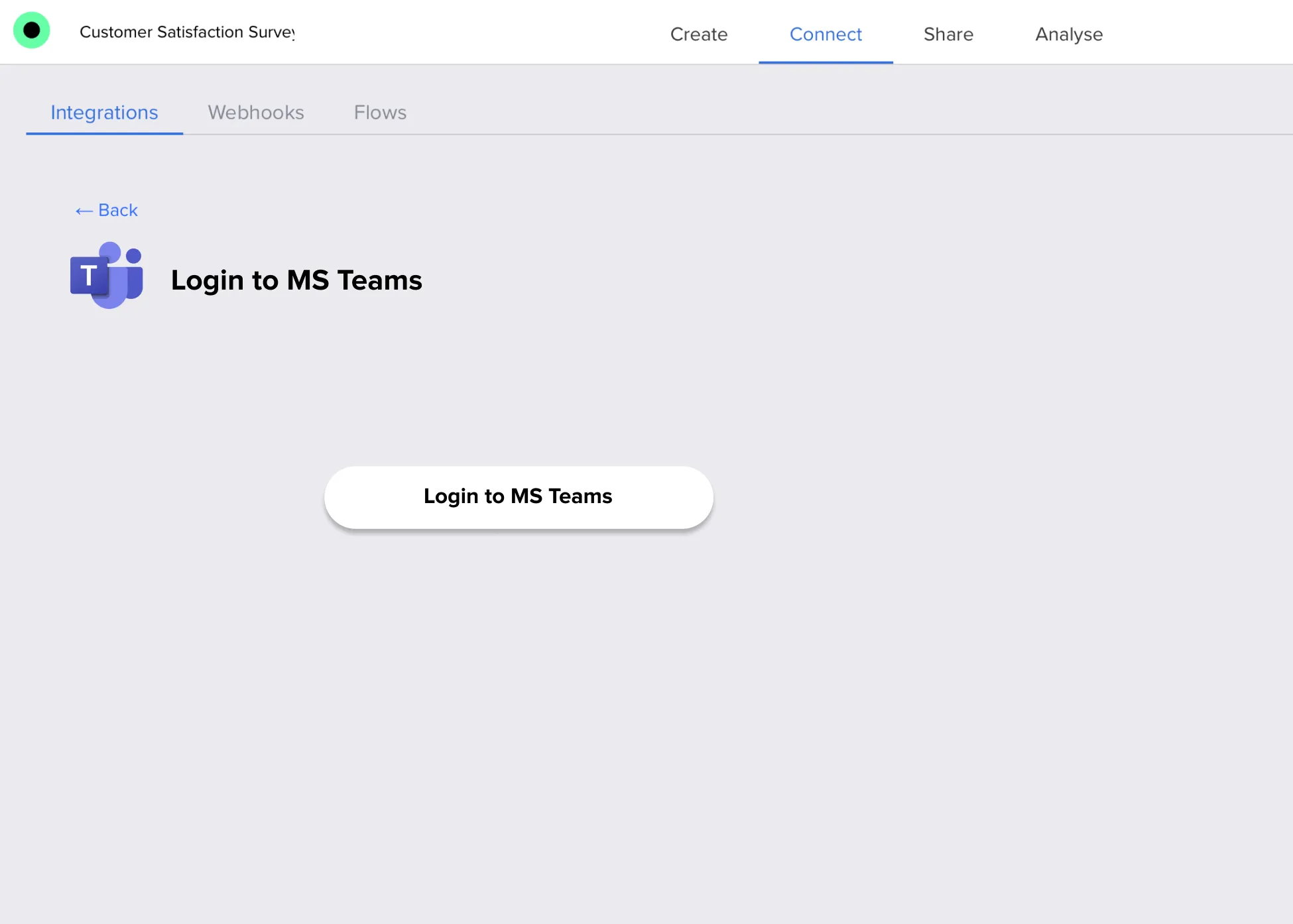
Click Login to MS Teams. You’ll be redirected to the Microsoft authentication page where you can select the account to connect to Responsly.
After connecting, go to Contacts → Distributions and click Create Distribution.
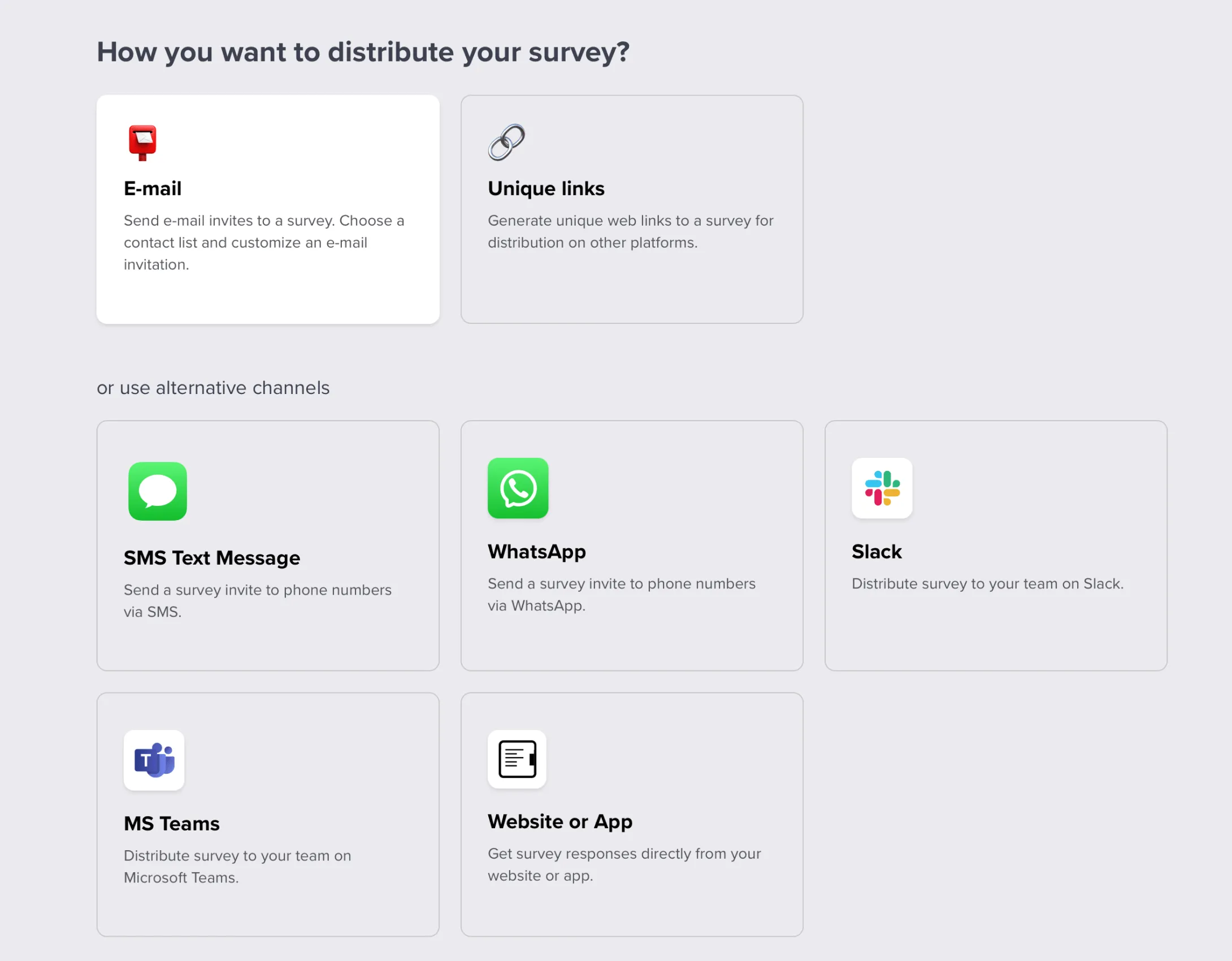
Select MS Teams as the distribution type. In the next step, choose the form you want to send.
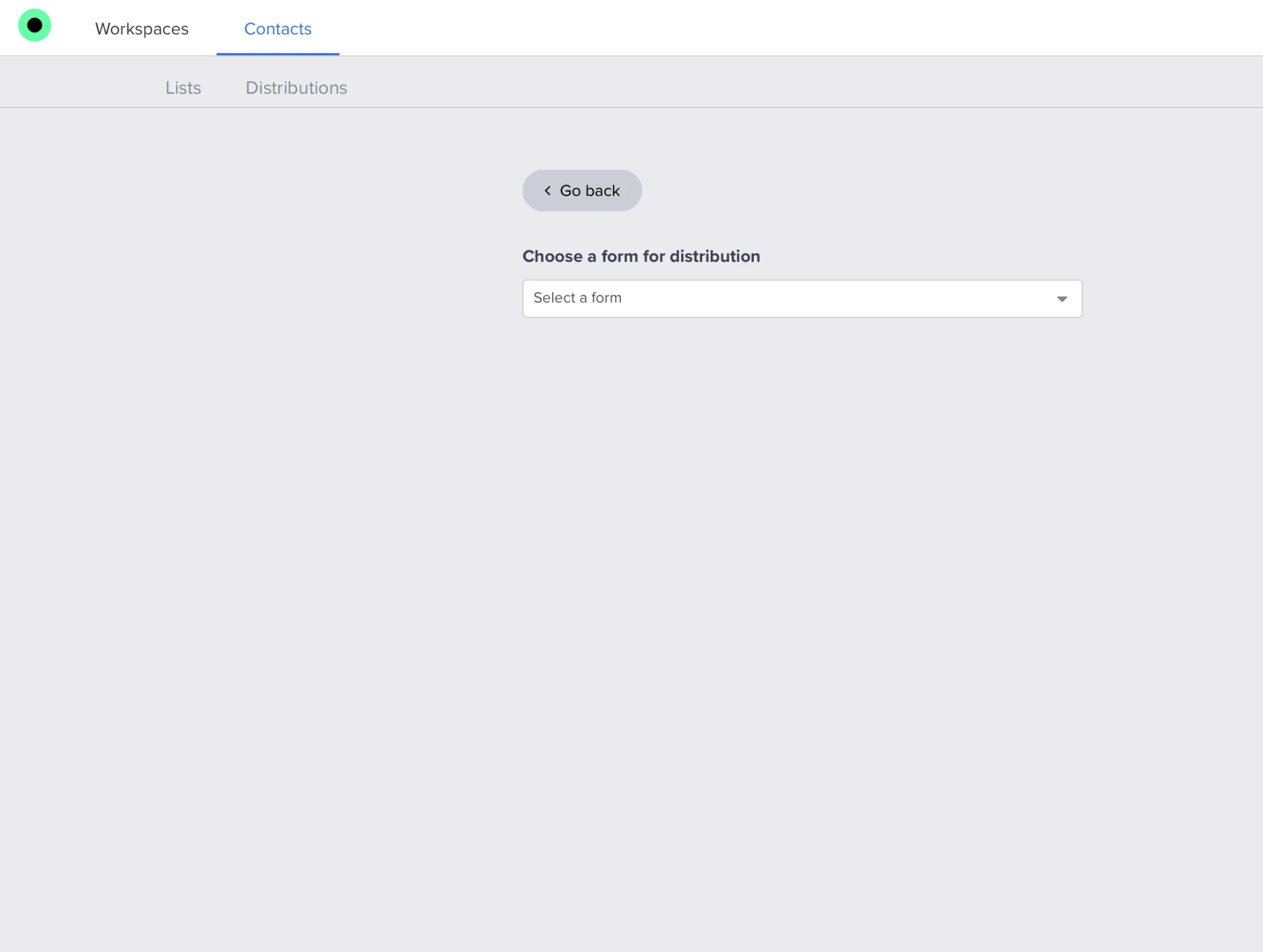
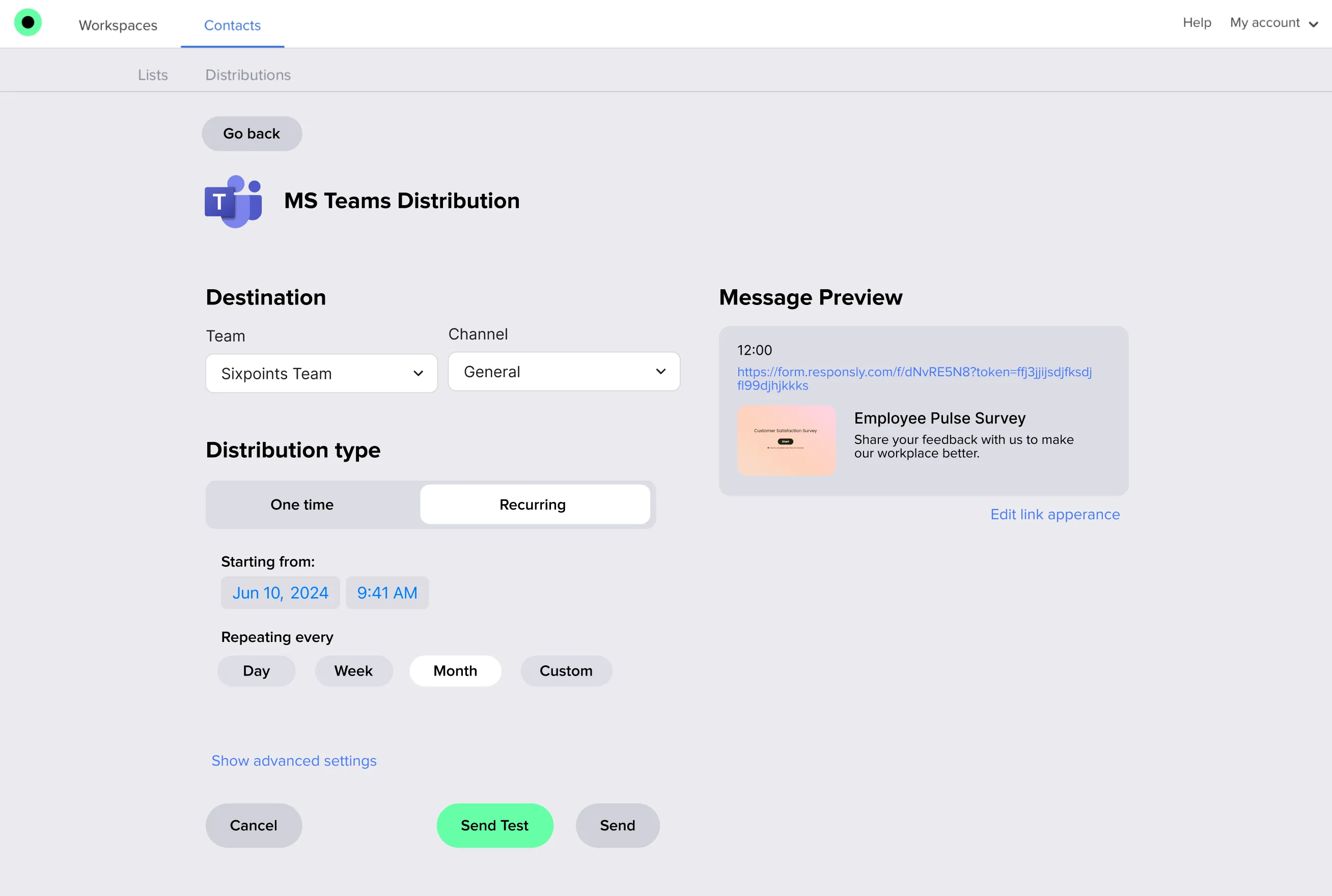
Configure your distribution:
- select the Team and channel where you want to distribute your survey,
- choose whether the distribution is one‑time or recurring,
- for recurring distributions, set the schedule (day/time).
In Advanced settings, you can:
- set whether the distribution is automatic,
- decide if users can answer the survey only once.
On the right you’ll see a message preview that you can customize before people see the post in Teams.
After you go live, submit a test response from Teams to confirm routing, permissions, and the message copy your channel expects. For other channels outside Teams, see Survey sending and Sharing survey link.