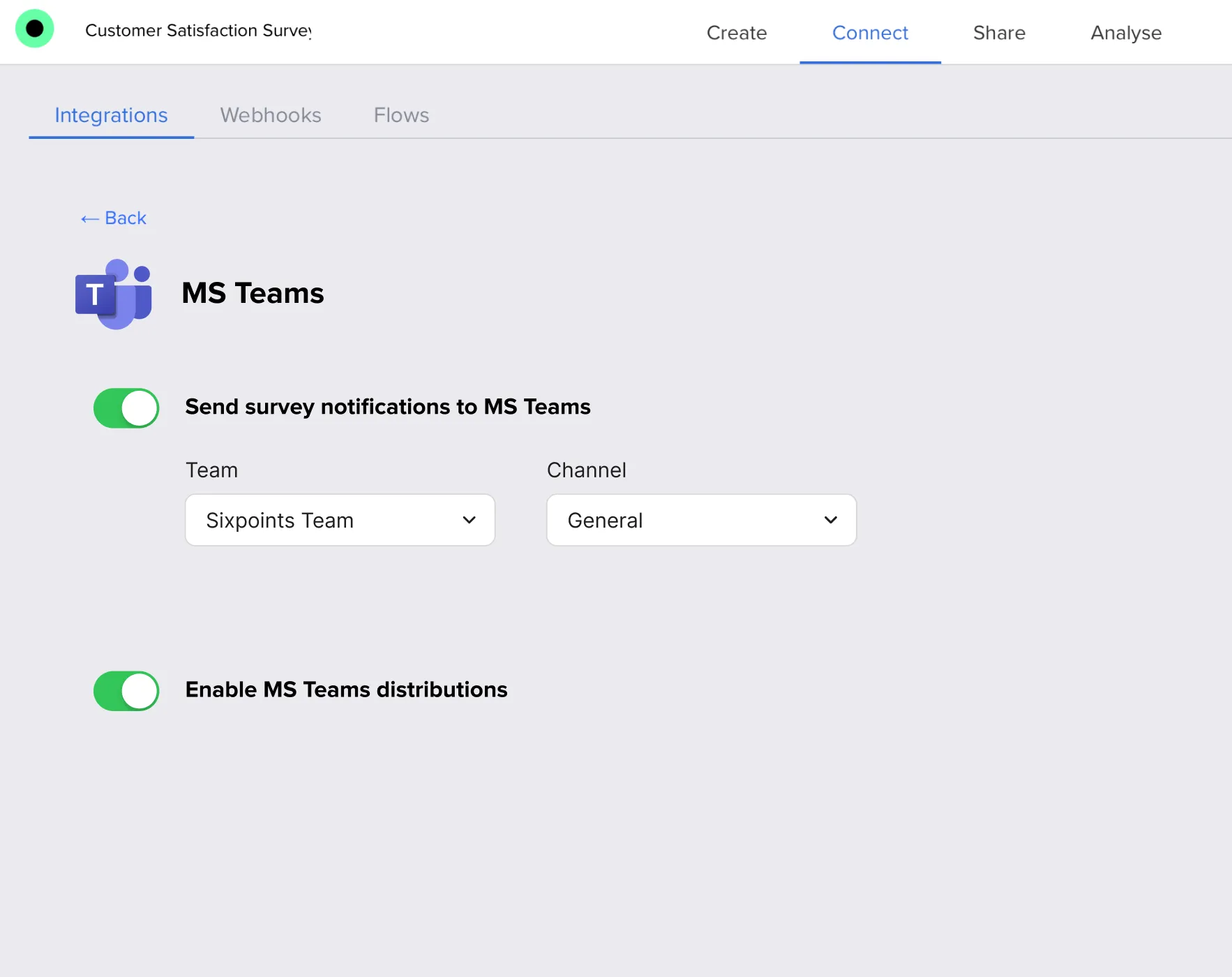
MS Teams survey notifications bring new Responsly submissions into the channel where your team already collaborates—so CS, HR, product, or research owners see fresh feedback in real time without refreshing the Responsly Analysis tab.
With this integration you can:
- post a message to a chosen Teams channel whenever someone submits a response,
- surface who answered when you pass identifying hidden variables (for example e-mail or name),
- open the full response in Responsly from the Teams message when you need detail or follow-up.
To publish the survey itself to channels or users (including recurring posts), use MS Teams survey distribution instead—this article focuses on completion alerts. For everything the Microsoft Teams integration covers, and how notifications fit alongside survey distribution, see the integration overview.
You can have notifications running in a few minutes.
Before you begin
Make sure you have:
- a Responsly account with access to Integrations,
- a Microsoft Teams account with permission to add apps/integrations,
- if you want to identify respondents, a hidden variable such as e-mail or name captured or passed into the survey (see Identification of respondents and What is hidden variables?).
Step 1: Connect Microsoft Teams with Responsly
- In Responsly, go to the Connect tab and select Microsoft Teams.
- Click Log in to Microsoft Teams.
- Sign in via Microsoft’s authentication screen and grant Responsly access.
- If you use multiple Teams workspaces, switch to the right one and approve the integration.
Step 2: Choose where to send responses
Once connected, you’ll see a list of Teams and channels.
- Select which channel should receive notifications.
- Turn on response notifications so every new submission posts to that channel.
- Use Test notification to confirm everything works.
Step 3 (optional): Post surveys inside Teams
To distribute forms, quizzes, or recurring surveys to channels or users—not only notify about responses—follow MS Teams survey distribution.
Step 4: Test your setup
Submit a test survey response, then:
- check the selected Teams channel to see if a message appears with respondent details and answers,
- click through from the Teams notification to open full results in Responsly and verify that values are mapped correctly.
What happens next
Once active, every submitted survey (that meets your conditions) can trigger a Teams notification. Your team can:
- view key fields immediately in Teams,
- filter or sort full results in Responsly,
- comment, tag colleagues, and act on feedback from the same workflow.
For alerts by e-mail instead of or in addition to Teams, see E-mail notifications. For offline analysis or backups, export survey data. To route the same alerts elsewhere, compare the Slack integration or browse all collaboration integrations.