The Question Library lets you save a question once and reuse it in later surveys. Bookmark the NPS stem, a demographics block, or a compliance note, then insert a copy from Add question → Questions library instead of rebuilding the same wording and validation each time.
Start a brand-new flow with How to create a survey. When you need a whole duplicate form, use Copying surveys and creating folders — the library is for individual questions, not an entire project.
1. Saving a question to the library
Open your survey and select the question you want to save.
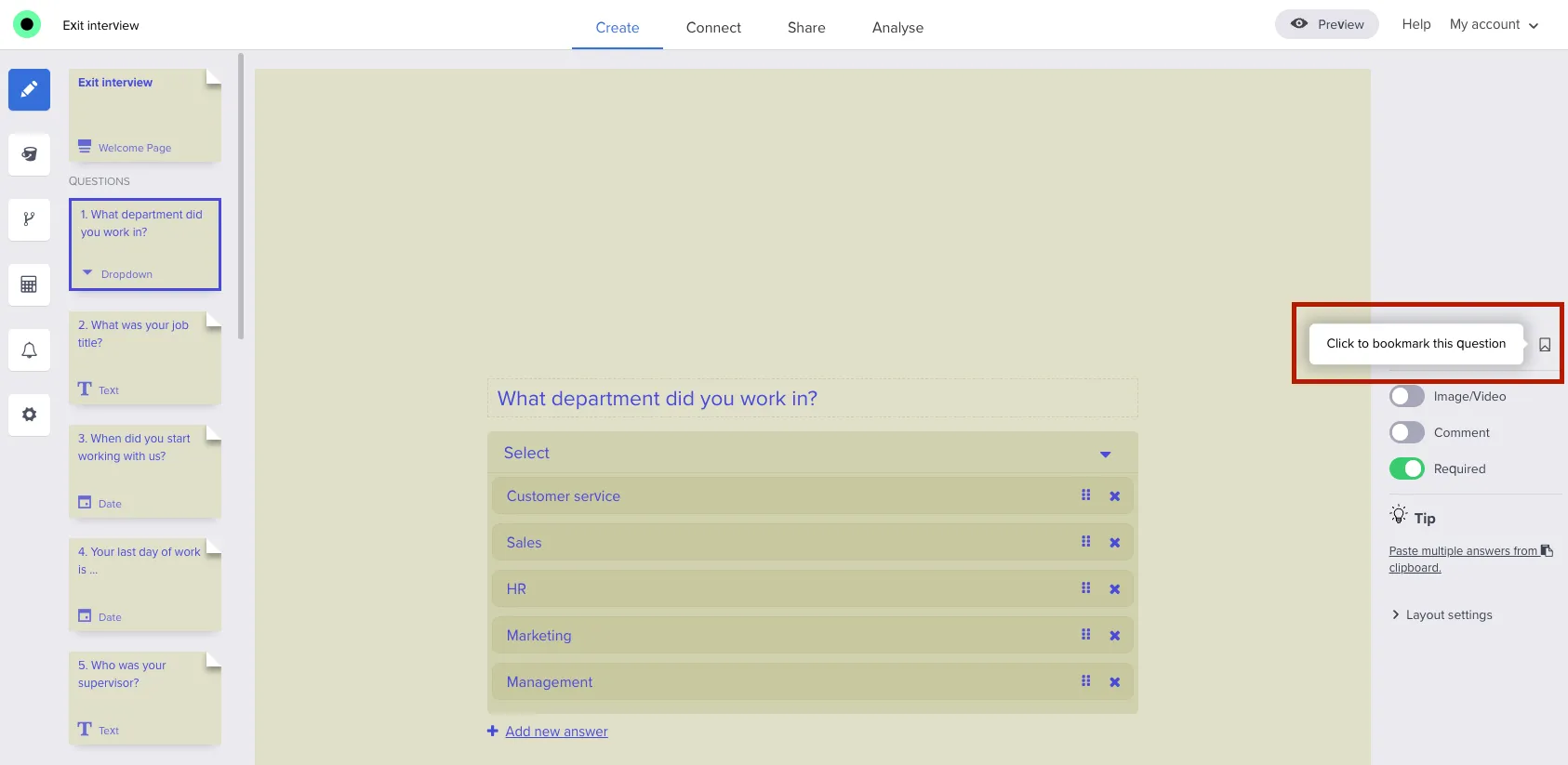
In the right-hand side panel, click the bookmark icon (tooltip: Click to bookmark this question).
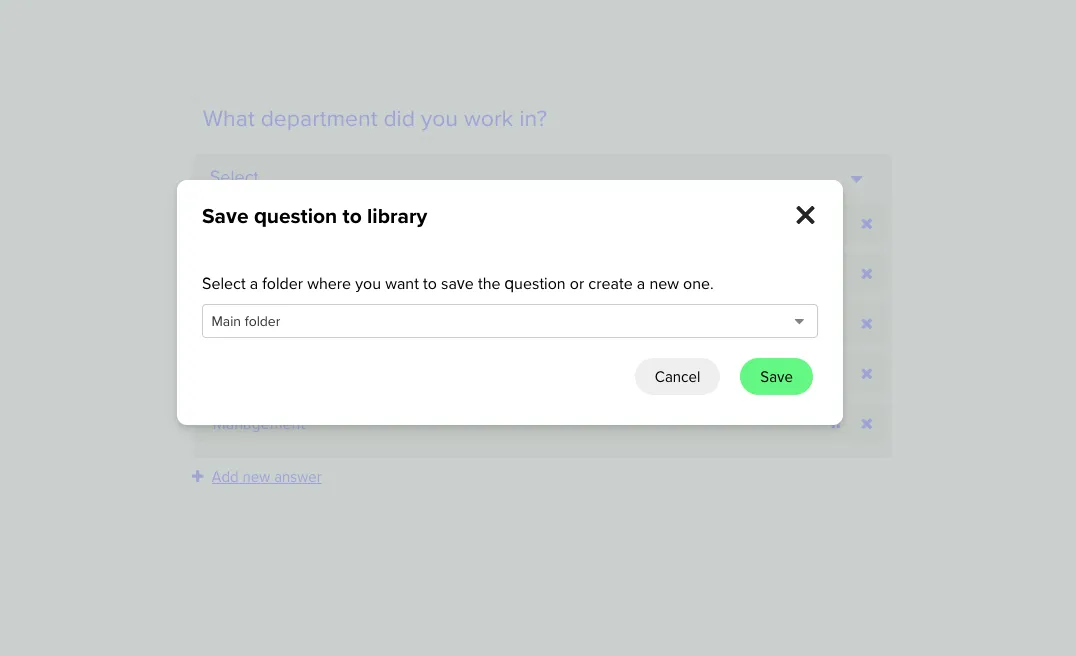
In Save question to library, pick a folder (the default is Main folder) or create a new one, then click Save.
The question is stored in your library and becomes available in any future survey.
Tip: This is especially useful for frequently used questions, like employee NPS, satisfaction, or demographic blocks.
2. Adding a question from the library
While editing your survey, click Add question.
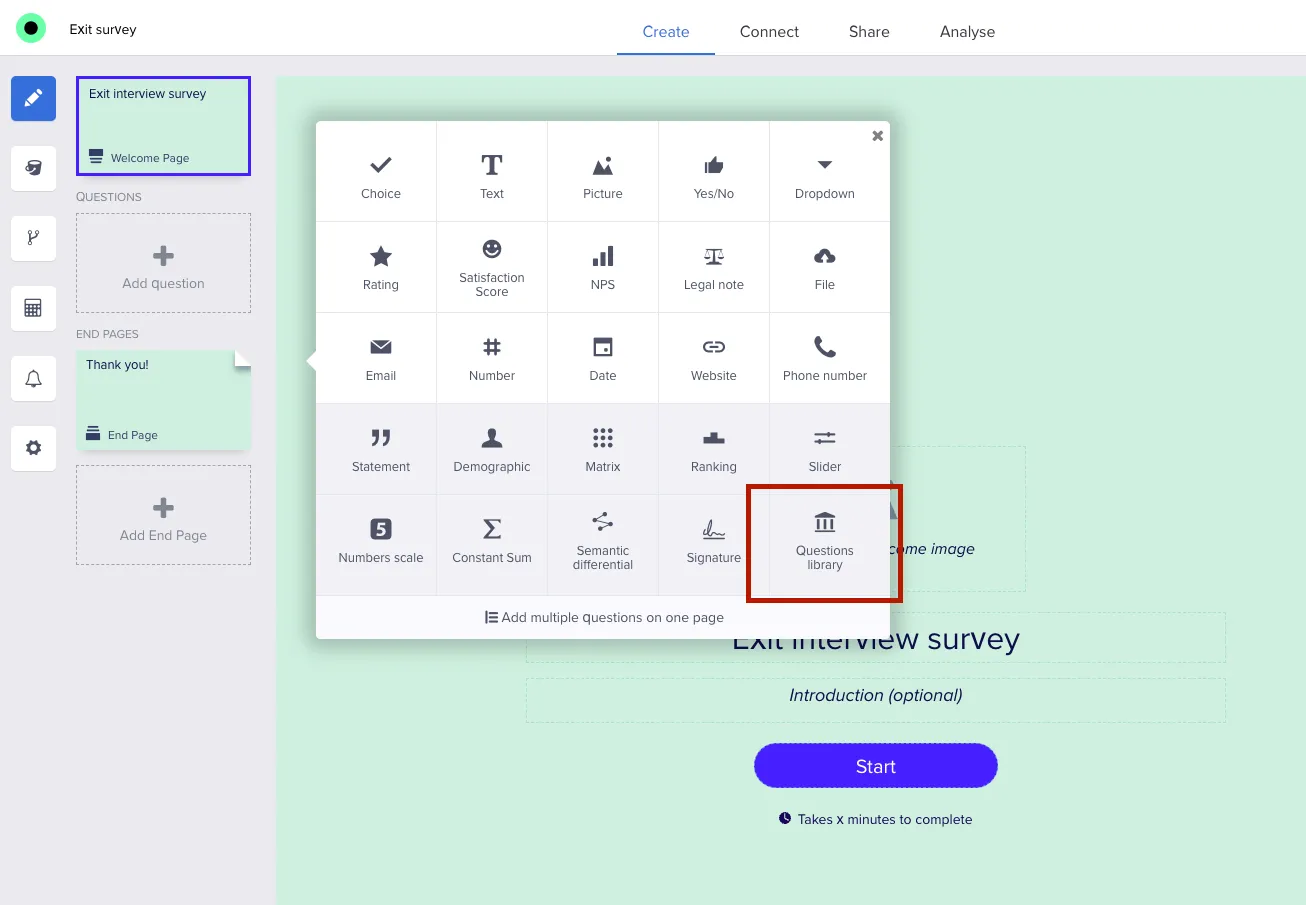
In the question type menu, scroll down and click Questions library.
Browse folders, use search, or open All folders. Select one question or several at once.
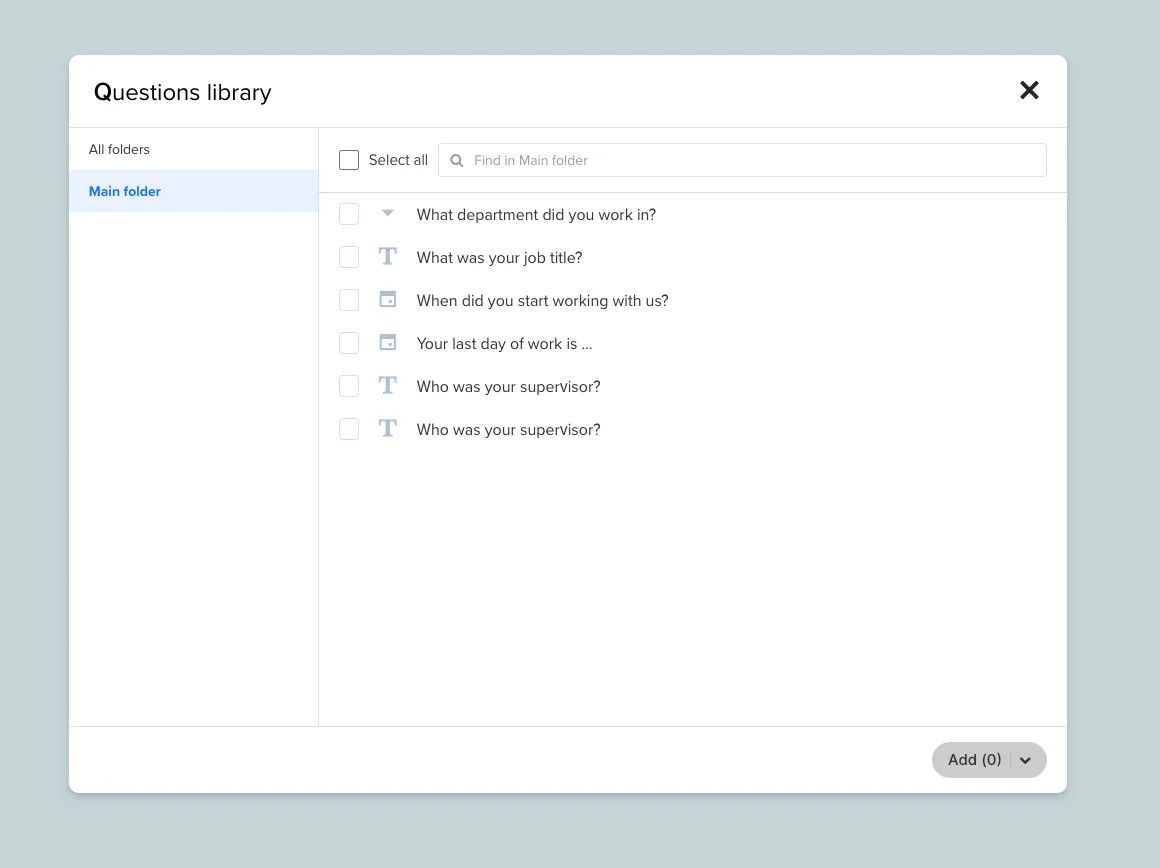
Click Add. Selected items appear directly in your survey as independent copies.
3. Managing your library
- Saved questions live in Questions library, grouped by folder.
- You can search, edit, or remove entries anytime.
- Edits do not retroactively change questions already placed in live forms — only newly inserted copies pick up the updated definition.
When a saved item must always be answered, turn on Required after you insert it.
Best practices
- Save standardized questions (for example NPS, onboarding, demographics) so every team uses the same baseline.
- Use clear folder names so others can find the right block quickly.
- Review periodically to retire outdated wording or retired compliance text.
Reusable library entries cut setup time and reduce copy-paste mistakes across your survey portfolio. After you insert the blocks you need, continue in the survey editor — add logic, design, and sharing as usual.