Every form has a Kiosk tab under Share. Here you decide whether the team’s tablets may show the form and how it behaves between one person and the next. Everyone who edits the form can change these settings.
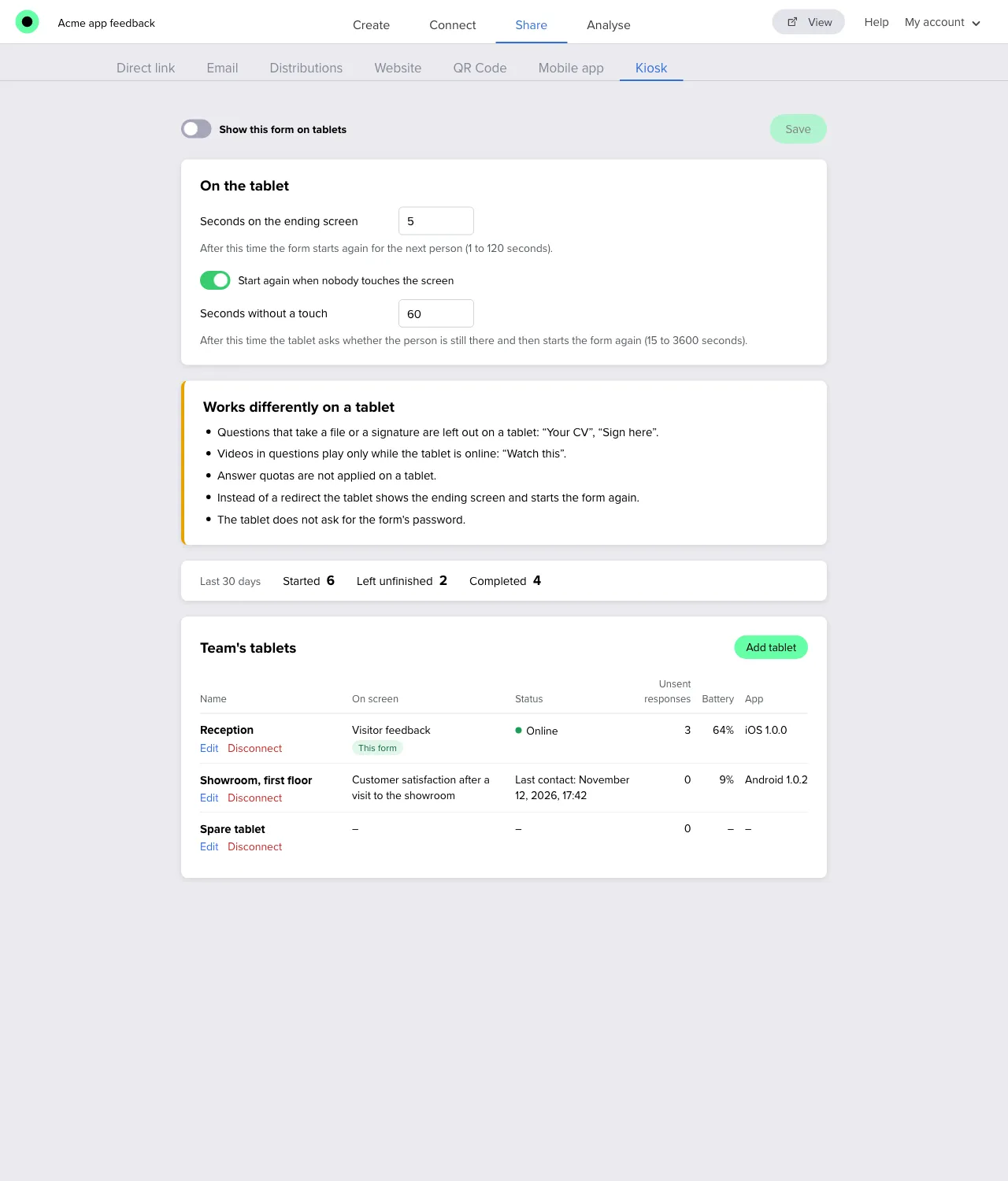
Show the form on tablets
- Open the form and go to Share → Kiosk.
- Turn on Show this form on tablets.
- Choose Save.
Every tablet of your team downloads the form with its next sync and lists it under Forms, marked Ready, works offline. On the tablet, choose Start.
Turning the switch off removes the form from the tablets with their next sync. A tablet that is showing it says that the form is not available.
Set when the form starts again
These settings are in the On the tablet card.
| Setting | What it does |
|---|---|
| Seconds on the ending screen | How long the ending screen stays before the form starts again for the next person: 1 to 120 seconds. A touch on the ending screen starts it at once. |
| Start again when nobody touches the screen | Whether a form someone began and left is started again. Turn it off to let a begun form wait as long as it takes. |
| Seconds without a touch | How long nobody may touch a begun form: 15 to 3600 seconds. After this time the tablet asks Are you still there? and counts down 15 seconds. Continue goes on with the form; with no answer it starts again. |
A form that is started again begins empty: the answers of the person who left are discarded and are not saved as a response.
Tip: For a short form at a counter, 30 to 60 seconds without a touch is enough. Give a long form with open questions more time, so that nobody is interrupted while thinking.
What works differently on a tablet
A tablet shows the form from its own copy, without a browser and often without a connection. The Works differently on a tablet card lists what applies to your form.
- Questions that take a file or a signature are left out.
- Videos in questions play only while the tablet is online.
- Answer quotas are not applied.
- Instead of a redirect after the form, the tablet shows the ending screen and starts again.
- The tablet does not ask for the form’s password: it is already connected to your team.
A few settings meant for a respondent’s own browser do not apply on a shared tablet either:
- Allow one response per user does not stop the next person at the tablet.
- Remember respondents’ progress is off, so nobody finds the previous person’s answers.
- Bot protection is not shown.
Logic, scoring, translations and ending screens work as everywhere else.
Use several forms
A tablet shows one form at a time and has every form of the team with the channel on. To switch, leave the form with the exit PIN and start another one from the Forms list. There is no need to connect the tablet again.
A tablet that is restarted, or whose app is closed and opened, comes back to the form it was showing.
Follow the numbers
The Kiosk tab shows, for the last 30 days, how many times the form was on tablets:
- Started: someone began it.
- Left unfinished: the form started again because nobody touched it.
- Completed: a response was saved.
When a response limit is reached, a notice at the top of the tab says that tablets do not show the form now. See Kiosk responses in your results.