The Responsly Post Purchase Survey app for Shopify adds a Responsly survey block to your store’s Thank you page: the page customers see right after paying. You connect the store to a Responsly workspace and choose the survey on the app’s page in your Shopify admin. Customers answer without leaving the store, and the responses arrive in Responsly with the order number attached.
Shopify does not run pasted scripts on this page any more, so this block is the way to show a survey there.
Before you start
You need:
- A Shopify store on Basic Shopify or a higher plan, and permission to install apps and edit checkout settings
- A Responsly account. If you don’t have one, you can create a free account from the app in Step 2.
- To connect the store to a workspace, you need to be the owner or an admin of its team, and the owner or an editor of the workspace
Step 1: Install the app
- In your Shopify admin, type Responsly Post Purchase Survey in the search bar at the top, or search for it in the Shopify App Store.
- Click Install and confirm the installation.
- The app opens in your Shopify admin on its Post-purchase survey page. Later you’ll find it under Apps in the admin’s sidebar.
The app asks for no access to your products, orders or customers. It only adds the survey block to checkout.
Step 2: Connect your Responsly account
On the app’s page, click Connect Responsly. Responsly opens in a new tab.
No account yet? Click Create a free account instead. Once you’ve signed up and confirmed your email address, Responsly takes you to the same connection page.
Log in to Responsly if asked. Check that the store’s name on the page is your store.
Choose the Workspace whose surveys the store will show, and click Connect.
Go back to the Shopify tab. The app’s page updates by itself and shows Connected to your workspace and team at the bottom.
The store sees only the forms of this workspace, nothing else in your Responsly team. To switch the store to another workspace, click Disconnect on the app’s page and connect it again.
Step 3: Choose the survey
On the app’s page, under Survey on the Thank you page, either:
- pick one of the workspace’s surveys in the Survey list, or
- click Create a post-purchase survey. The app creates a survey in the workspace with three questions: How did you hear about us?, a 0–10 recommendation (NPS) scale and Anything we could do better?. It has the hidden variables
shop,order_idandorder_numberalready added.
Click Edit in Responsly to change the questions in the survey builder. Changes show on the Thank you page as soon as you save them in Responsly.
You can also choose the survey in Responsly: open it, go to Integrate → Integrations → Shopify and click Show this form next to the store.
What the survey can contain
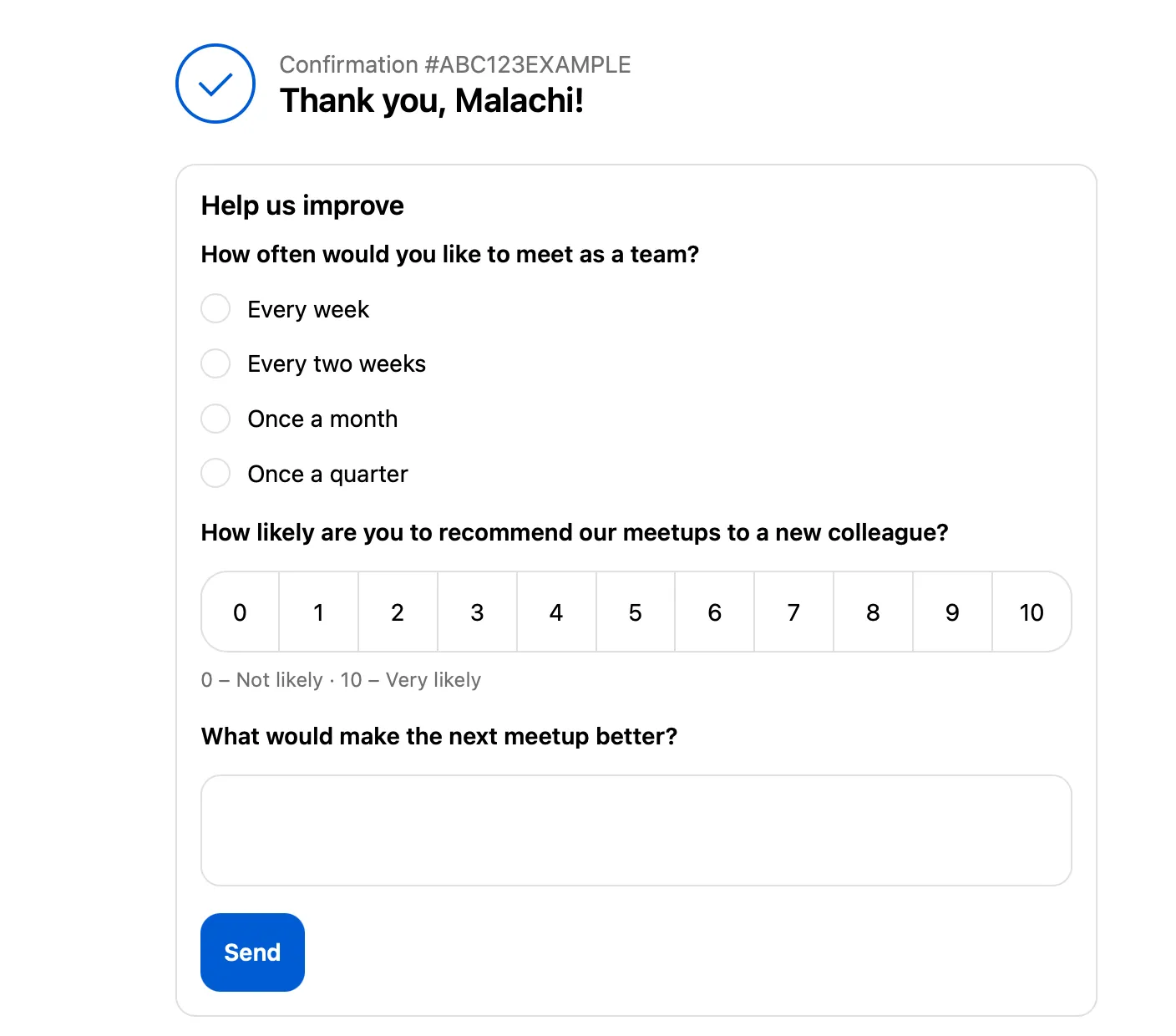
The block fits the survey into the Thank you page, so keep it short: one to three questions work best. Fresh after paying, customers are good at telling you about the purchase itself: why they chose your store, how checkout went, how they found you.
| Question type | How it looks on the Thank you page |
|---|---|
| Choice | Single or multiple answers, as set on the question |
| Yes/No | Two answers |
| NPS | A row of numbers from 0 to 10, with the scale labels underneath |
| Rating and Satisfaction score | A row of numbers from 1 to the number of icons |
| Text | A one-line or multi-line text field |
- Other question types are left out of the block. Logic, pages and the welcome page are not used: the supported questions show one at a time, in their order in the survey, with a progress bar.
- After answering, customers see the title of the survey’s first End page (without formatting). With no title the block says Thank you!.
- The block sends the hidden variables
shop,order_idandorder_numberwith every response. Added to the survey as hidden variables, they can be used in result filters and integration mappings like any other hidden variable. - The block stays hidden when the survey:
- is closed to new responses, past its closing date or response limit, or your plan’s monthly response limit is reached
- is secured with a password
- has Bot protection turned on
- has Access only with e-mail invitation turned on
Step 4: Add the block to the Thank you page
- On the app’s page, click Go to checkout settings, or go to Settings > Checkout in your Shopify admin.
- In the Configurations section, click Customize next to the configuration your store uses.
- In the editor’s top bar, open the page selector and choose Thank you.
- Click ⊕ Add block in the section where the survey should appear, and choose Responsly survey.
- Optionally, click the new block and fill in Heading: shown above the questions, for example Help us improve.
- Click Save.
The block shows the survey chosen on the app’s page, so there is nothing to paste. If the store isn’t connected yet or no survey is chosen, the block in the editor says Choose a survey. Customers never see that notice.
Step 5: Place a test order
- Place an order in your store: with Shopify Payments in test mode or, on a development store, with the Bogus Gateway (card number
1). - On the Thank you page, answer the survey and send it. The block shows your thank-you message.
- On the app’s page in your Shopify admin, Latest responses shows the number of responses from the store and the latest ones, with the order number. Click Open results in Responsly to see them in the survey’s results, with the hidden variables
shop,order_idandorder_number.
Responses from the block are saved like any other response, so e-mail notifications, webhooks and integrations such as Google Sheets run for them as usual.
How the block behaves
- Fails quietly: if the survey can’t be loaded (survey closed, no supported questions, connection problems) the block isn’t shown at all. Nothing gets between the customer and their order confirmation.
- One question at a time: the button says Next until the last question, then sends the answers.
- Required questions: the customer can’t move on until a required question is answered, and sees the required-answer message under it.
- One response per order: after sending, the customer sees the thank-you message. When they reload the page, the block stays hidden. If the same order sends again, from another tab for example, Responsly keeps the first response.
- Verified store: Responsly checks every response against Shopify’s signed checkout session, so the
shophidden variable always names the store whose Thank you page sent it.
Manage the connection
- In Shopify: the app’s page shows the connected workspace and team. Disconnect stops the store from showing the survey; the survey and its responses stay in Responsly.
- In Responsly: connected stores are listed under Profile → Integrations, where you can remove them. In a survey’s Integrate → Integrations → Shopify, you see which stores show the survey, and can open each one’s app page with Open in Shopify.
- Uninstalling the app disconnects the store, and the block stops showing. 48 hours later, when Shopify asks apps to delete a store’s data, Responsly removes the order IDs and numbers from that store’s responses. The answers stay in the survey’s results.
Troubleshooting
| Problem | What to check |
|---|---|
| The block doesn’t appear after an order | The store is connected and a survey is chosen on the app’s page; the survey is open and none of the settings in What the survey can contain hide it; it has at least one supported question; you haven’t already answered for this order |
| The block in the checkout editor says Choose a survey | Connect the store and choose a survey on the app’s page (Steps 2 and 3) |
| The block isn’t in the ⊕ Add block list | The app is installed on this store; you are editing the Thank you page, not a checkout step |
| A survey is missing from the Survey list | It’s in another workspace: move it to the connected workspace, or disconnect and connect the store to the right one |
| The connection page shows no workspace to choose | You need to be the owner or an admin of the team and the owner or an editor of the workspace. Ask the team’s owner to connect the store |
| The connection page says the link has expired | Go back to the app’s page in Shopify and click Connect Responsly again |
| Create a post-purchase survey doesn’t work | Your plan’s form limit may be reached: delete a form you don’t need or choose an existing survey |
| Some questions are missing | Their type isn’t supported by the block (see What the survey can contain) |
| An error message shows after sending | Try again. If it keeps happening, check that the survey hasn’t been closed or secured in the meantime |
| Hidden variables don’t appear in filters | Add shop, order_id and order_number as hidden variables to the survey |
To remove the survey from the Thank you page, click the block in the checkout editor, click Remove block and Save.