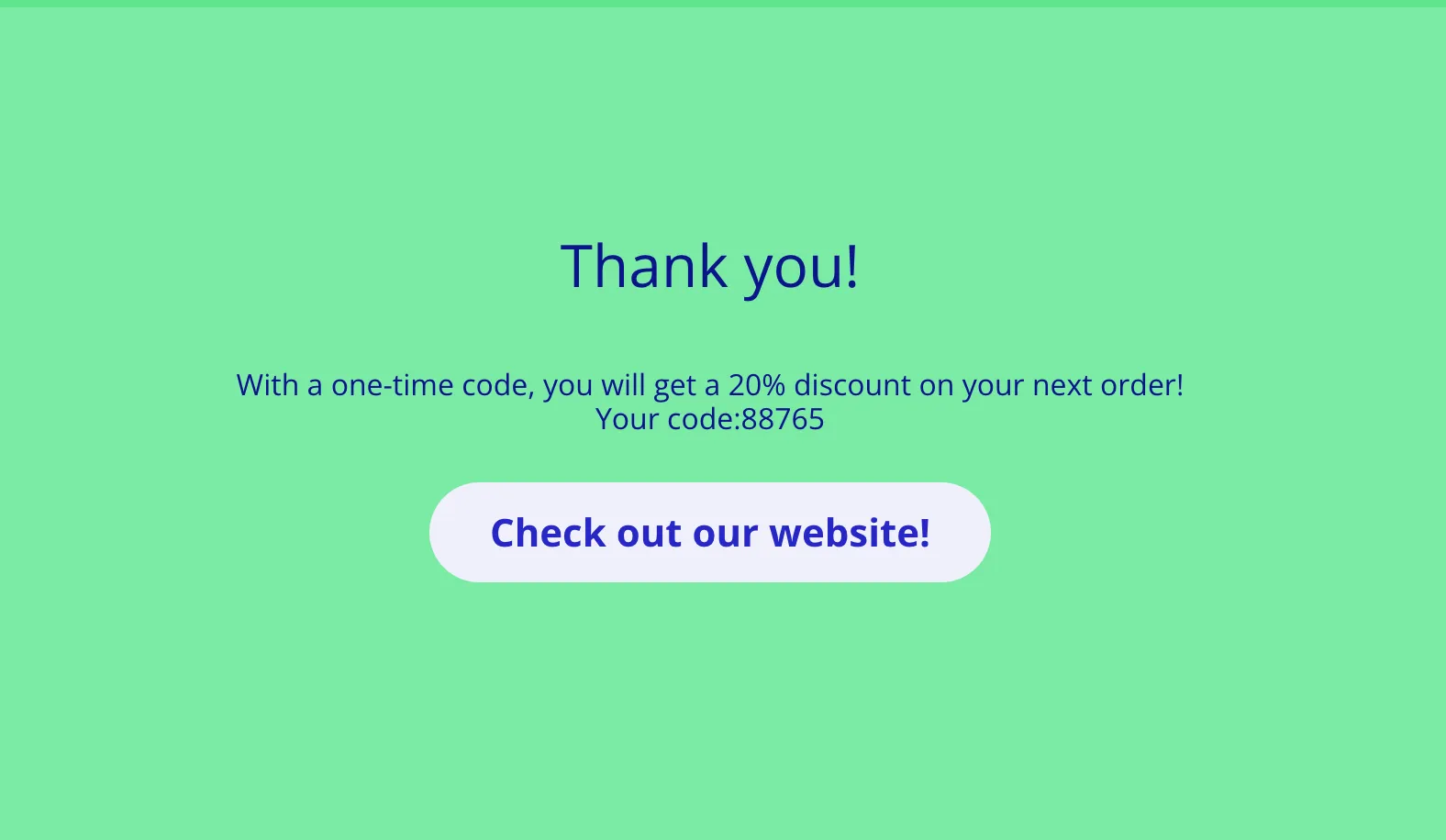
Hidden variables are very useful when you want to give individual discount codes to your respondents.
After completing a survey, quiz or test, you can reward each person with a unique promo code they can use in your online store.
You need to prepare the discount codes yourself – Responsly does not generate them automatically.
How to show a discount code on the end page
Go to Settings → Hidden variables in your survey.
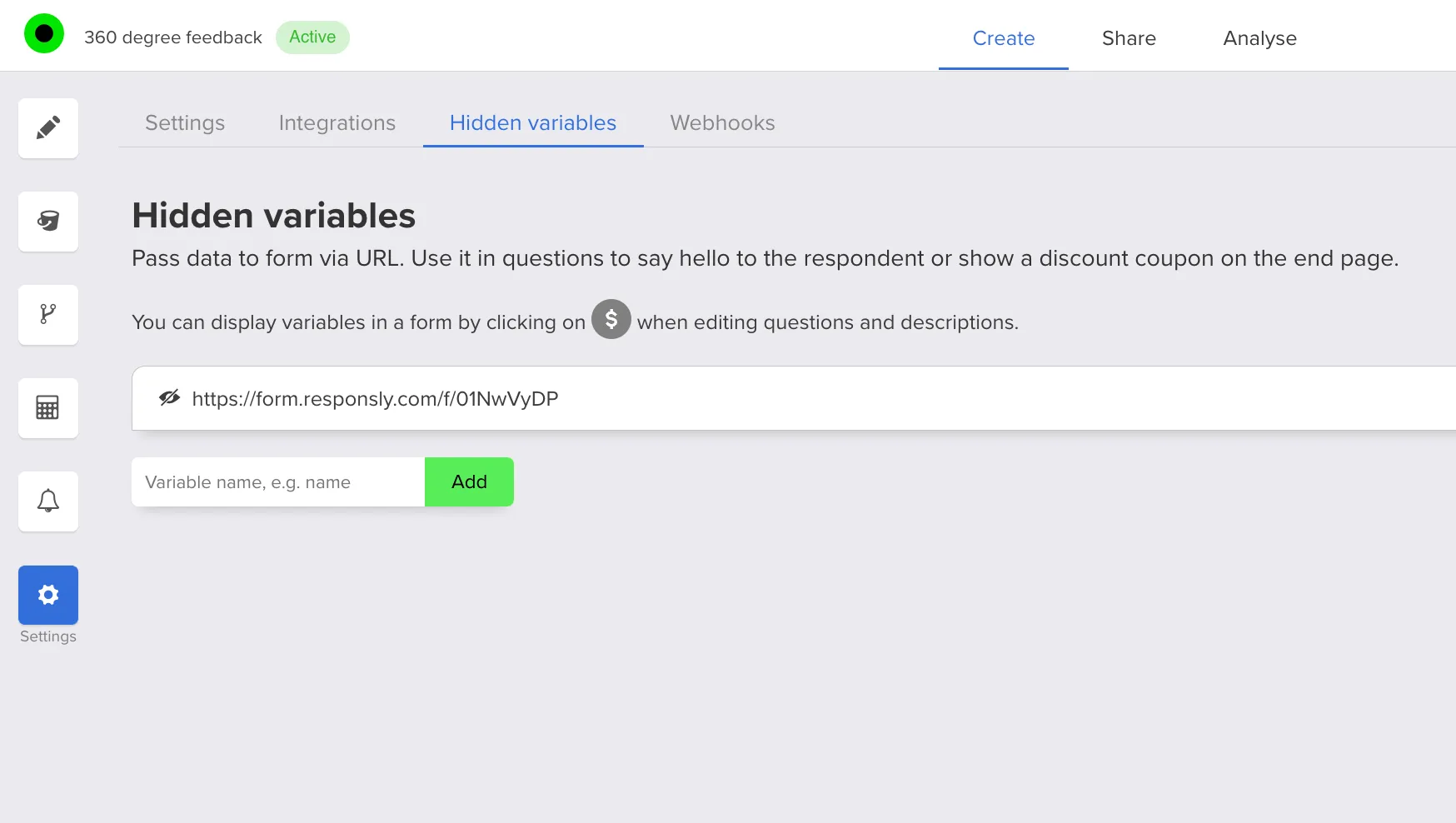
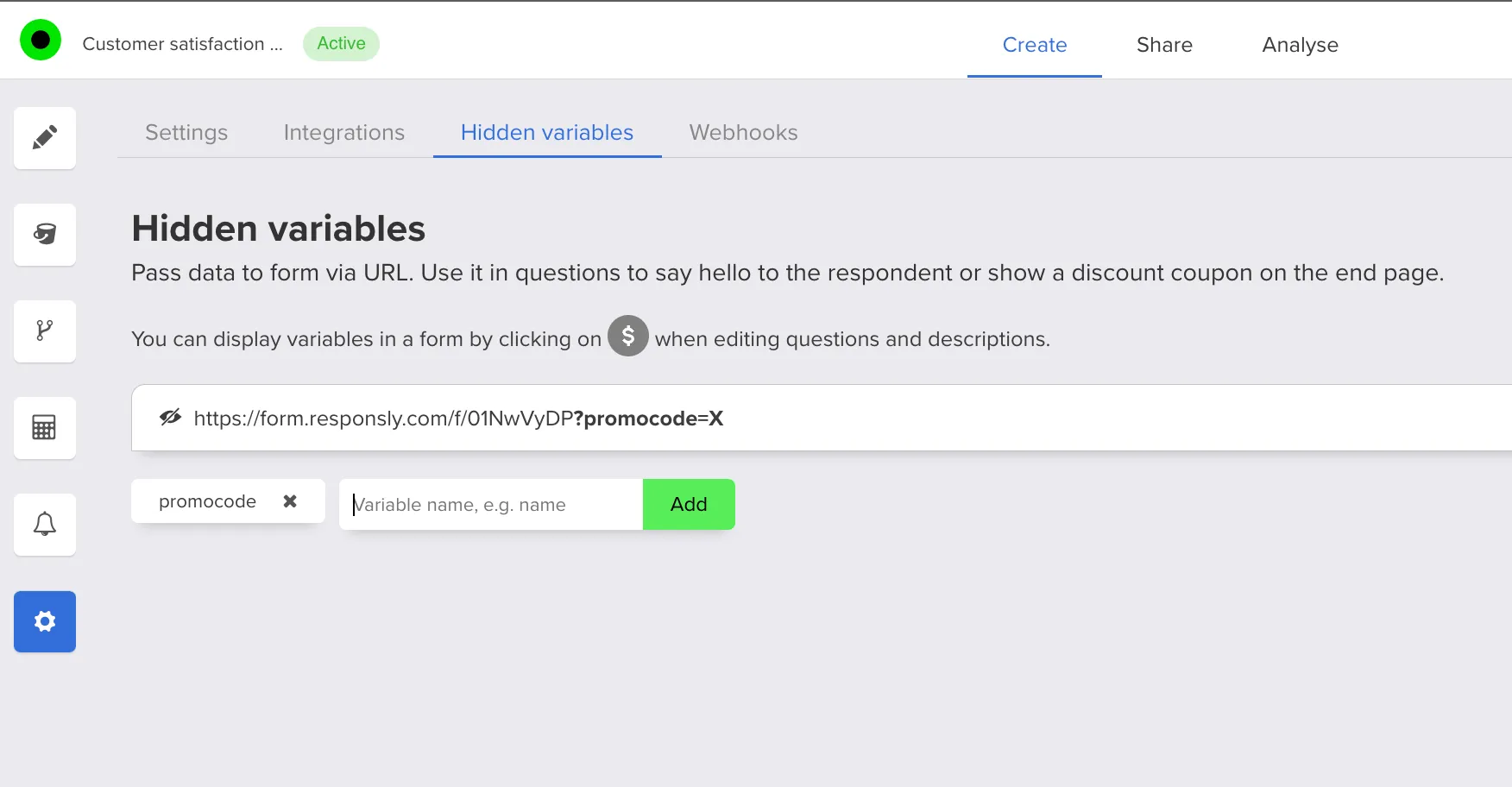
Add a new hidden variable. In this example, the variable represents a promo code.
When editing questions and descriptions, click $ to insert a variable into the content.
In this case, insert the variable into the end page so the code appears in the thank‑you message.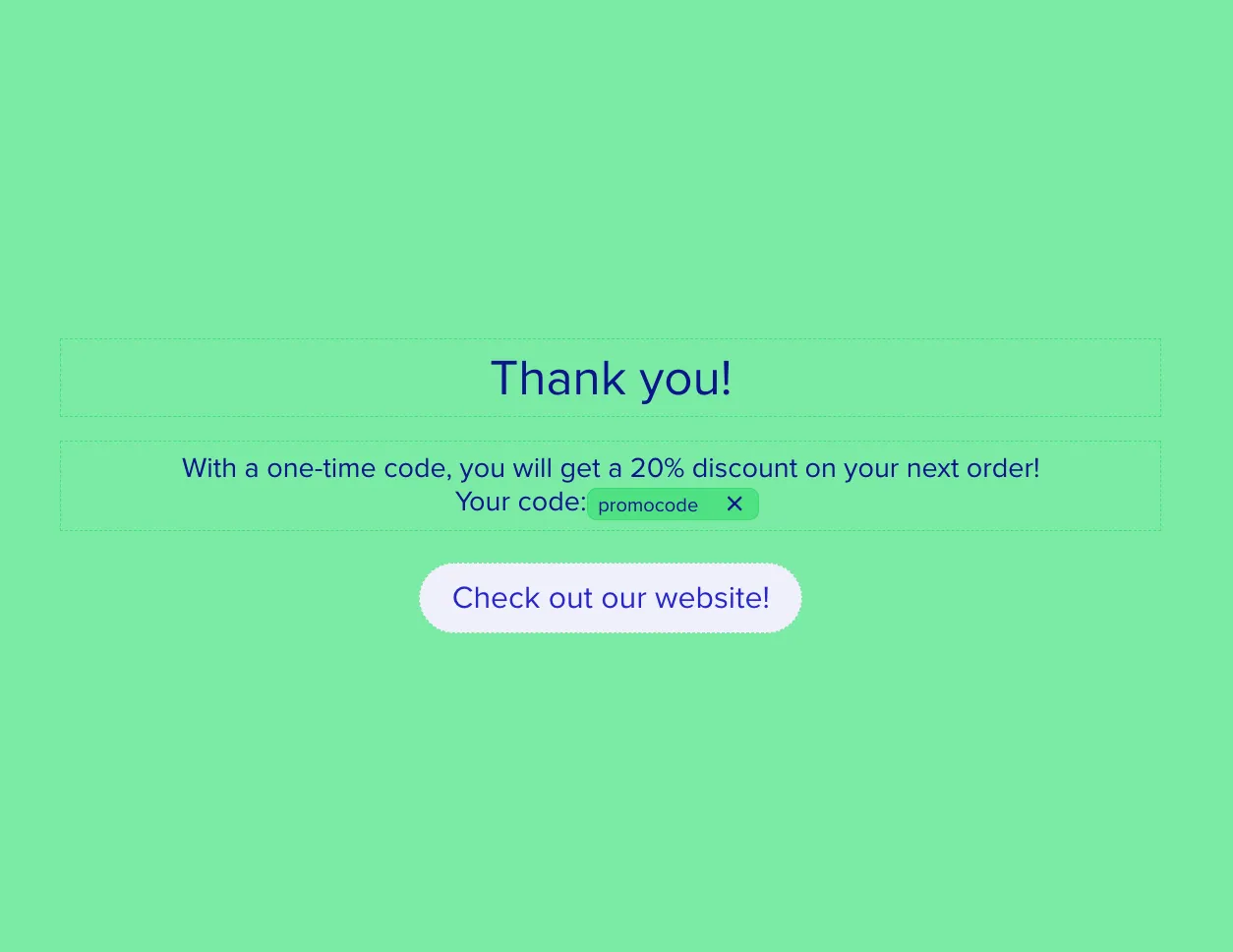
Back in Hidden variables, copy the survey URL that includes the variable name.

The original placeholder variable is usually just X.
In the URL you pass to respondents, you replace that placeholder with the actual discount code value.
As a result, when a respondent finishes the survey and lands on the end page, they’ll see their personal promo code: