A/B testing (split testing) is a way to compare two versions of a web page, e‑mail, or survey to see which performs better. In surveys, A/B testing helps you spot statistically significant differences between respondent groups and make better decisions about survey design, wording, and analysis.
There are two main types of A/B testing:
- Test A vs. B – comparing two versions of a survey or page to see which one performs better.
- Split test – randomly assigning respondents to different versions and comparing results.
Focus on meaningful variables (layout, call‑to‑action, question order, etc.) that really affect conversions. In Responsly, respondents are randomly assigned to conditions without seeing the alternatives, which keeps feedback unbiased.
Enabling A/B testing in a survey
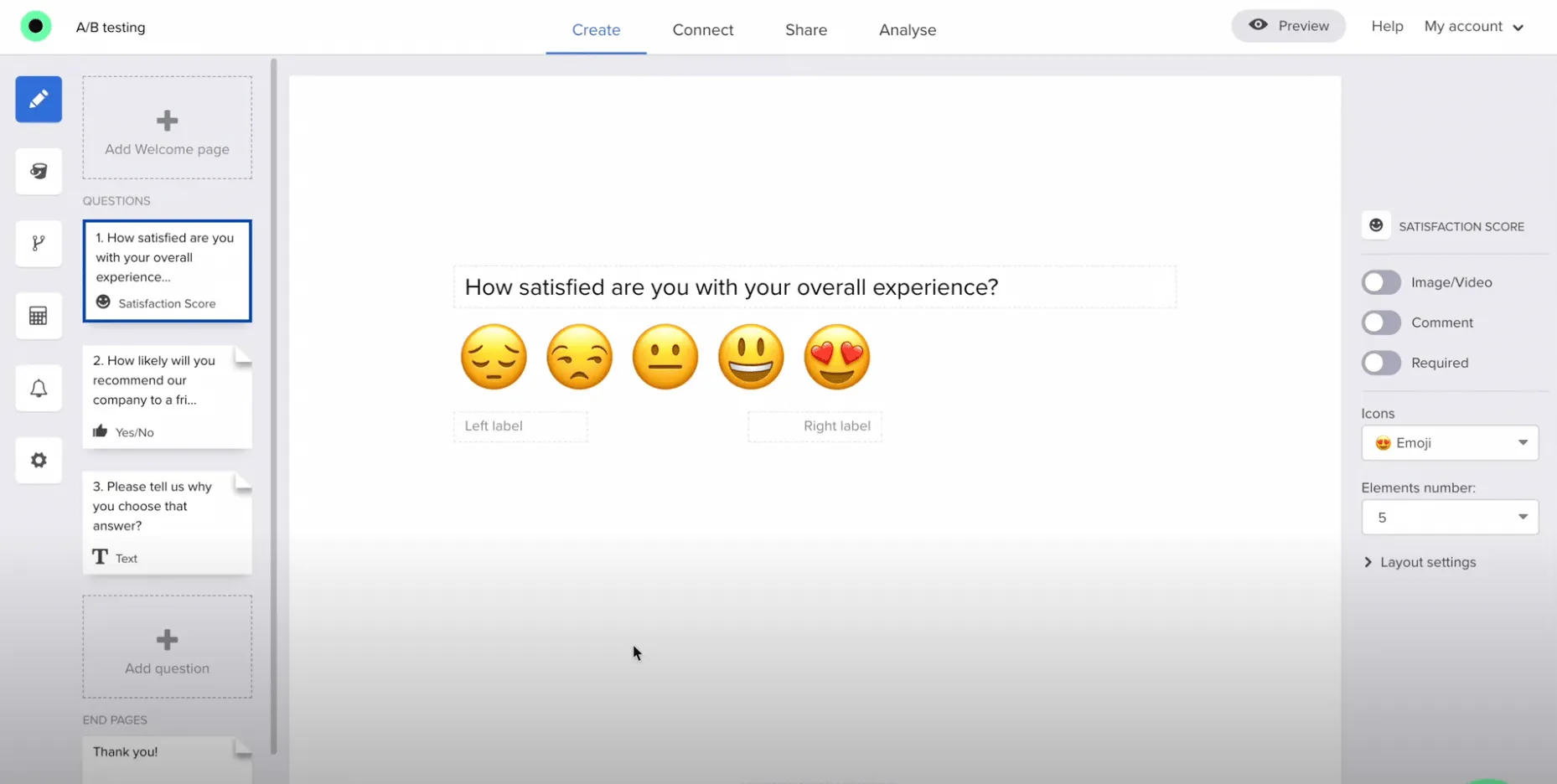
In this example survey we use three question types:
- Rating Scale
- Yes/No
- Open‑ended text
There are three questions, but each respondent only sees two of them – the second question differs depending on the test version.
How to set up A/B testing in Responsly
1. Enable A/B testing
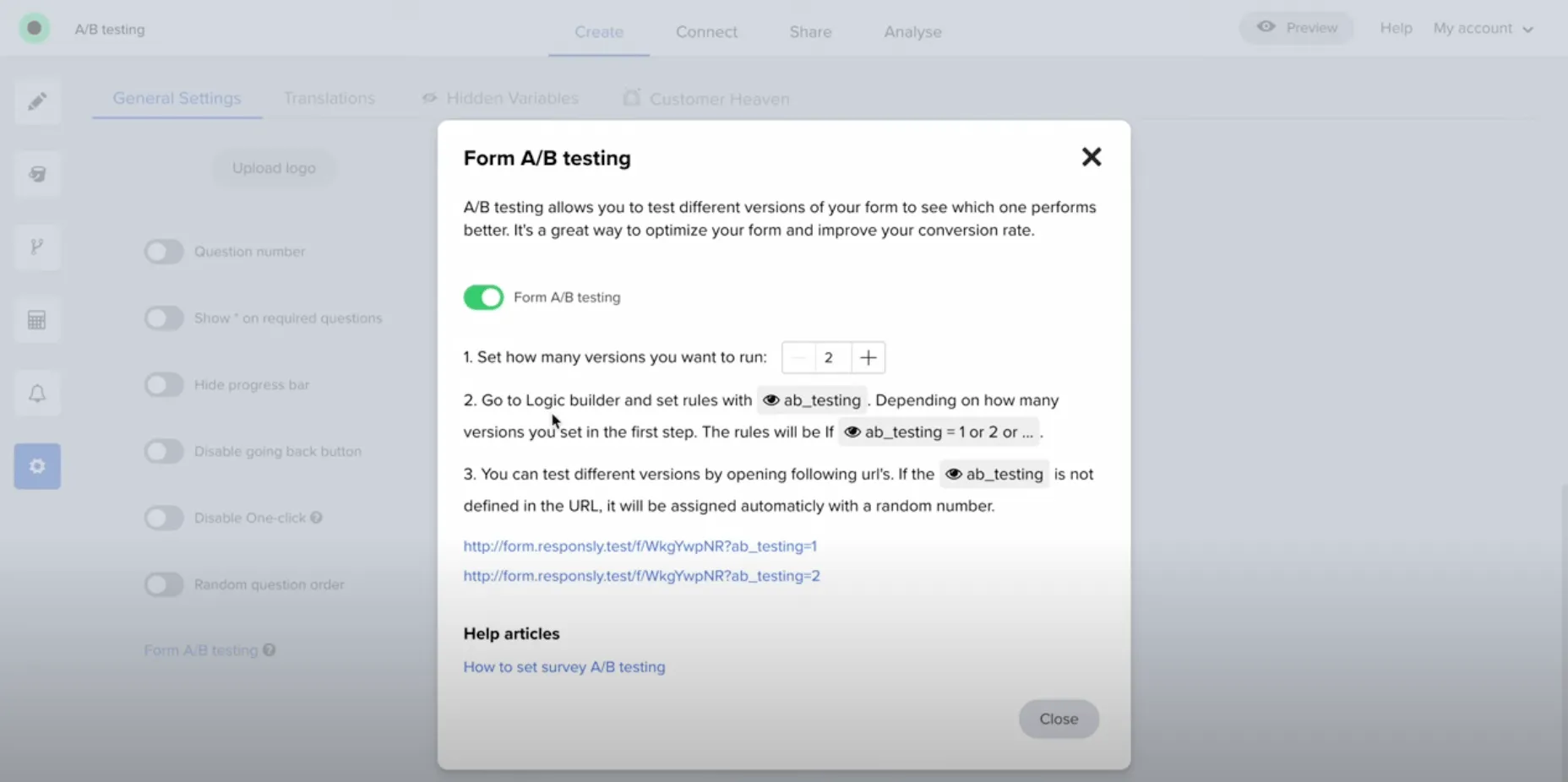
Go to Settings → Form A/B Testing.
After enabling, a variable code is added to the form. You can then choose how many versions you want to test (e.g. 2 or 3).
2. Set logic for different versions
Go to the Logic section and set up flows based on the assigned version.
First rule (Version 1 example)
If A/B testing is set to version 1, show:
- Question 1 – Rating Scale
- skip Question 2
- go directly to Question 3 – Open‑ended text
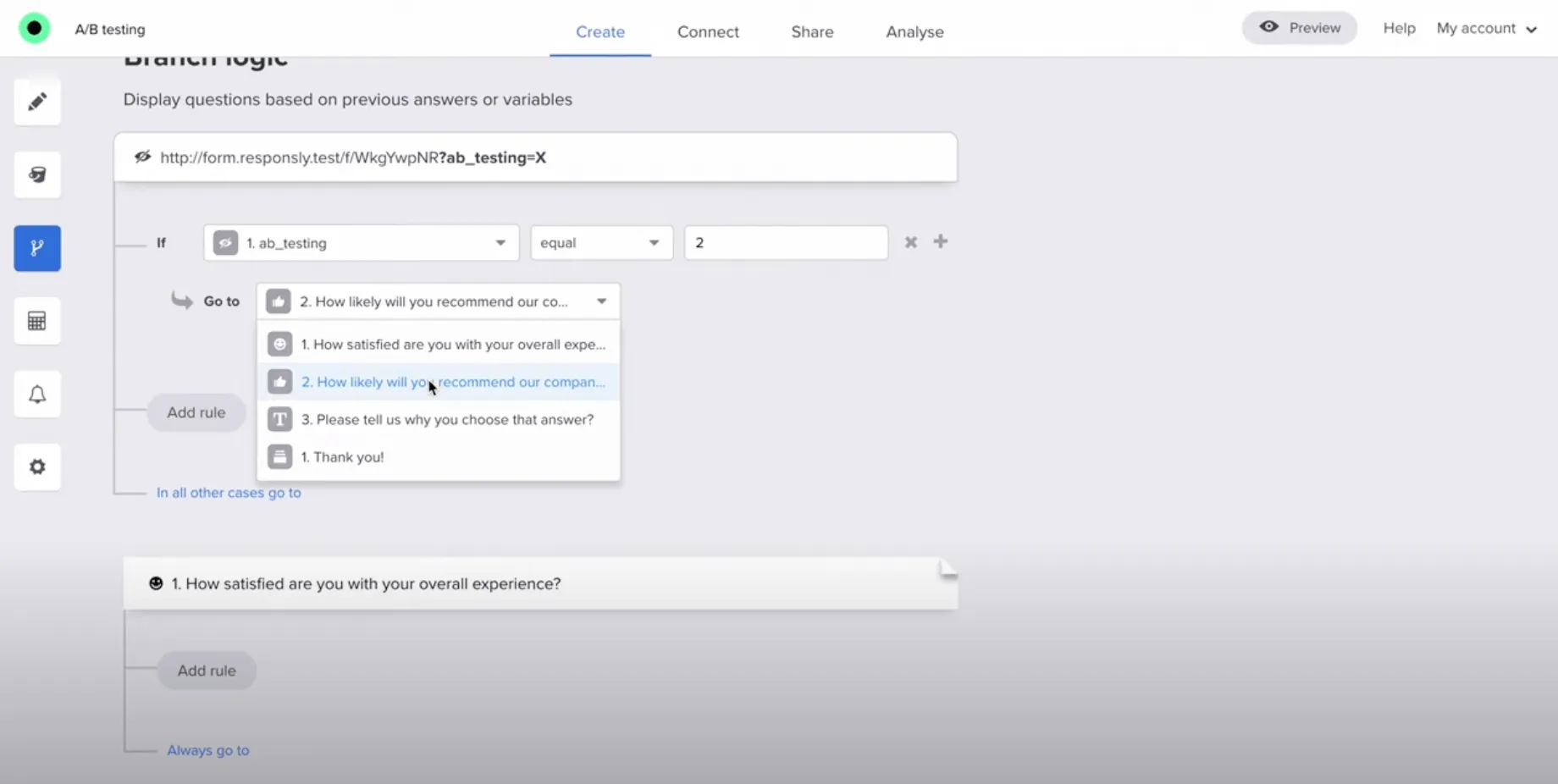
Effect: The respondent answers the first question (Rating Scale), skips the second question, and goes straight to the third question (Open‑ended text).
Second rule (Version 2 example)
If A/B testing is set to version 2, show:
- skip Question 1
- Question 2 – Yes/No
- then Question 3 – Open‑ended text
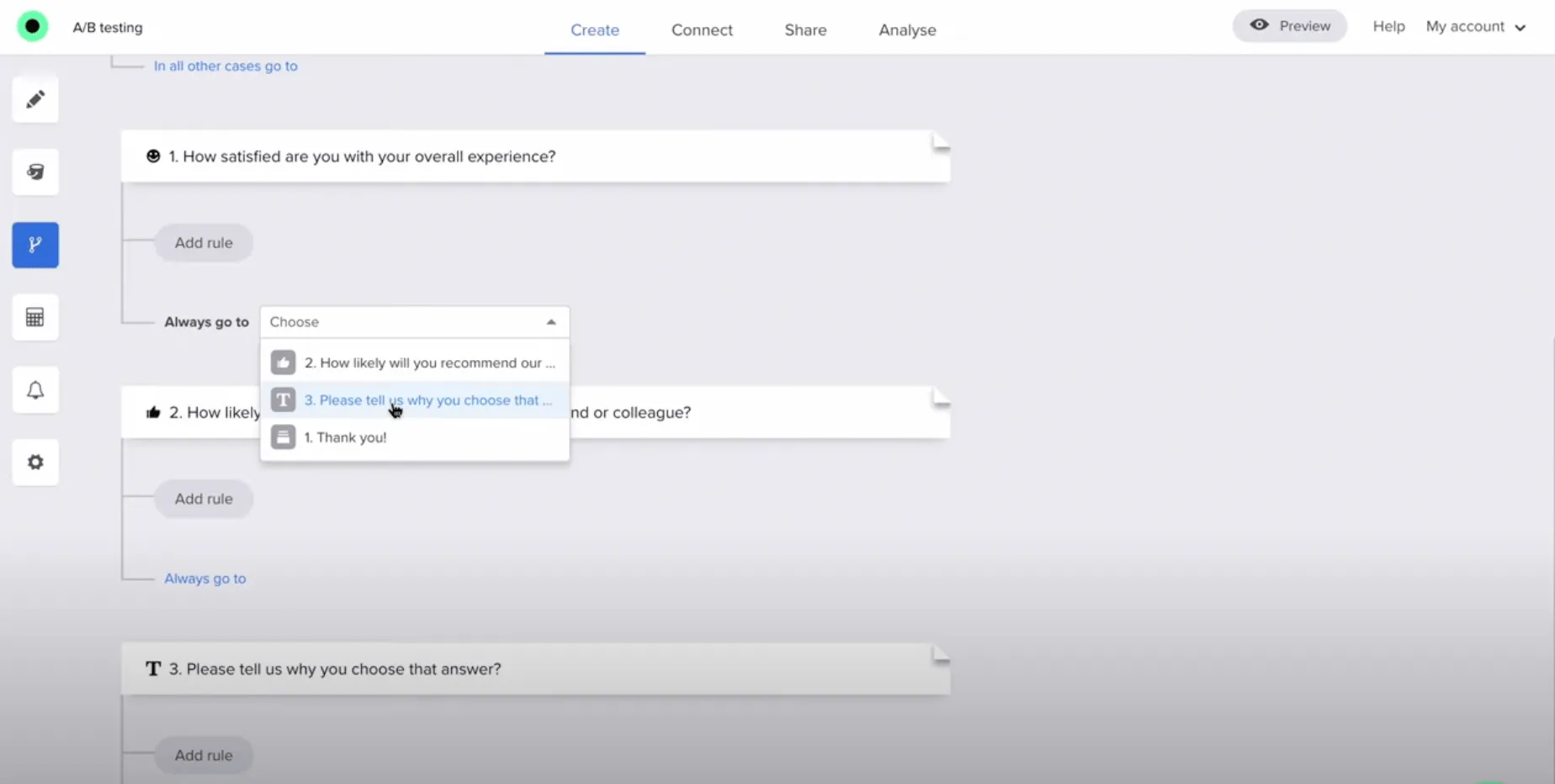
Effect: The respondent skips the first question entirely, sees the second (Yes/No), and then proceeds to the third (Open‑ended text).
By controlling survey flow based on the assigned A/B version, you can dynamically serve different variants to different test groups and then compare performance across versions. You can also combine this with the Distribution module to automatically send out different survey versions.***