Highlight any text in a question, description, welcome screen, or end screen to open the formatting toolbar—use it for bold, italic, links, and emojis so instructions, consent copy, and CTAs stay scannable.
Where formatting applies
- Welcome and end pages – set expectations, legal text, and thank-you messaging—see End page of the survey.
- Question stems and help text – clarify scales, privacy, and incentives.
- Personalized copy – combine with variables from Greeting the respondent when you pass names or codes in the URL.
For the canvas behind the whole form, use How to change the background in a survey.
Toolbar basics
- To use bold or italic or add a hyperlink, highlight the text you want, and you’ll see a new menu:
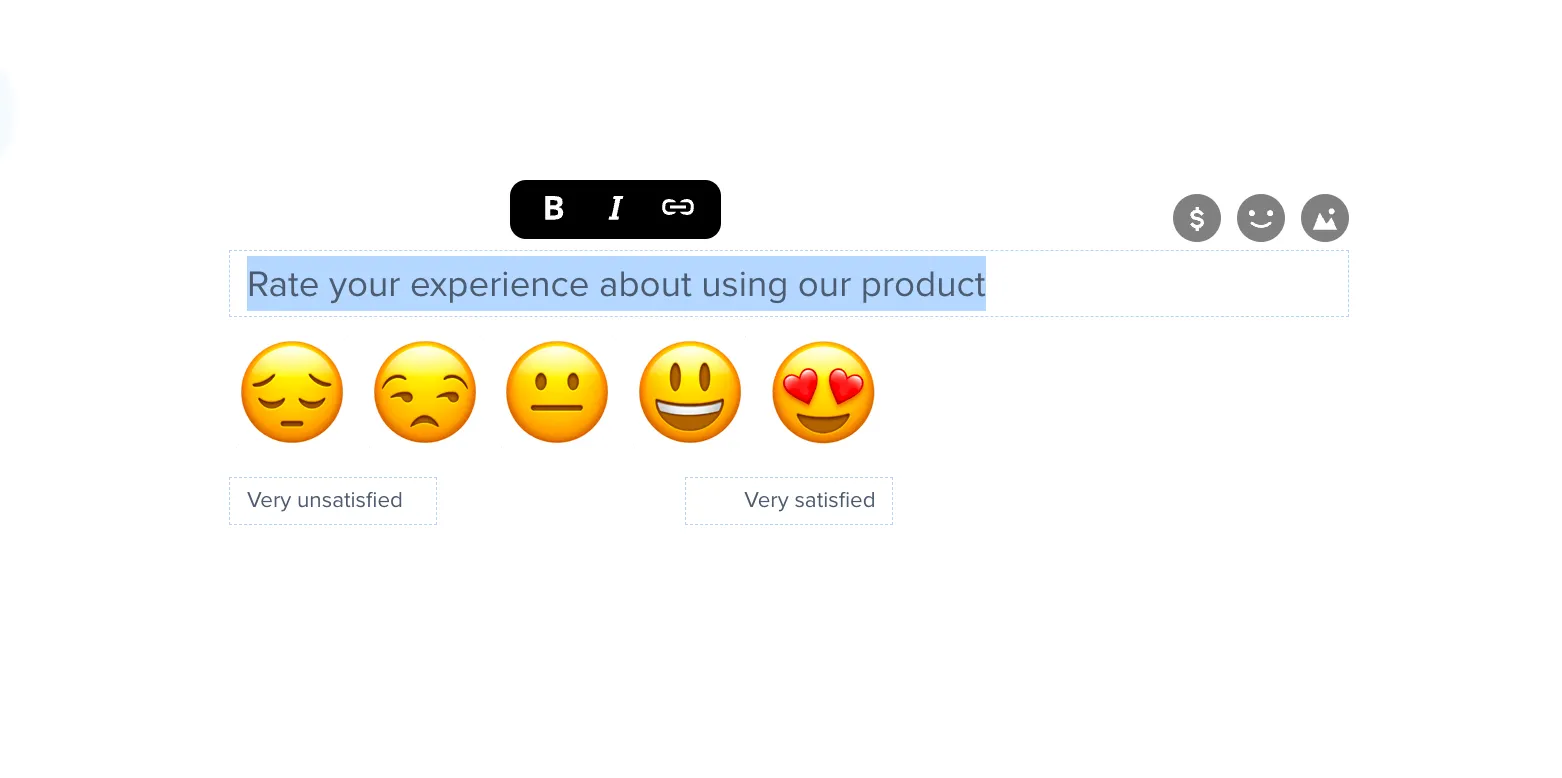
- To use bold or italic, simply click the B or i symbol.
- You can also add emojis by clicking on the smiley face icon.
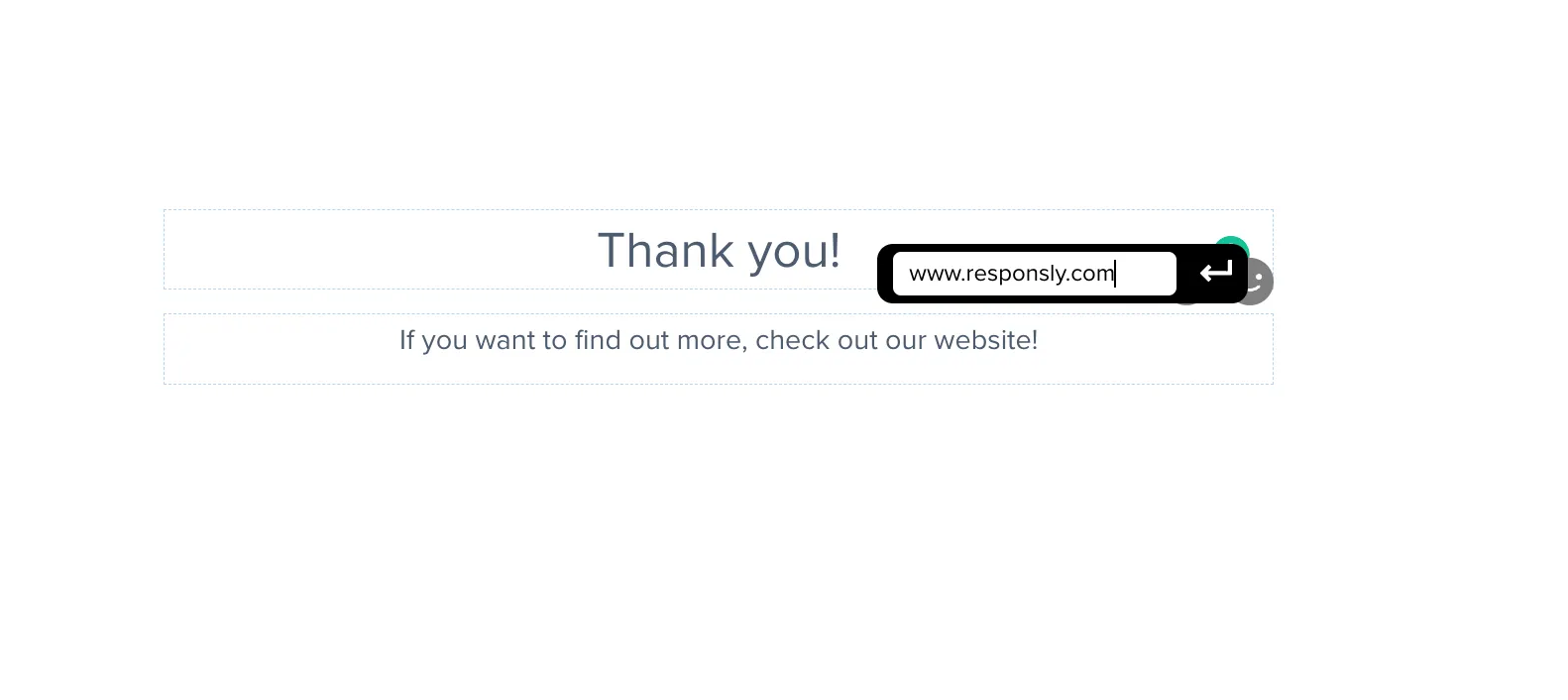
- To add a hyperlink, click the link symbol, then paste or type in the URL you want to use:
FAQ
Where can I use rich text in Responsly?
Use the formatting toolbar anywhere you edit question text, descriptions, and welcome or ending screens. Full-page visuals still come from the Design or background settings.
How do I add a hyperlink in a question?
Highlight the text, open the floating toolbar, choose the link icon, and paste the URL.
Does formatting affect exports?
Exports focus on response values; formatting mainly improves the live respondent experience and on-screen reports.