How to create a quiz

Responsly allows you to create beautiful quizzes easily.
The simplest way is to start from a ready-made template and adapt it to your needs. Quiz templates are available here:
https://www.responsly.com/templates/c/quizzes/

In this guide we’ll cover:

  1. Adding questions
  2. Showing the correct answer
  3. Scoring answers
  4. Displaying the result on the final page
  5. Checking time spent on each question

1. Adding questions

Questions are managed from the menu on the left side of the editor. From the same place you can also select existing questions to edit.
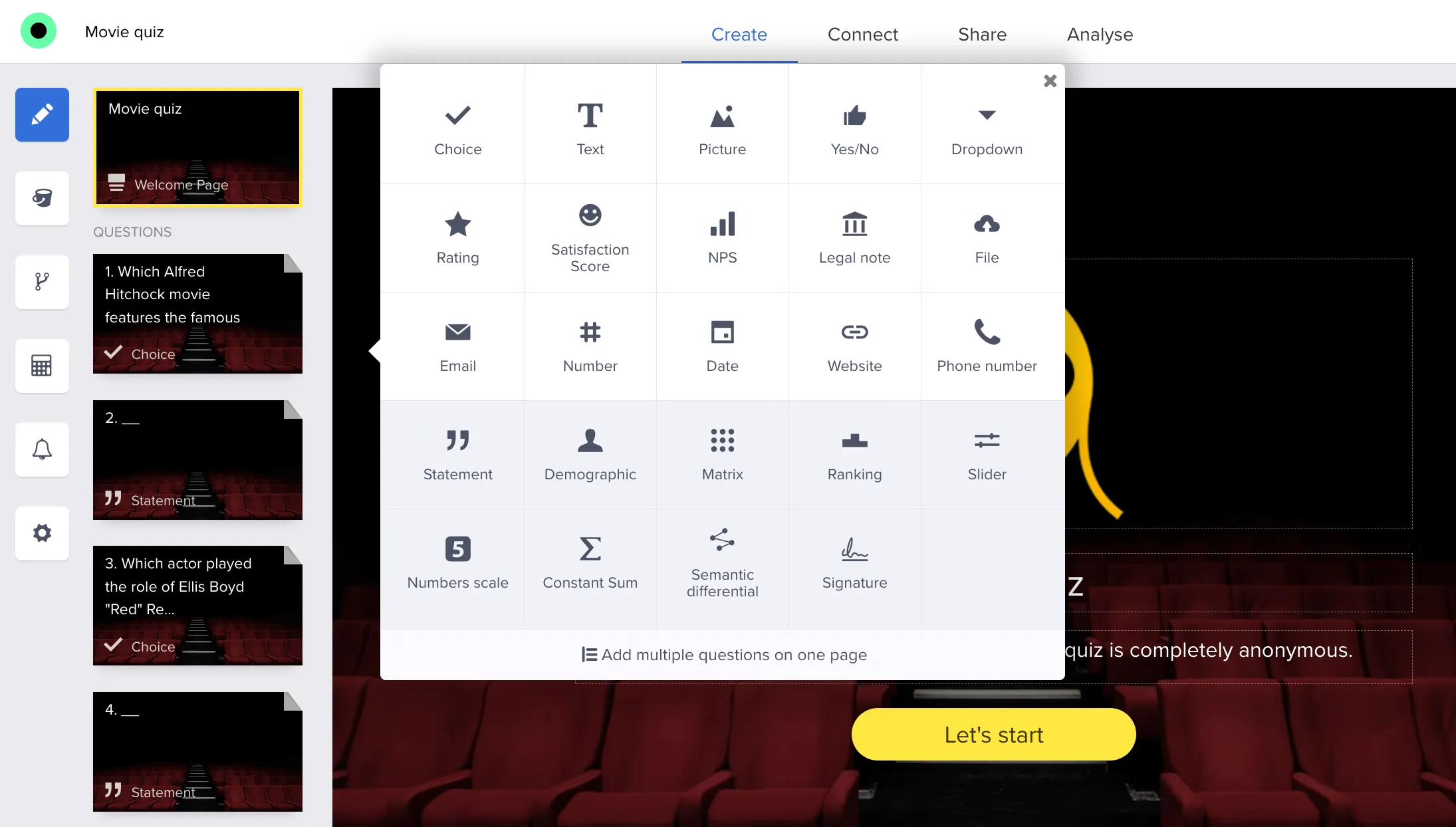
Questions panel

You can read more about available question types here:
https://www.responsly.com/help/c/questions/

2. Displaying the correct answer

To mark correct answers in a quiz and show them either immediately after a question or at the end of the form, follow these steps:

  1. Under the question, add an Insert (statement).
  2. Click the $ icon and choose Compare Answer.
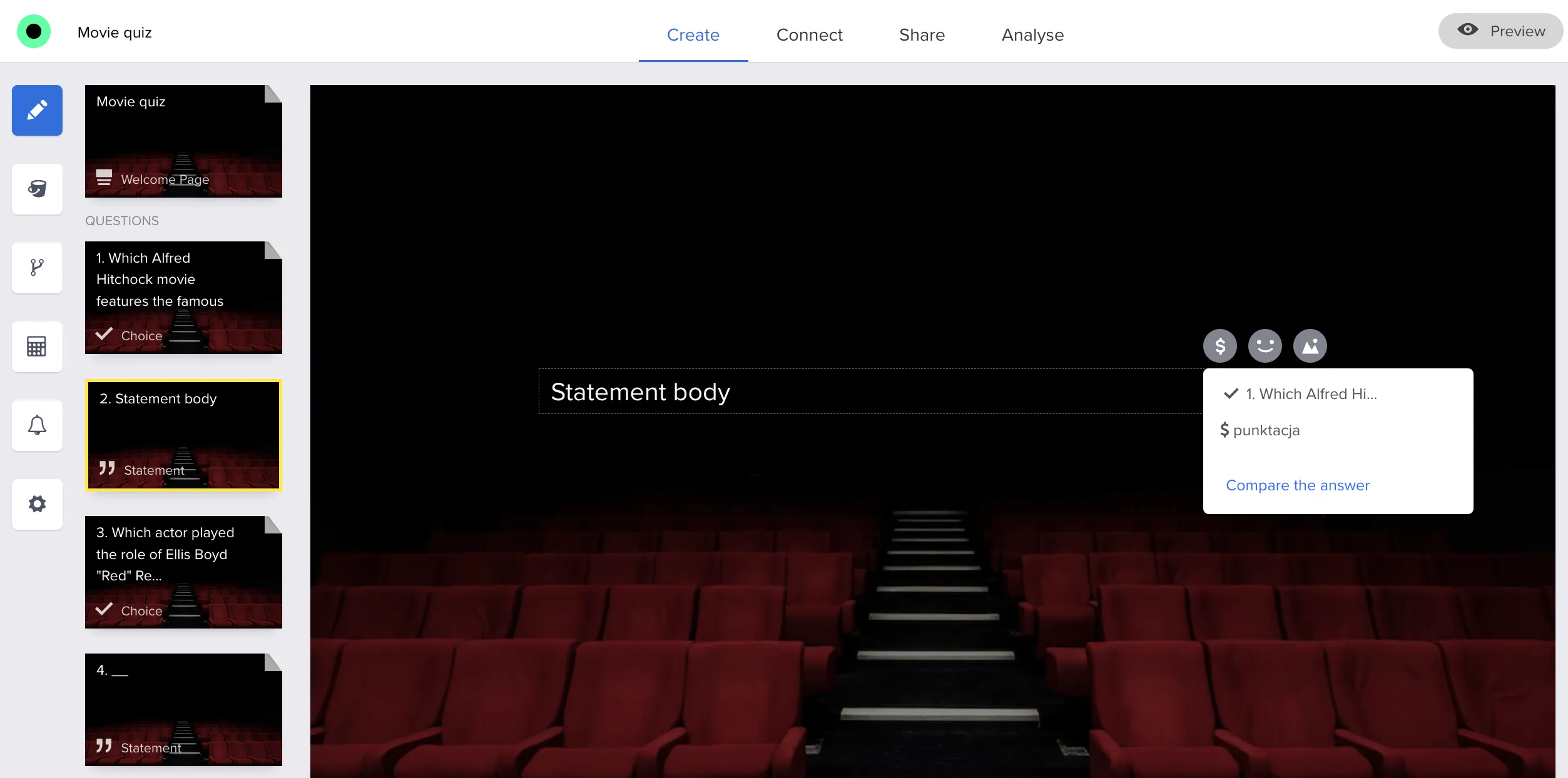
Compare answer insert

  1. In the window that opens, select the question and the correct answer.
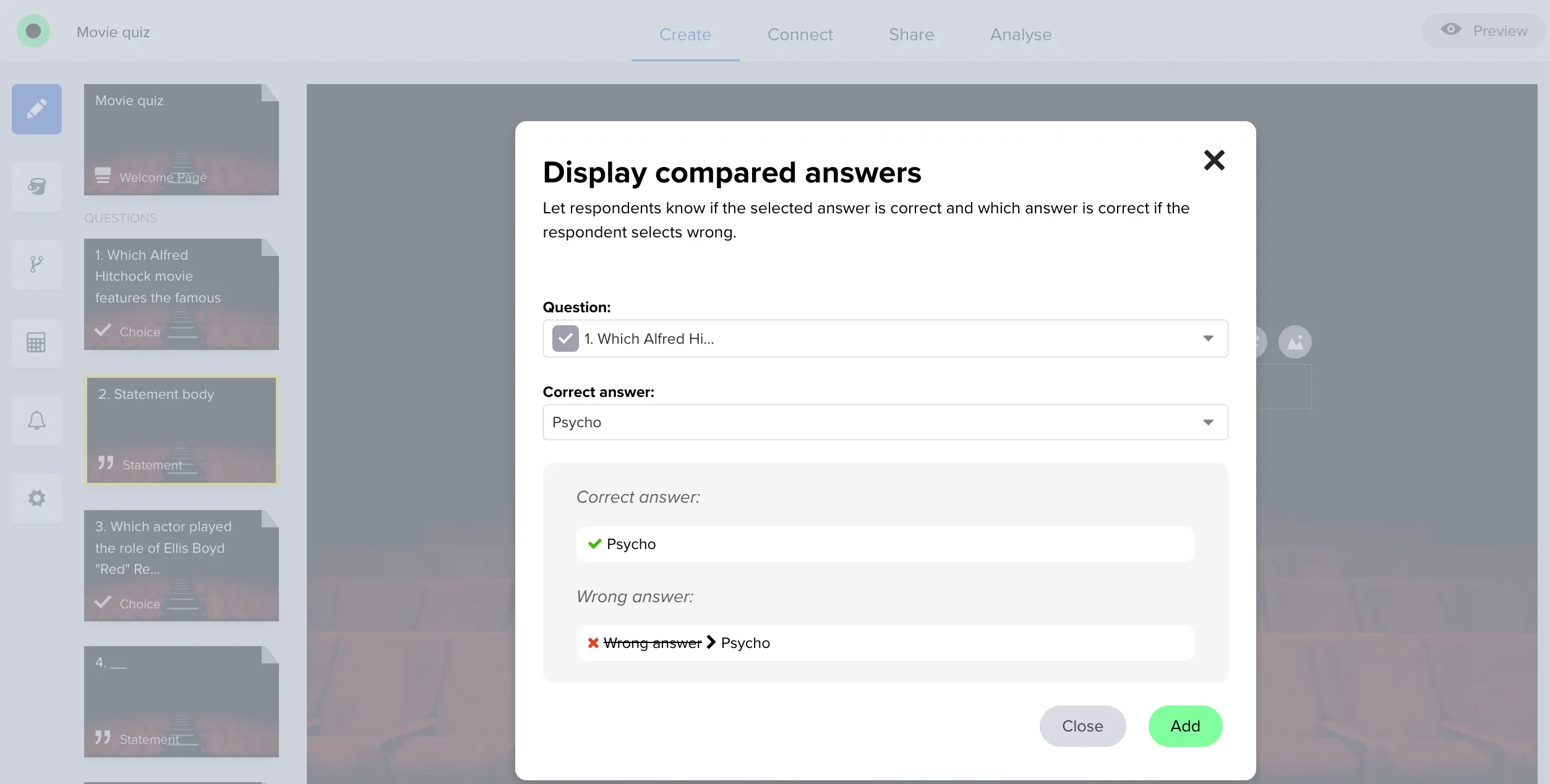
Select correct answer

  1. Click Add.
  2. Optionally, add an explanation in the Comment field below the correct‑answer information.
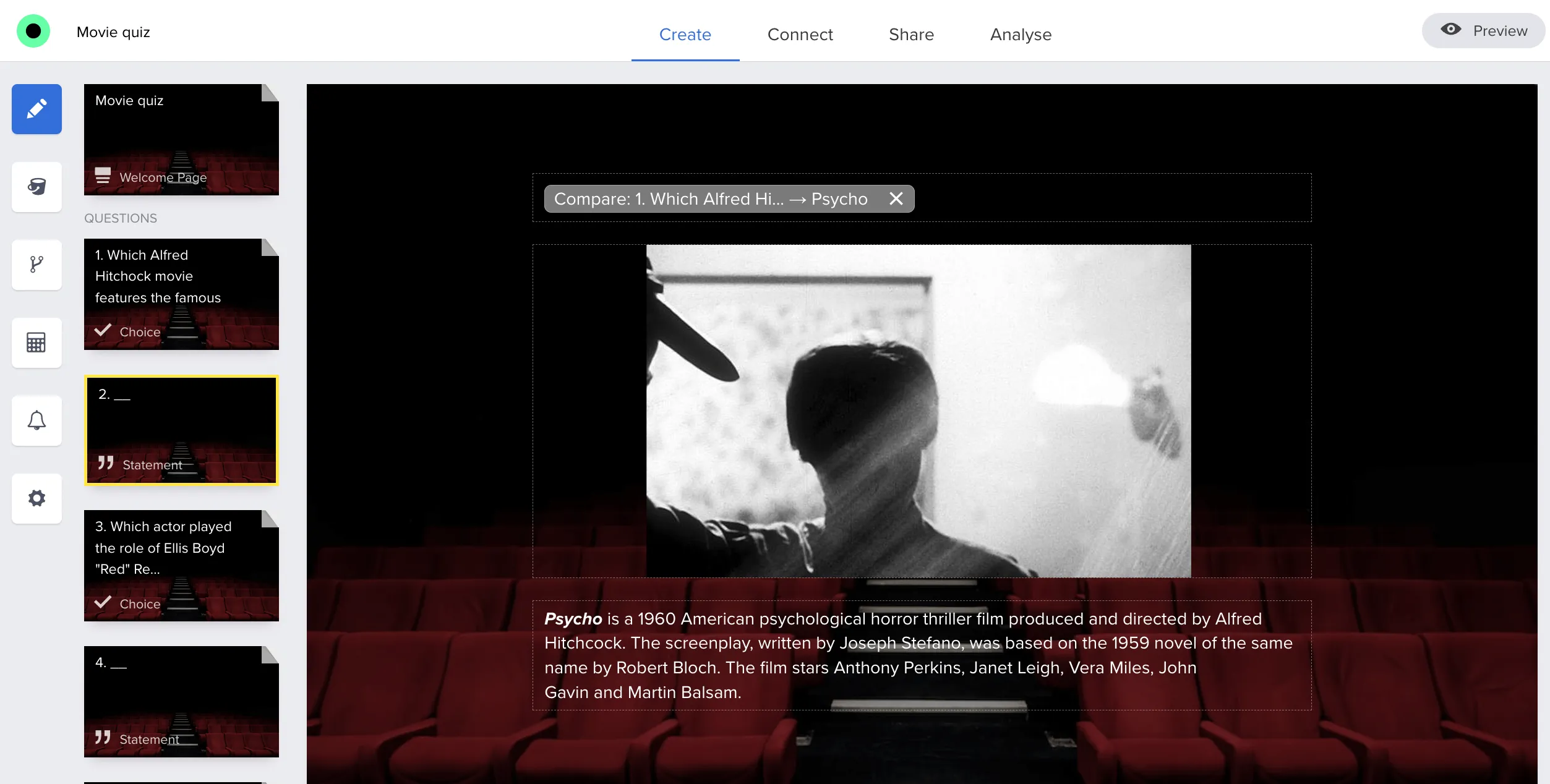
Explanation under correct answer

3. Answer scoring

The Calculator module lets you assign points based on given answers — ideal for tests, quizzes or scoring‑based surveys.

  • You can set different point values for different answers, depending on whether they’re correct or how strong they are.
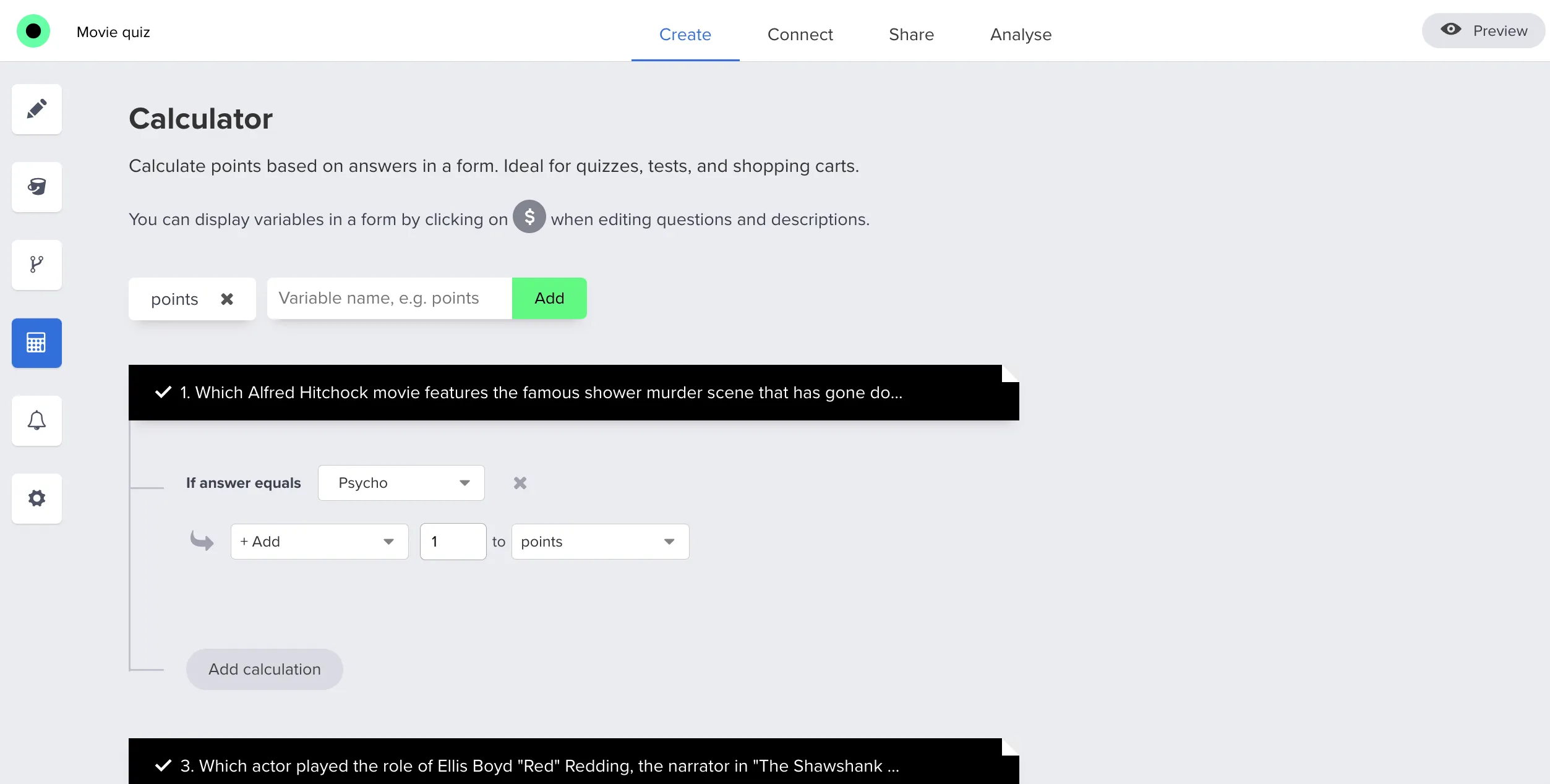
Calculator rules

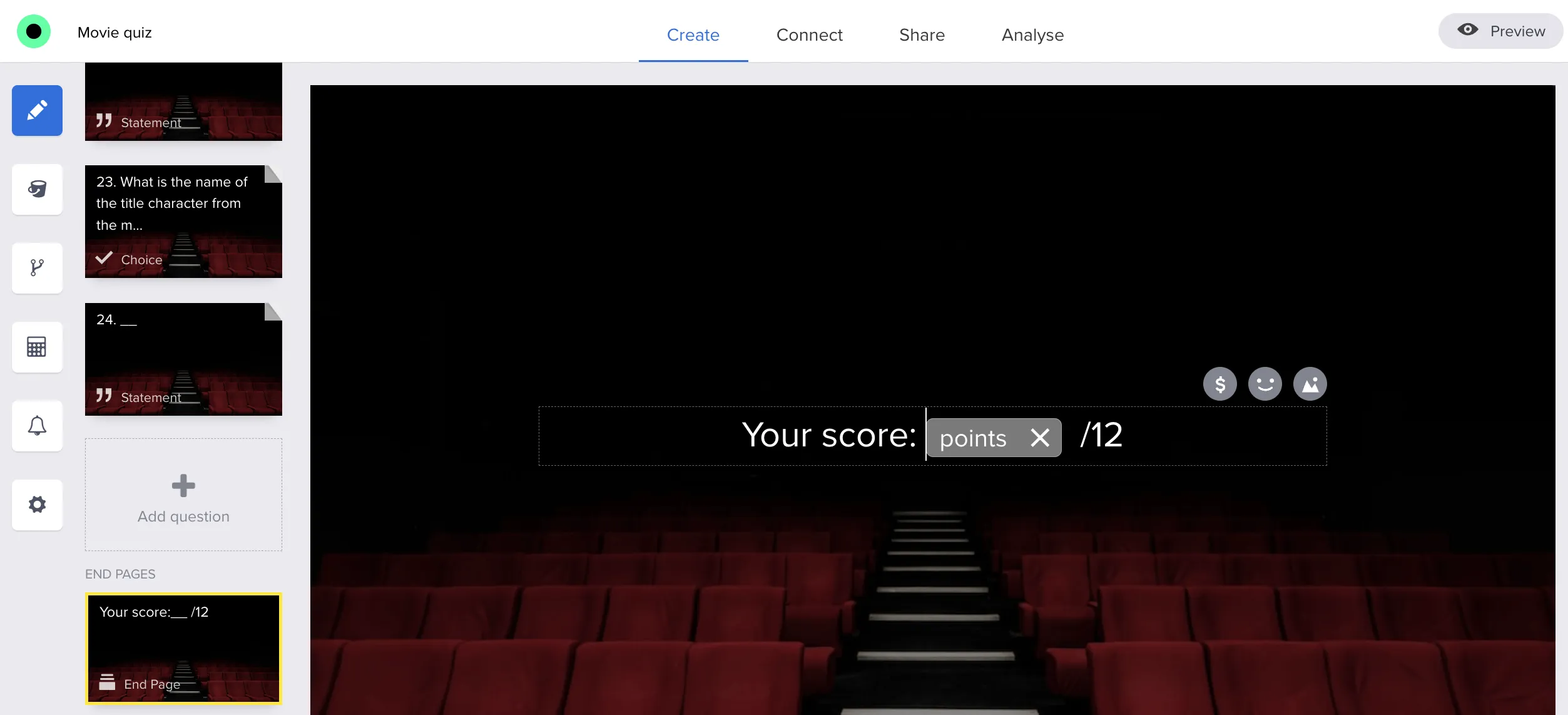
4. Showing the result on the final page

To show the total score on the last page of the quiz:

  1. Open the final page (thank‑you page) in the editor.
  2. Use the $ icon to insert the score variable.
  3. Place it inside your text, for example:
    “You scored $points out of 10.”

Score on final page

5. Time spent on each question

Each response also records how long the participant spent on every question. The data sits in the response metadata as timings, with the seconds spent and the number of visits for each question ID:

"timings": { "j5RaRzW7bb3u": { "seconds": 8.4, "visits": 1 } }
  • Time is added up when a participant goes back to a question, and it pauses while the browser tab is hidden.
  • A group of questions shown on one page is timed as a whole.

Read it through the single-response endpoint of the Responsly API. Typical uses: break ties between participants with the same score, spot answers given too fast to be genuine, and find questions that take most people the longest.

Now your quiz can show correct answers, calculate points automatically and present the final score to each respondent.

FAQ

What do I need to build a quiz in Responsly?

Add quiz questions, mark correct answers with Compare Answer, configure scoring rules in Calculator, and insert score variables on the final page.

Can I show correct answers immediately and still show final score?

Yes. You can display correct-answer feedback after each question and also show the total score on the final page.

Can I see how long each participant spent on each question?

Yes. Every response stores the time spent on each question in its metadata, together with the number of visits to that question. You can read it through the Responsly API, for example to break ties between participants with the same score.

Where can I find quiz templates?

Quiz templates are available in the Responsly template library and can be adapted to your own scoring and branding needs.

Need help or have more questions?